

The Optimize tool
The Optimize tool lives in the Agent run view in the dashboard. Click Optimize at the top right to open the Optimize this session panel. It reads the run’s event history and helps you turn what the Agent did into a better system prompt.1
Open a run and start Optimize
From the Agent’s run view, open the run you want to improve and click Optimize.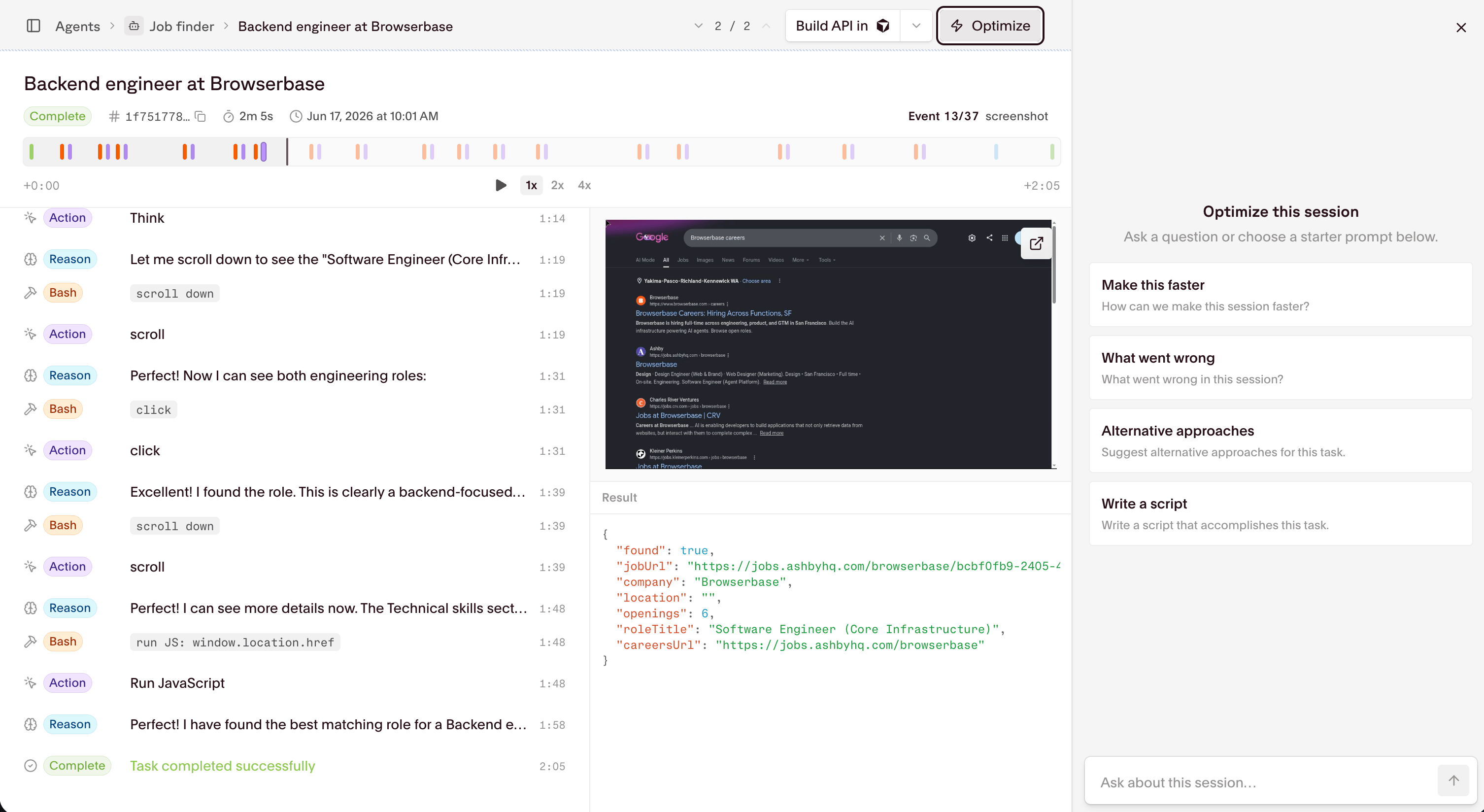
2
Ask a question or pick a starter prompt
Choose a starter prompt or type your own question in Ask about this session. The starter prompts are:
- Make this faster: find steps that wasted time.
- What went wrong: diagnose a failed or off-target run.
- Alternative approaches: suggest a different way to do the task.
- Write a script: generate a Stagehand script that accomplishes the task.
3
Review the analysis
The tool returns a step-by-step analysis of the run: the specific actions that cost time, how much each cost, and what went well. For a job-finding Agent it commonly flags an unnecessary opening screenshot, scrolling to discover roles instead of reading the page’s accessibility tree, and scrolling a detail page instead of reading the URL directly.
4
Apply the proposed config update
When you accept its offer to change the Agent, the tool shows a Proposed config update with a 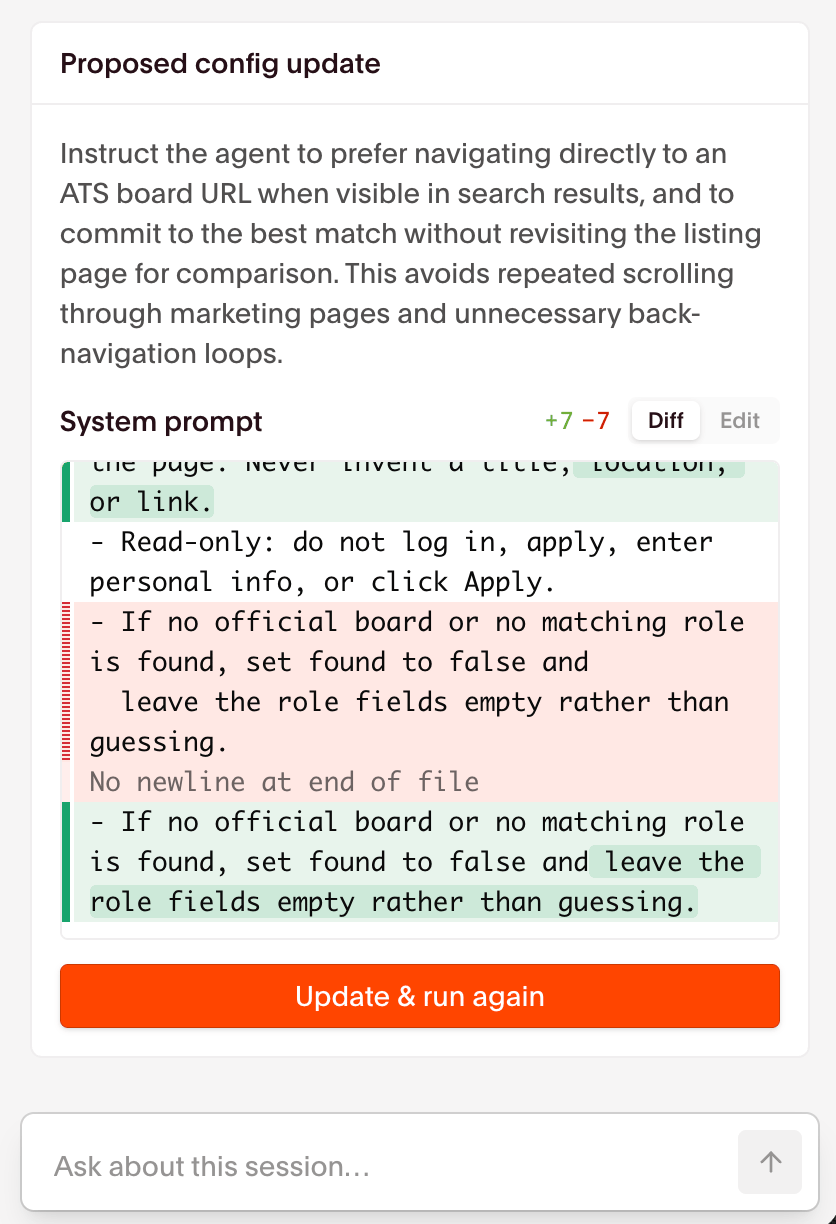
systemPrompt diff (added and removed lines). Use Edit to adjust the wording, then Update & run again to save the new system prompt and start a fresh run so you can confirm the gain.When should you use the Optimize tool?
- When you want to speed up an Agent that works but wanders.
- When a run fails or returns the wrong result and you want to know why.
- When you want a second opinion on how to approach the task.
Best practices
The Optimize tool proposes prompt changes for you, but you can optimize directly through the Agent configuration. These levers map to real fields on Create an Agent and Run an Agent.- Tighten the
systemPrompt. Give explicit steps, name the sources the Agent should and shouldn’t use, and define what success looks like. A scoped prompt removes guesswork that slows runs down. - Set a
resultSchema. A JSON Schema forces structured, repeatable output and stops the Agent from returning prose when you need fields. - Use
variablesfor per-run values. Pass account numbers, dates, or confirmation codes as%variable%placeholders instead of rewriting the prompt for each run. - Prefer official sources. Point the Agent at a site’s own pages or its real applicant tracking system, and steer it away from gated aggregators that block automated access.
Measuring Agent quality
Optimize against numbers, not impressions. Use the dashboard Agent page and run history to watch the same signals over time:
A rising
timeoutRate or failRate is the signal to revisit the prompt or run the Optimize tool again.
Limitations
- Optimize suggestions are advisory. They come from past runs, so review a change before accepting it and confirm the gain on the re-run.
- Agents can’t call custom tools yet. You can give an Agent skills through the
systemPrompt, but custom tool definitions aren’t supported in the current version.
Next steps
Run an Agent
Trigger a run after updating an Agent configuration
Create an Agent
Define a reusable Agent with a system prompt and result schema
Agents quickstart
Build and optimize an Agent in the dashboard
Integrating Agents
Trigger runs and track them from your application