

Generate the script
1
Open a completed Agent run
Open the Browserbase dashboard, select Agents, and choose the completed run you want to reproduce.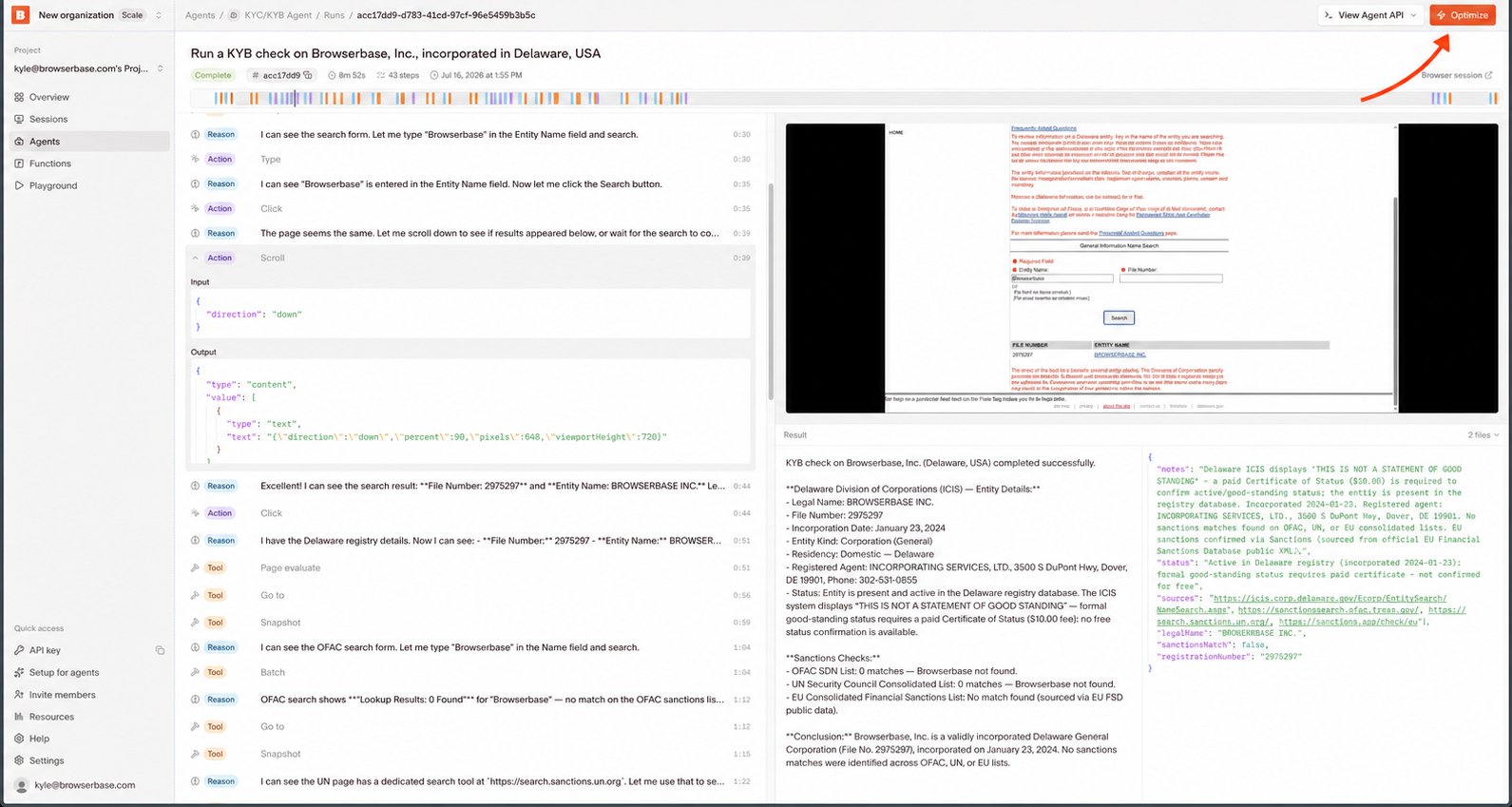
2
Open Optimize
Click Optimize in the run view. Optimize uses the run’s event history, so you don’t need to describe every action again.
3
Ask for a Stagehand script
Enter this prompt in Ask about this session:You can also select Write a script from the starter prompts.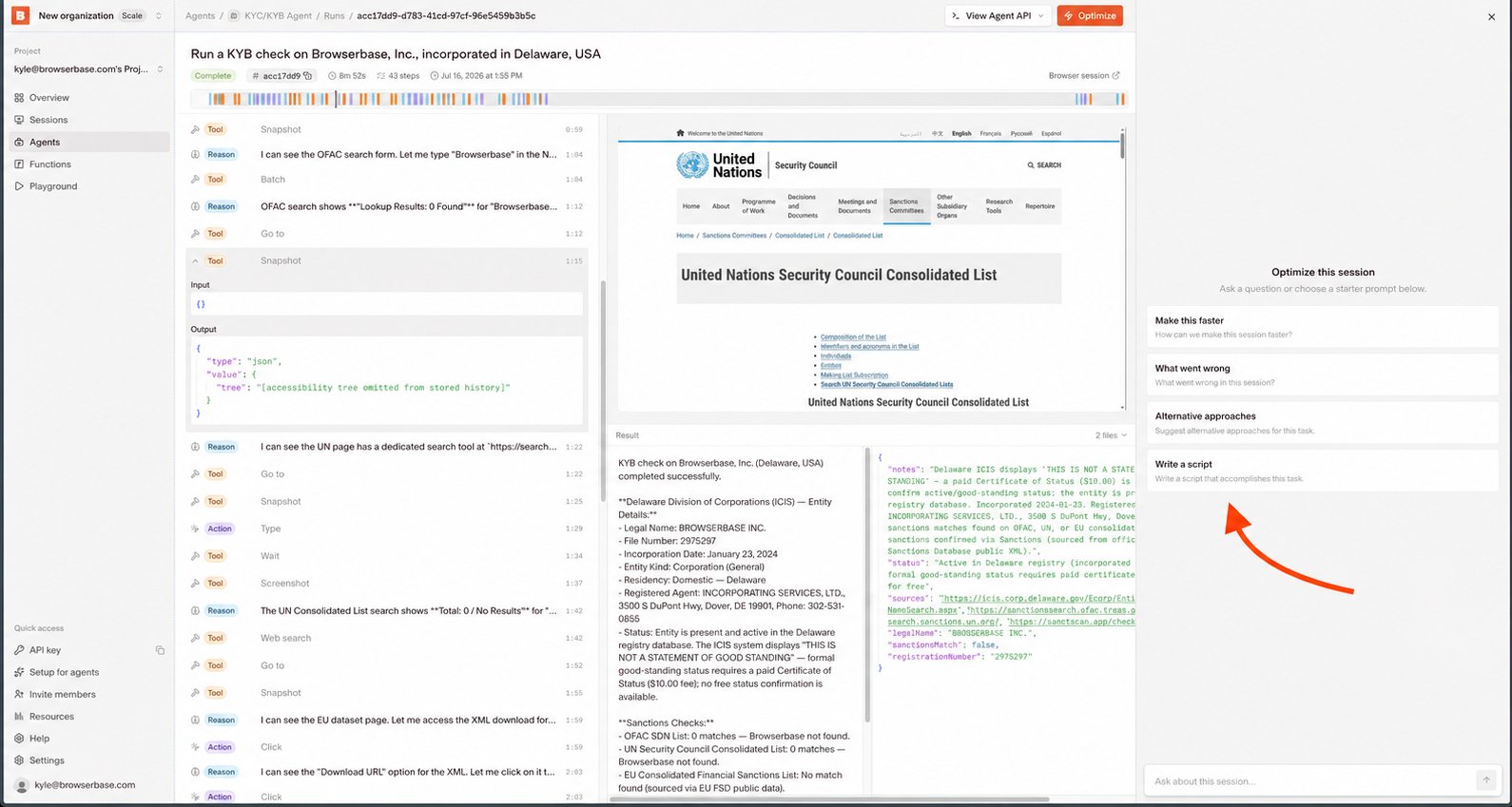
4
Review and copy the script
Optimize returns a Stagehand script based on the run. Review the URLs, actions, extraction logic, and expected result, then copy the code into your project.Treat the generated script as a starting point. Run it against the same workflow before you use it with new inputs or sites.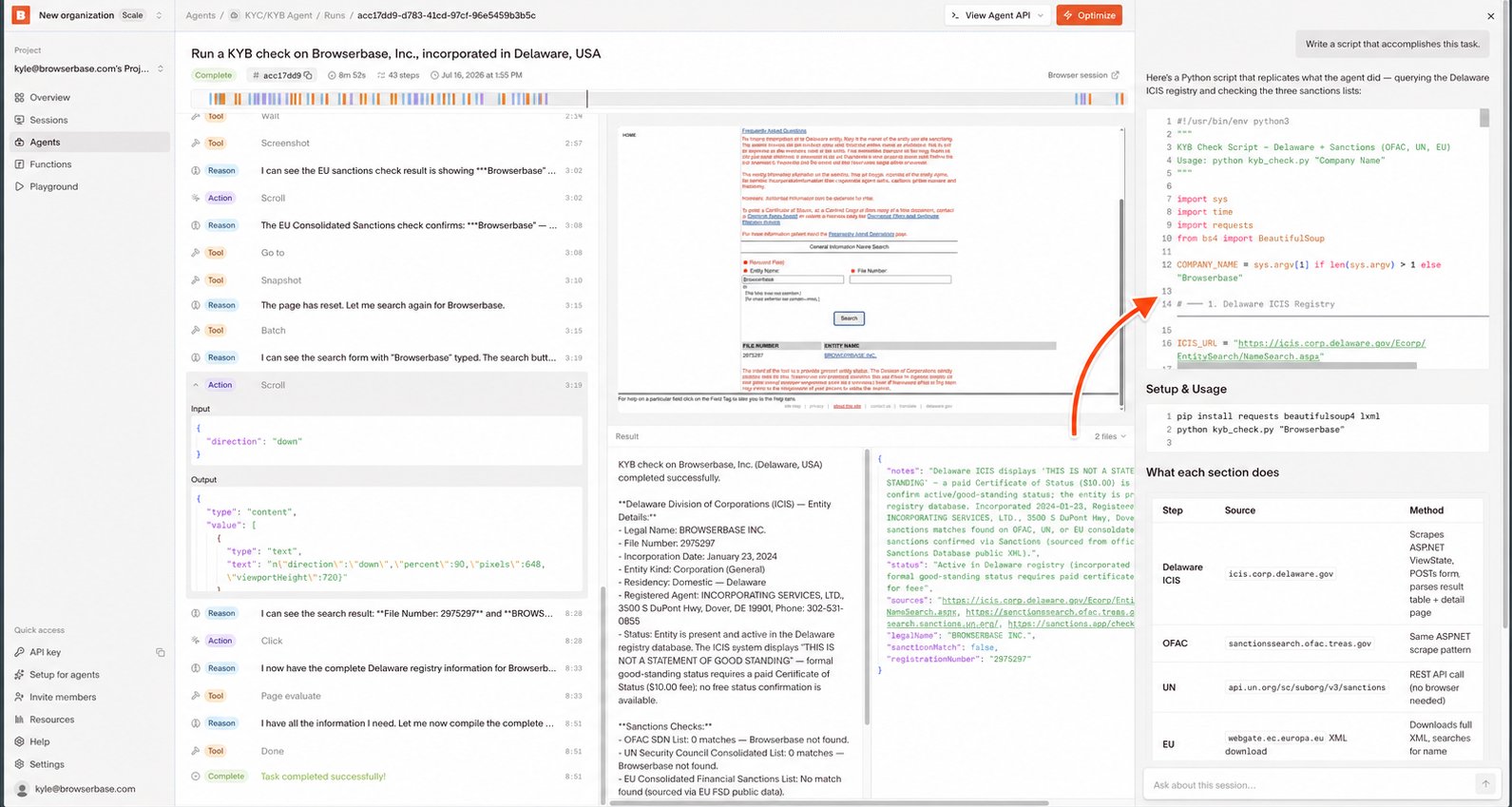
5
Run the script with Model Gateway
Follow the Stagehand quickstart to install Stagehand, set
BROWSERBASE_API_KEY, and run the generated file.Stagehand automatically uses Model Gateway when you use a Browserbase-hosted browser without a provider-specific API key. You can run the generated script with one Browserbase API key and no separate model provider account.When to generate a script
Generate a script when you have a successful Agent run and want more control over how the workflow executes. A script lets you:- Edit individual Stagehand or Playwright steps.
- Add the workflow to an existing application.
- Test changes with your development tools.
- Reuse a known path for repeated tasks.
Next steps
Stagehand quickstart
Install Stagehand and run your generated script
Model Gateway
Use models through your Browserbase API key
Optimize an Agent
Improve an Agent from its run history
Integrate an Agent
Trigger Agent runs from your application