

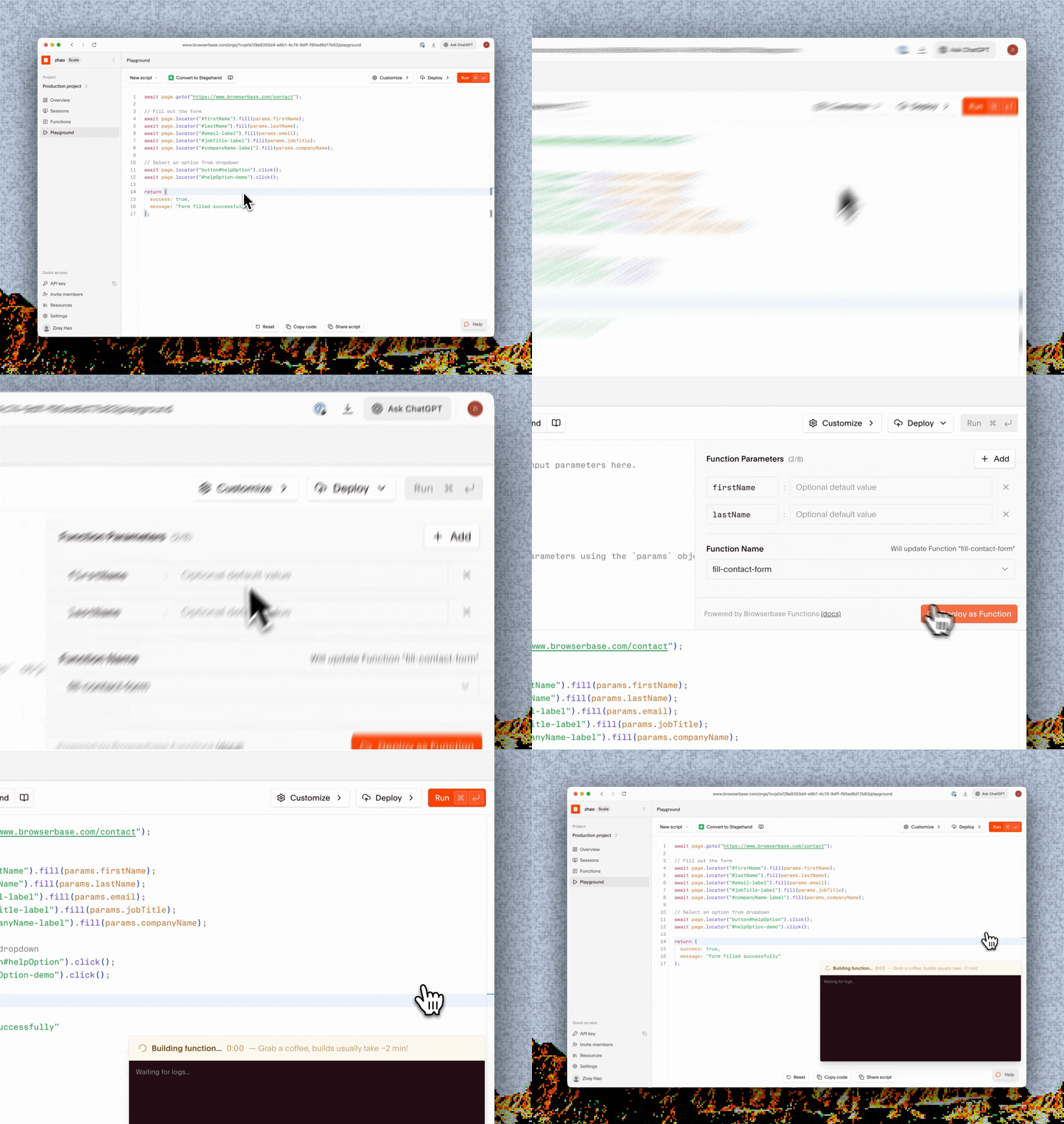
The Browserbase Playground provides a visual interface for creating and deploying Functions without needing to set up a local development environment. Write your Stagehand automation script directly in the browser, test it with the Run button, and deploy as a function with a single click.Documentation Index
Fetch the complete documentation index at: https://docs.browserbase.com/llms.txt
Use this file to discover all available pages before exploring further.
Why use the playground?
- No local setup - Start writing Functions immediately without installing any tools
- Instant feedback - Test your automation and see results in real-time
- Built-in editor - Full-featured code editor with Stagehand support
- Function parameters - Define input parameters with optional default values
- One-click deploy - Publish your Function directly to Browserbase infrastructure
- Live session view - Watch your automation run in a live browser view
Creating and deploying a Function
Open the playground
Navigate to the Browserbase Dashboard and click on Playground in the navigation bar.
Write your script
The Playground editor comes pre-loaded with a Stagehand template. Write your automation logic using Stagehand:
The Playground automatically provides Stagehand configuration and initialization. You can also use the Convert to Stagehand button to convert plain Playwright scripts.
Define Function parameters
Use the Function Parameters panel on the right side to define inputs for your Function. Click + Add to create parameters: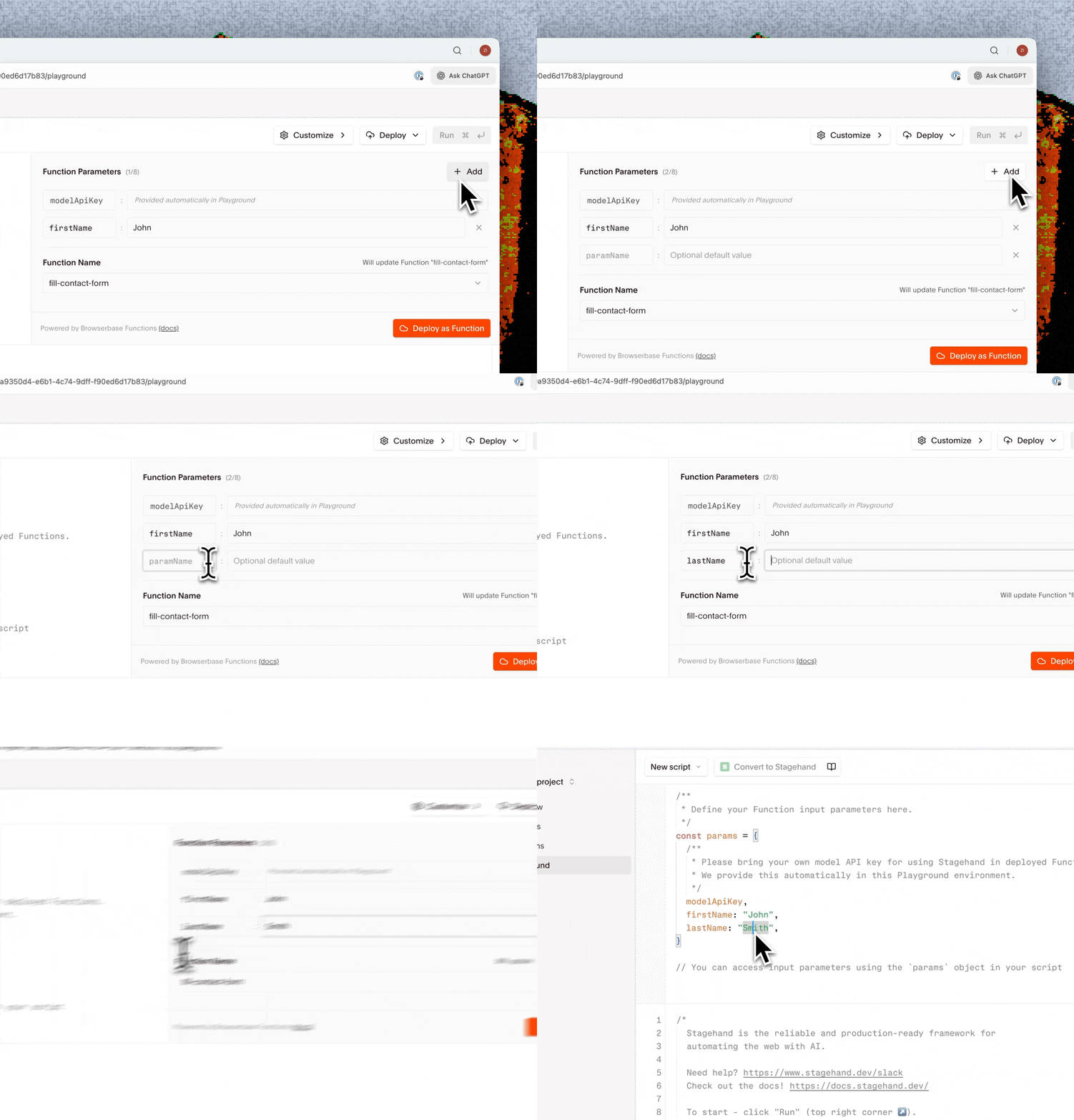
- Parameter name - The key used to access the value (e.g.,
searchQuery) - Default value - Optional fallback value if not provided at invocation
params object:You can define up to 8 Function parameters. Some parameters like
modelApiKey are provided automatically in the Playground environment.Test your script
Click the Run button to test your script. The Playground will:
- Create a new browser session
- Execute your automation code
- Display console output and results
- Show a live view of the browser session
Deploy as a Function
Once you’re satisfied with your script: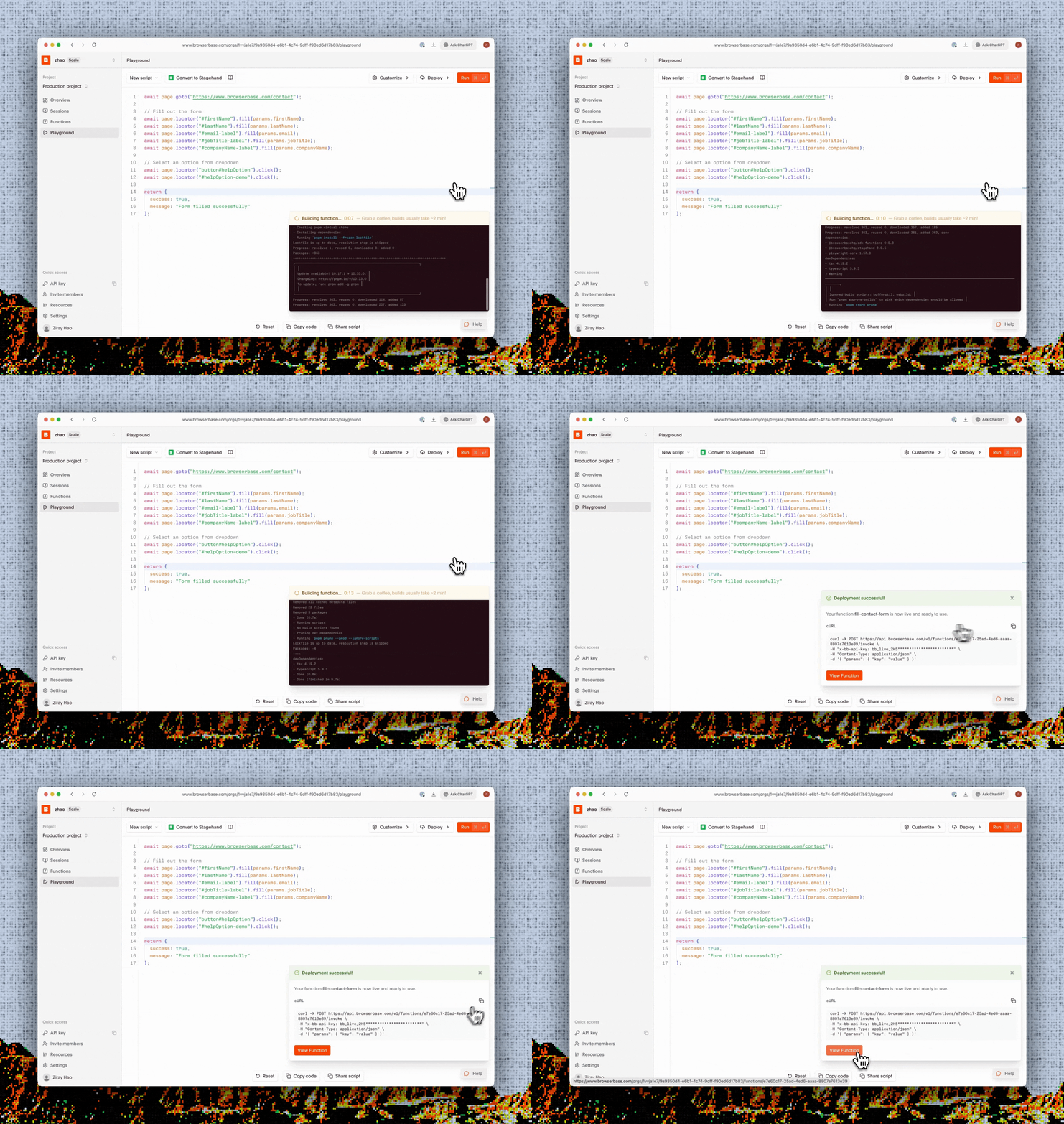
- Set the Function Name in the panel on the right (e.g.,
search-hacker-news) - Click Deploy in the toolbar, then select Deploy as Function
- Confirmation that your Function is live
- A ready-to-use cURL command for invoking your Function
- A View Function button to see your Function in the Functions dashboard
Managing deployed Functions
Click View Function in the deployment modal or navigate to the Functions tab to see your deployed Functions. From here you can:- View Function details and invocation history
- See previous versions of your Function
- Copy the invoke URL and cURL commands
- Delete Functions you no longer need
Transitioning to local development
As your Functions grow more complex, you may want to transition to local development for better tooling and version control. See the Functions documentation for setup instructions.Next steps
Functions quickstart
Set up a local development environment for advanced Function development
Functions reference
Learn more about the Functions API and configuration options