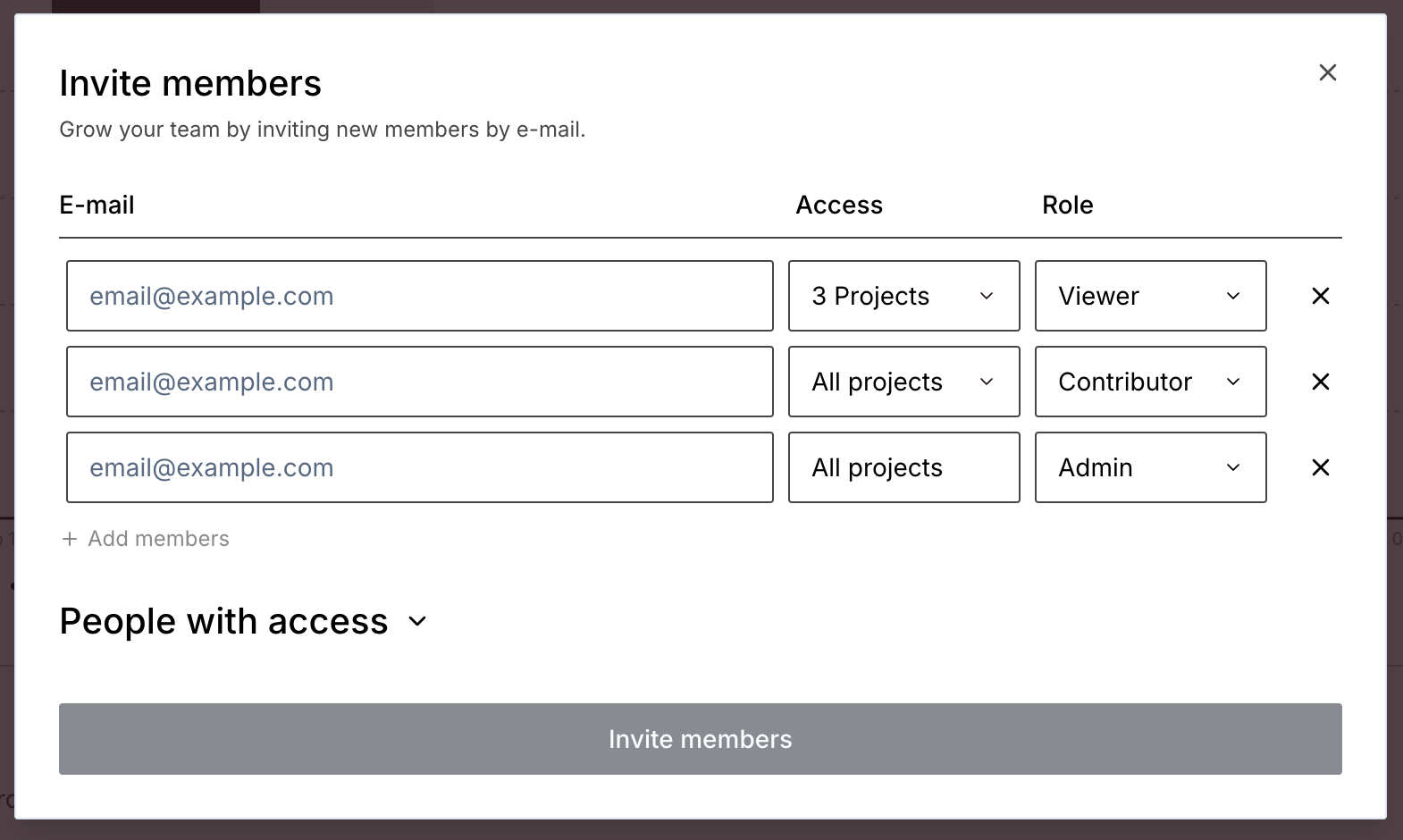
There are three roles a user can have within an organization: Admin, Contributor, and Viewer.
Admin
Contributor
Viewer
Invite new users
✅
❌
❌
Manage users
✅
❌
❌
View sessions
✅
✅
✅
Stop sessions
✅
✅
❌
View plan usage
✅
✅
❌
Run scripts in the playground
✅
✅
❌
Change project settings
✅
✅
❌
View API key
✅
✅
❌
Regenerate API key
✅
❌
❌
User roles only affect what permissions a user has within the dashboard itself. They don’t change who can interact with sessions via the API—that’s what your API key is used for.
You can manage and change what roles members have in your organization using the settings page in your dashboard. After logging in, navigate to your organization page using the switcher in the main menu, then click on Settings and scroll down to the member list.When inviting new users you will also assign a role to them at the same time.
When you invite a new user to your organization, you can select which projects the user should have access to in addition to their role:Users that have “all projects” selected will be able to access all current projects in addition to any projects created in the future. If you need to restrict a user to only existing projects, select them individually in the drop down.Admins cannot have their project access restricted. Users will need to have either the contributor or viewer role in order to restrict their project access.