

Session Live View
Watch and interact with browser sessions in real-time as they run.
Session Inspector
Replay every session in the Dashboard to debug issues after the fact.
Session Replay
Stream session replays as HLS to embed playback in your own application.
Dashboard
Video replay
Every session is automatically captured for video replay, supporting up to 10 tabs. Video replays are available in the Session Inspector for playback and debugging. After the session completes, the recording is available athttps://browserbase.com/sessions/{session.id}.
Browserbase retains a session’s recording for up to 30 days after the session ends on non-BYOS projects (24 hours on BYOS projects). After that, the recording is no longer available in the Session Inspector or through the Session Replay and Recording downloads APIs. To keep replays longer, download them as MP4 files within the retention window.
- Playback speed control (0.5x, 1x, 2x, 4x)
- Timeline navigation
- Pause/resume at any point
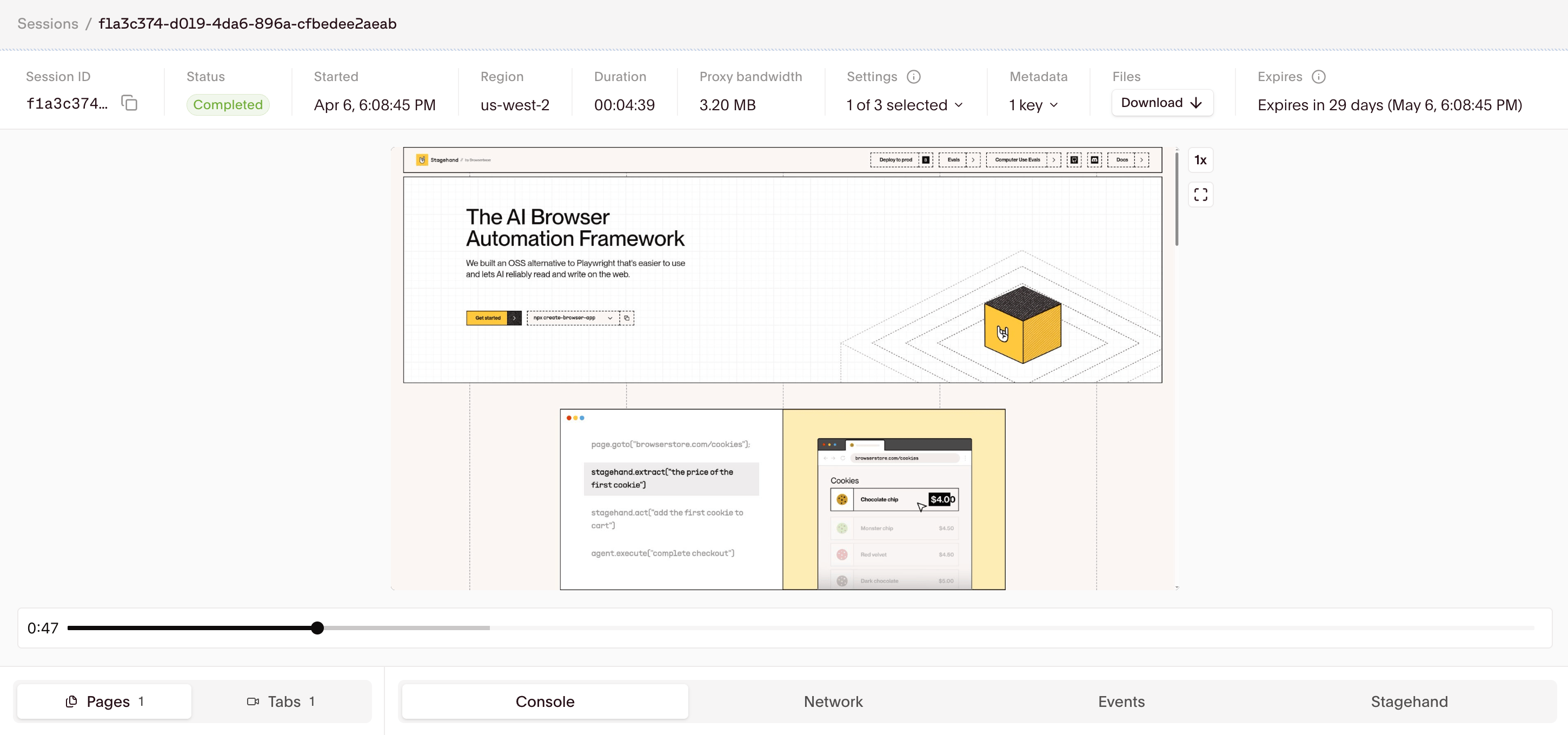
Session Replay
To embed playback in your own application, stream session replays as HLS through the Session Replay API.
Live view
Debug running sessions in real-time using the Live Debug URL.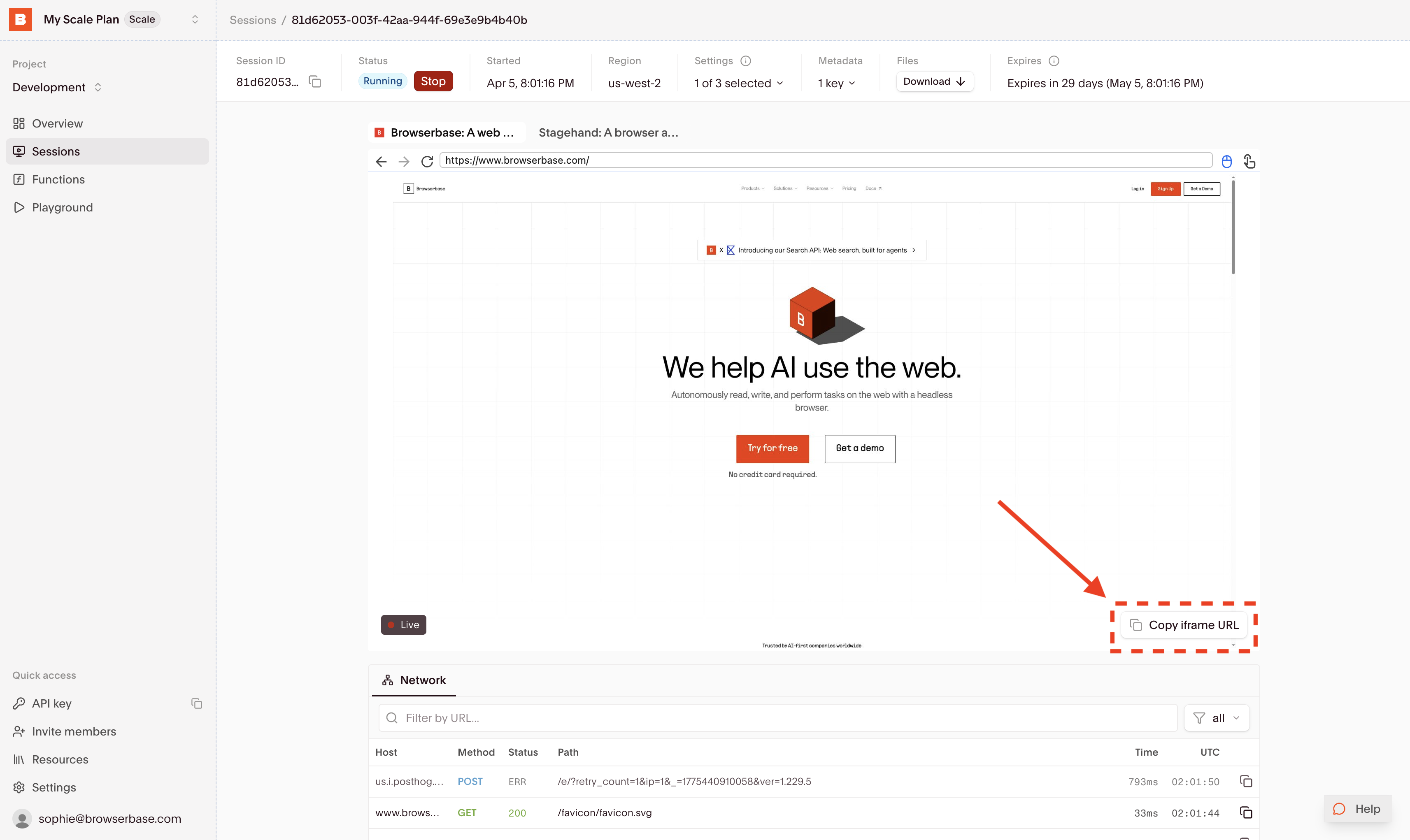
Copy Debug URL button appears in the Session Inspector when a session is actively running.
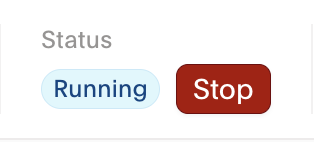
Status bar
The Status Bar displays session metadata and status information.
Events and pages
The Events view shows a timeline of activity during the session.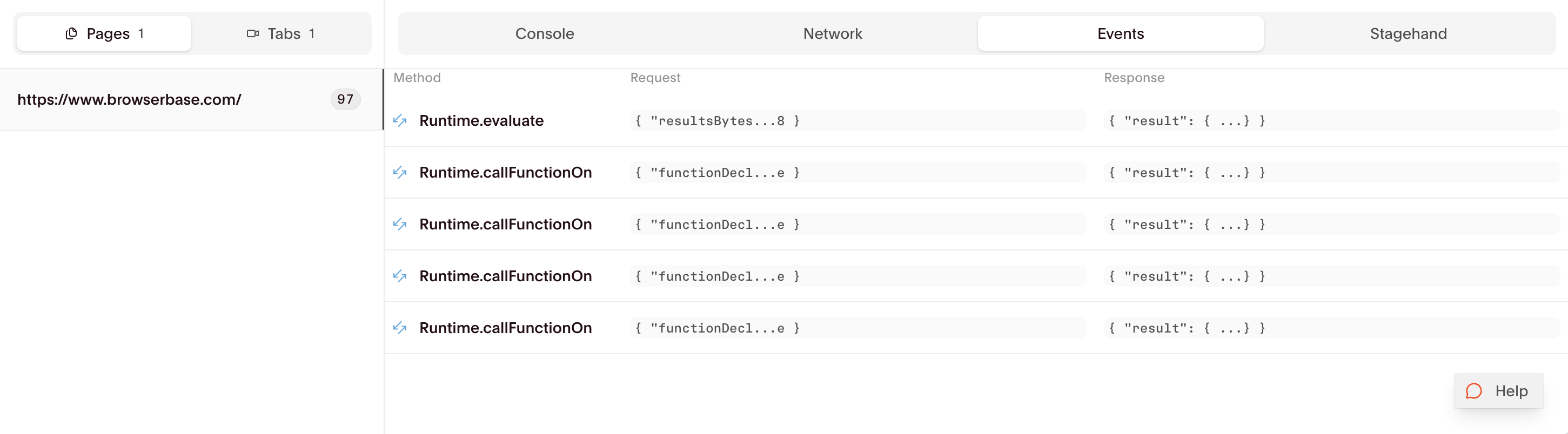
- Pages loaded during the session
- CDP events (
Runtime.*,Page.*,Input.*,Log.*) - Network requests and responses
Stagehand
The Stagehand tab provides inspection tools for sessions created with Stagehand.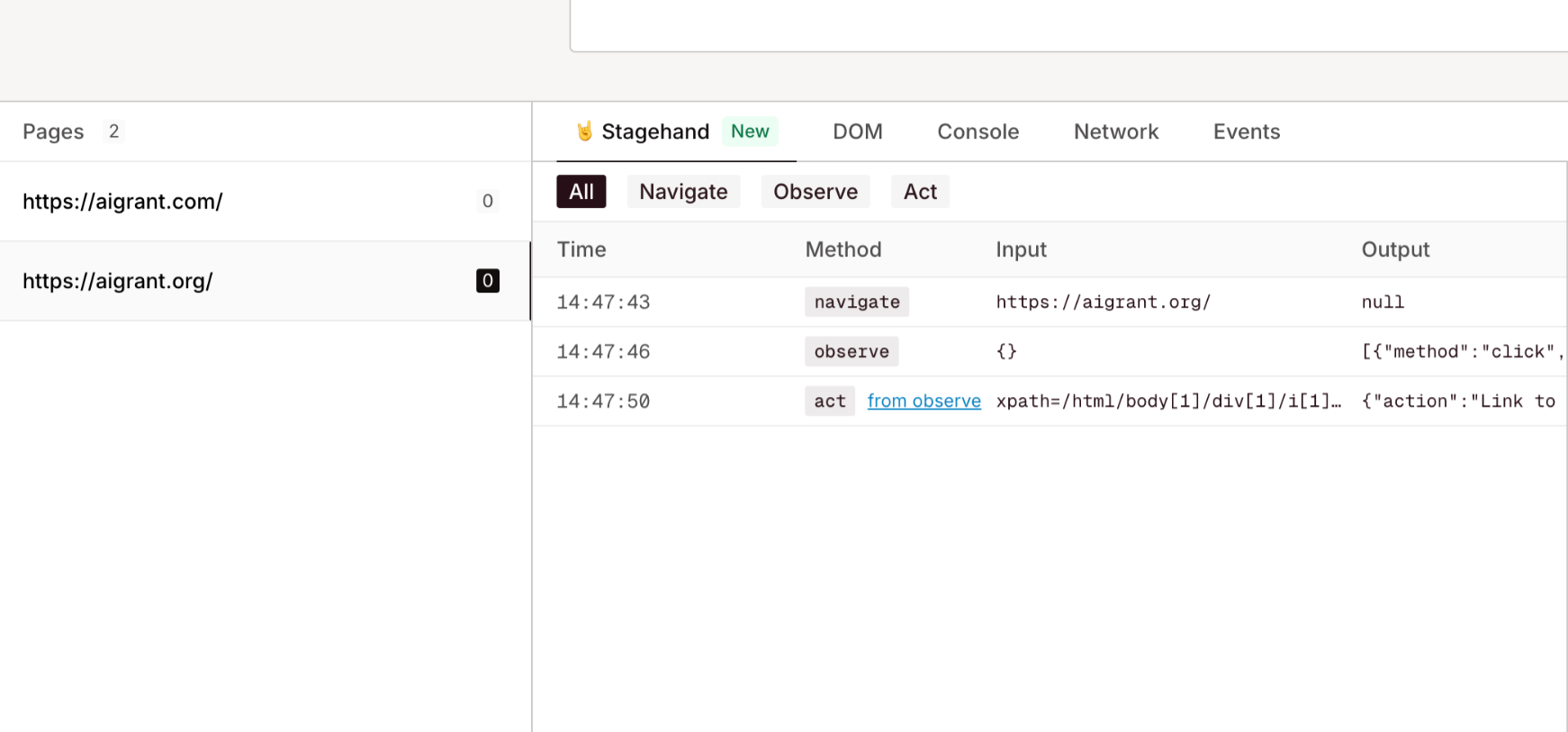
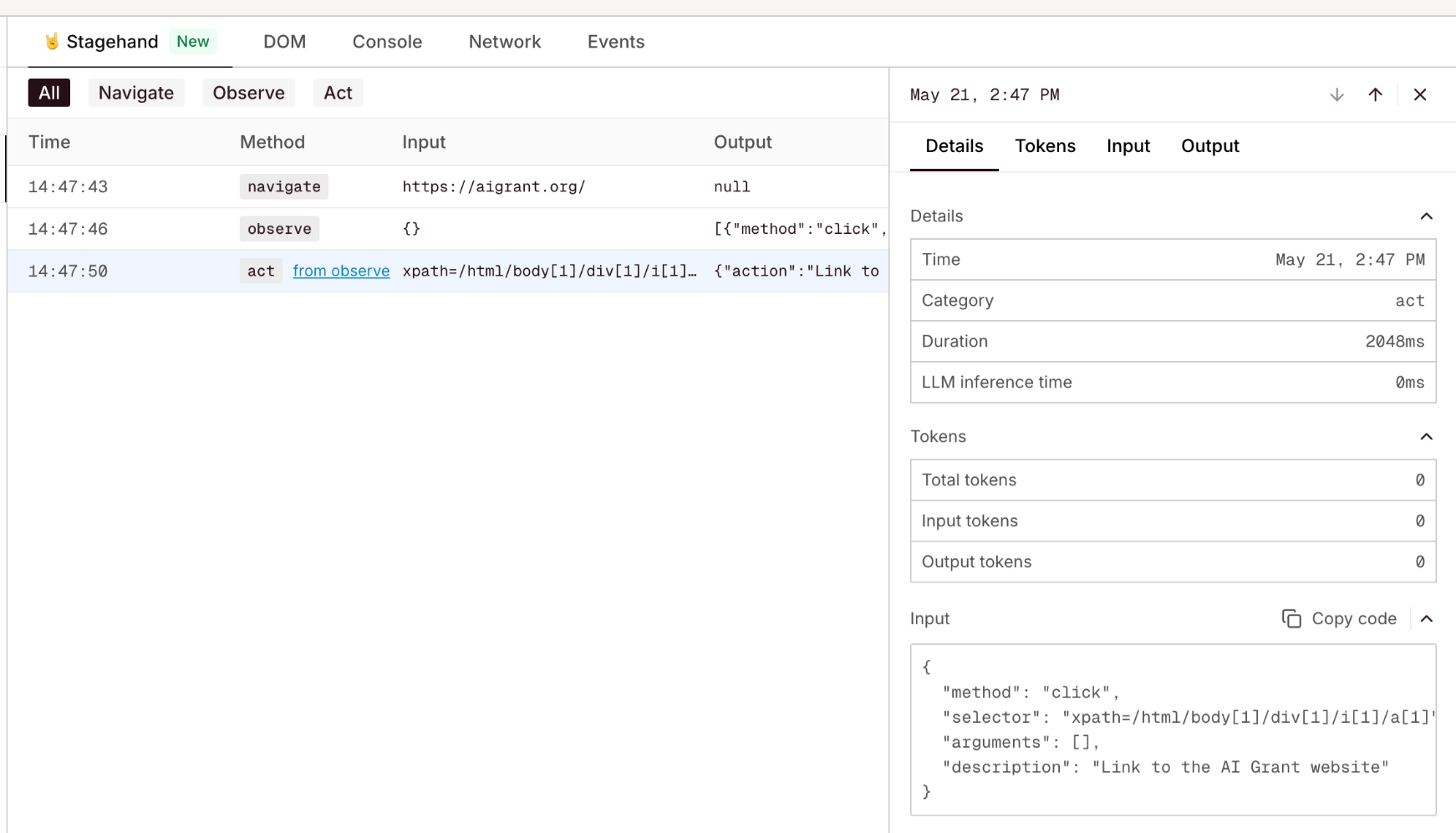
- Token usage
- Execution time
- Extraction schemas
- Execution results
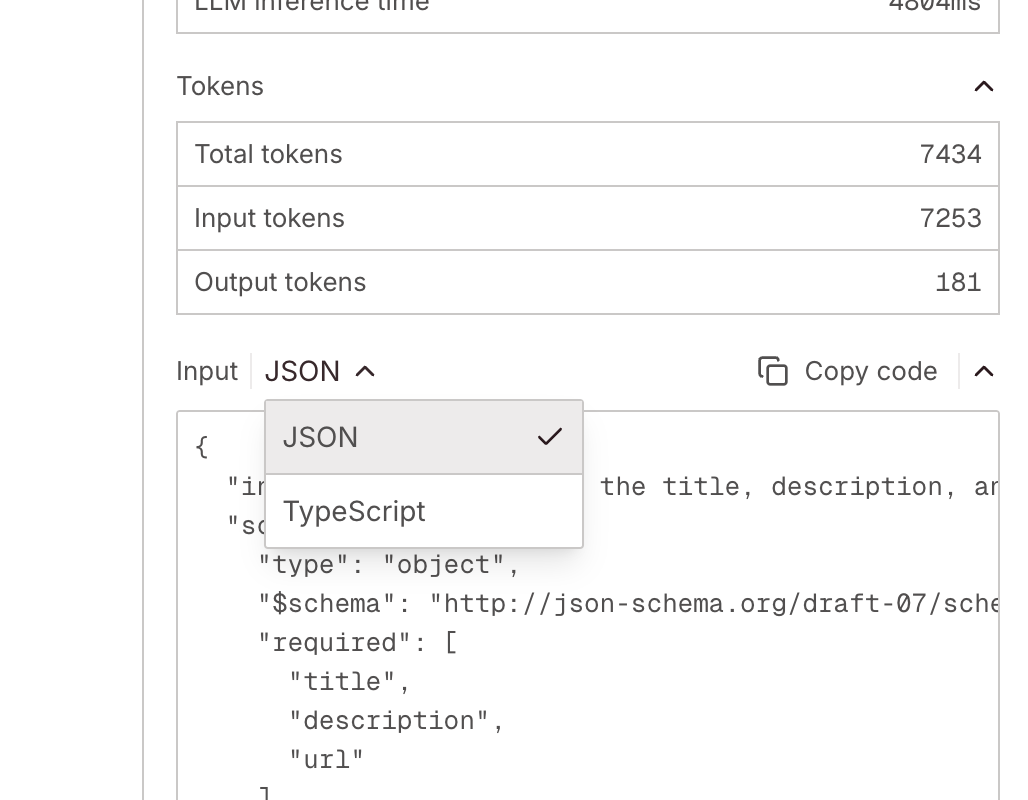
extract calls, switch between JSON and Zod schema formats:
Console logs
View browser console logs emitted by the Web Console API (console.log(), console.error(), etc.). These are logs generated by JavaScript running on the page.

browser-solving-started/browser-solving-completed- Captcha solving eventsStarting recording- Recording initialization
Network logs
View all HTTP network requests and responses captured via Chrome DevTools Protocol (Network events).
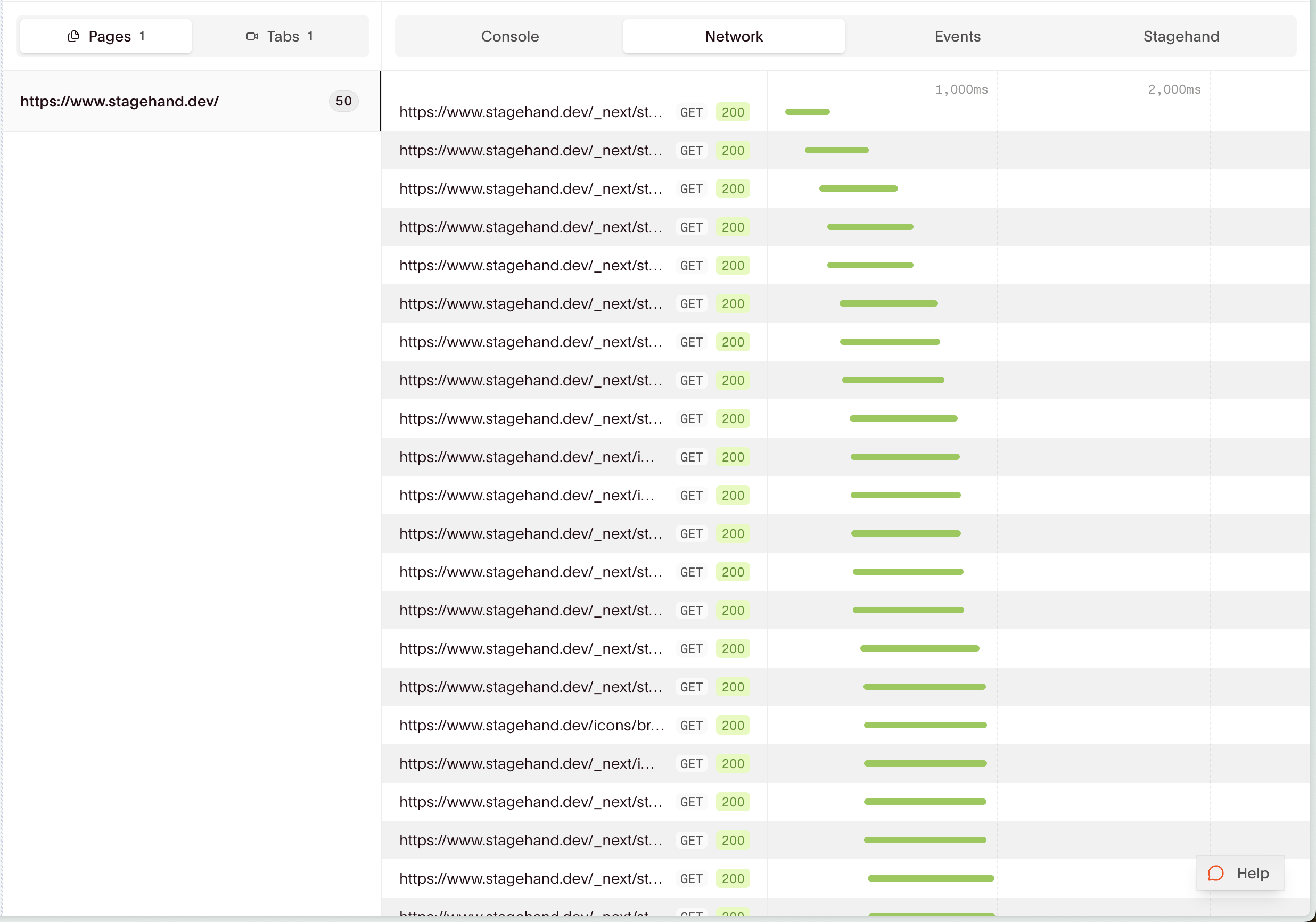
- Debug failed requests
- Analyze proxy bandwidth usage
- Identify slow or blocked resources
Session logs API
Retrieve session logs programmatically for automated processing or custom tooling. The Session Logs API returns CDP (Chrome DevTools Protocol) events including console logs, network activity, and page lifecycle events.- Node.js
- Python
- cURL
Node.js
HAR recording
HAR (HTTP Archive) files capture detailed network activity for offline analysis. Use Playwright’s tracing feature to record HAR data locally.- Node.js
- Python
Node.js
npx playwright show-trace trace-file.zip
HAR files created with
routeFromHAR are stored on the remote instance. Use tracing to capture network data locally.Capturing browser console logs
You can capture browser console logs programmatically during your session using Playwright’s console event listener. This gives you real-time access toconsole.log(), console.error(), and other Web Console API calls as they happen.
- Node.js
- Python
Node.js
Debugging tips
Questions? Email support@browserbase.com
Related guides
Live session view
Inspect a browser while your workflow runs.
Session replay
Review completed browser sessions and debug failures.