

Get started with a Puppeteer Node.js template
Get started with Browserbase and Puppeteer in Node.js.
1
Get your API key
Your API key is displayed in the Dashboard Navigation row. The API key is all you need to get started. The project is inferred from your API key.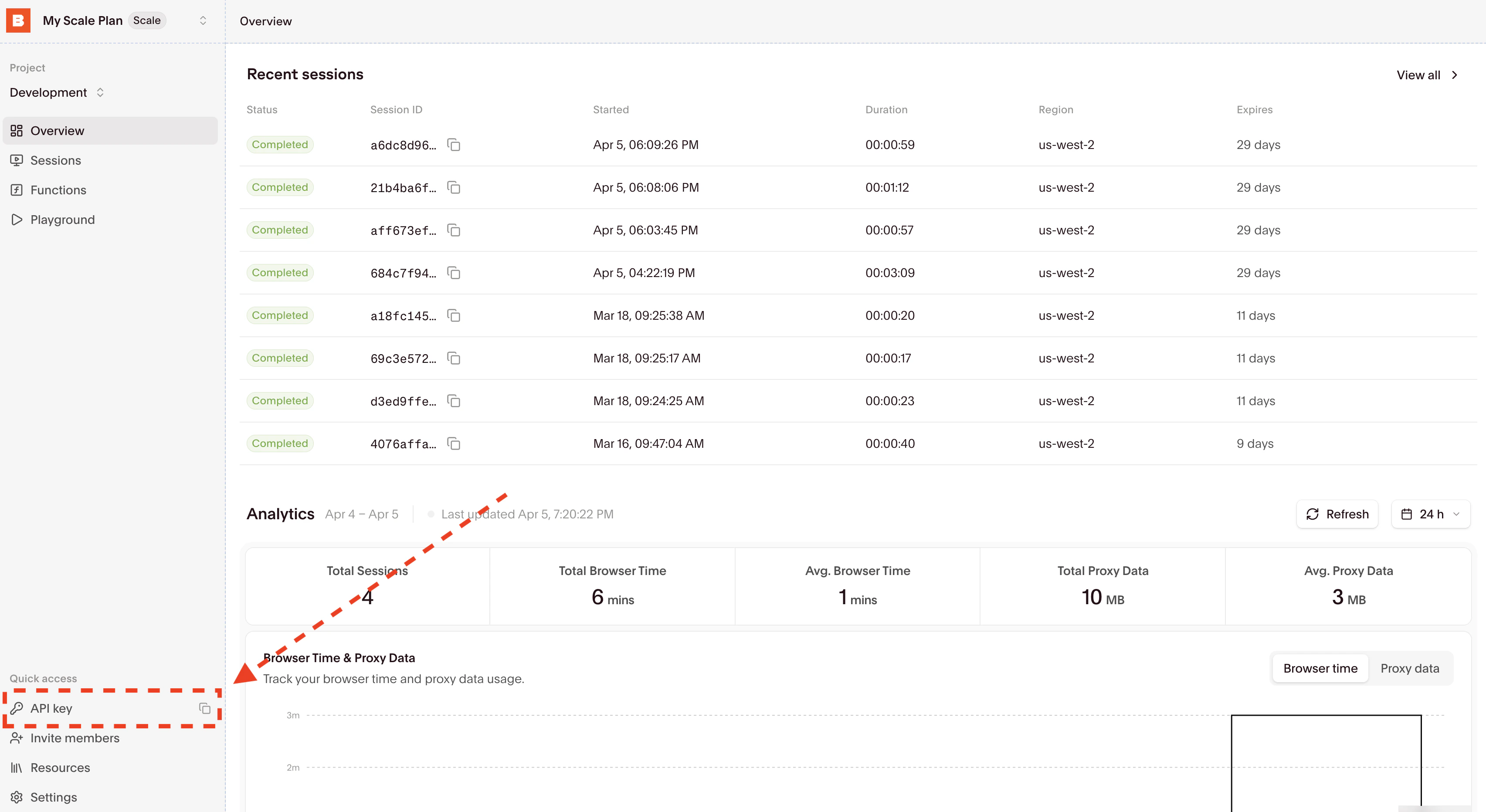
.env by adding the BROWSERBASE_API_KEY entry.Alternatively, you can temporarily set the environment variable for a single bash command by prefixing it with BROWSERBASE_API_KEY=<your_api_key> in your terminal.2
Install dependencies
3
Update your code or clone a template
Running your existing code with Browserbase only requires a few line changes:
Set your
BROWSERBASE_API_KEY in the environment variables.4
Inspect the completed session
Find your recent sessions on the overview dashboard: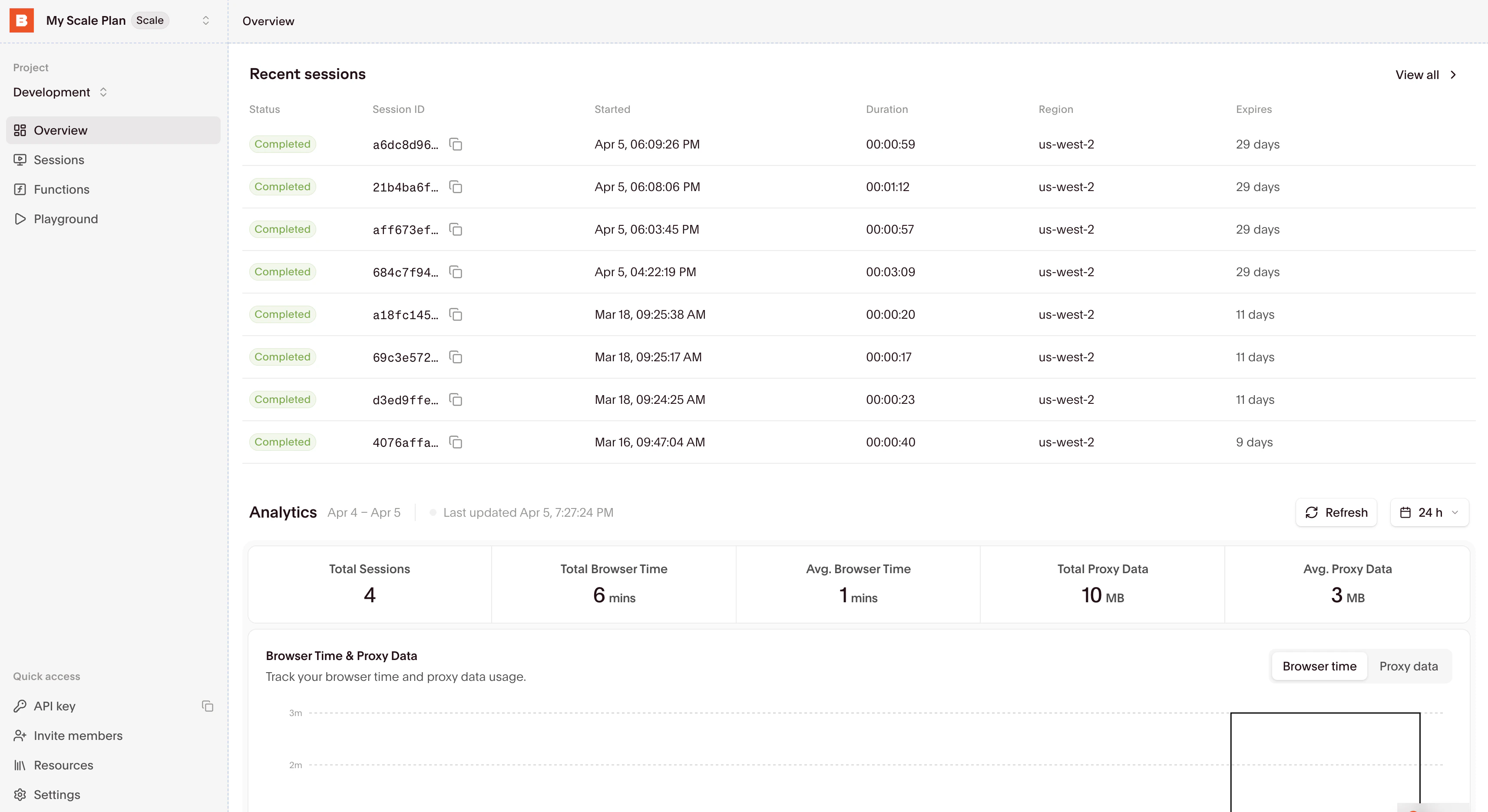
Expected output
The Node.js example logs a session ID, a live debug URL, and a completion message:Cleanup
The Node.js example closes the browser infinally, including when navigation or the screenshot fails. Its session has a 60-second timeout to bound resource use if the connection fails before cleanup can run. The example keeps the screenshot in memory and writes no image file.
Start building
Using browser sessions
Learn how to connect to and interact with browser sessions effectively.
Managing sessions
Understand how to properly end sessions and manage their lifecycle.