

Uses
While Browserbase helps with bot protection systems, data extraction, and reliable file downloads, some scenarios remain challenging to fully automate for technical or data-privacy reasons. Live Views can be useful for:- Debugging and observability - watch everything happening live, or share with users or coworkers
- Human in the loop - instantly take control or provide input
- handle iframes - loaded content might be external or change without notice, causing errors without human intervention
- delegate credentials - give control to the end user
- upload files - see the uploads guide to enable uploads through the live view
- Embedding - use within an application (both desktop and mobile)
Getting started
Need help getting started? Check out the Create a Browser Session and Using Browser Sessions guides.
Multitab
Each tab has a unique live view url. Thepages property contains all live view urls.
Listen for the Playwright new tab event (or equivalent in other libraries) to fetch new live view urls as tabs open.
Embedding
Add the live view link to an iframe in your frontend to embed it.Mobile
Show a mobile live view by setting a session’s viewport.Mobile keyboards aren’t officially supported. Desktop works natively, but for mobile you’ll need to handle key events and send them to your automation script (like via HTTP or WebSocket). Once there, call
page.keyboard.press() to forward them into the session.Some virtual keyboard keys need to be mapped to your framework’s key names (e.g. {ent} → "Enter"). You may need to override keys like Tab so they’re sent to the session and not processed by the local browser.Handling disconnects
When the browser session ends, the live view will show a disconnect message: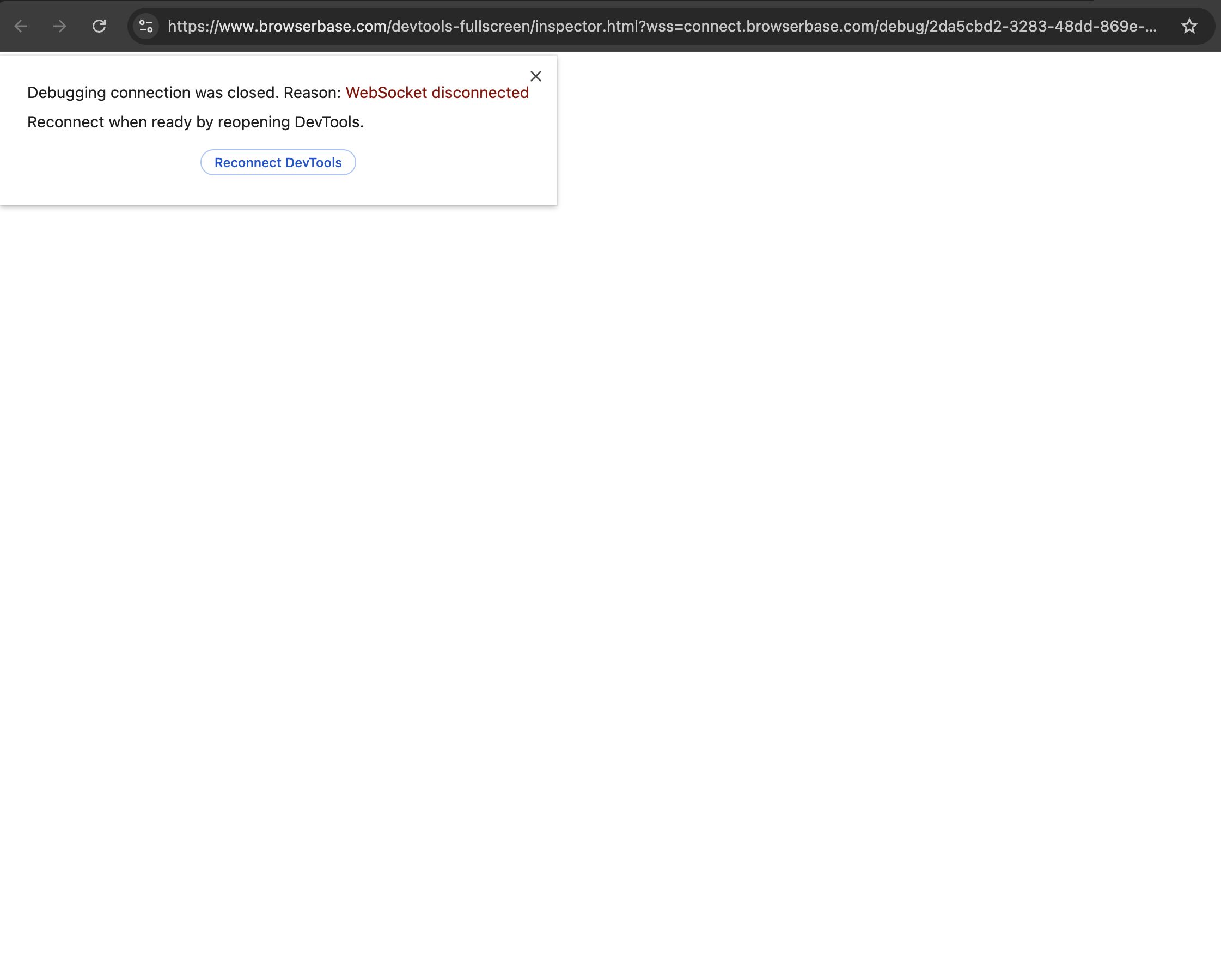
Styling
Browser with borders
Mimic a real browser with borders.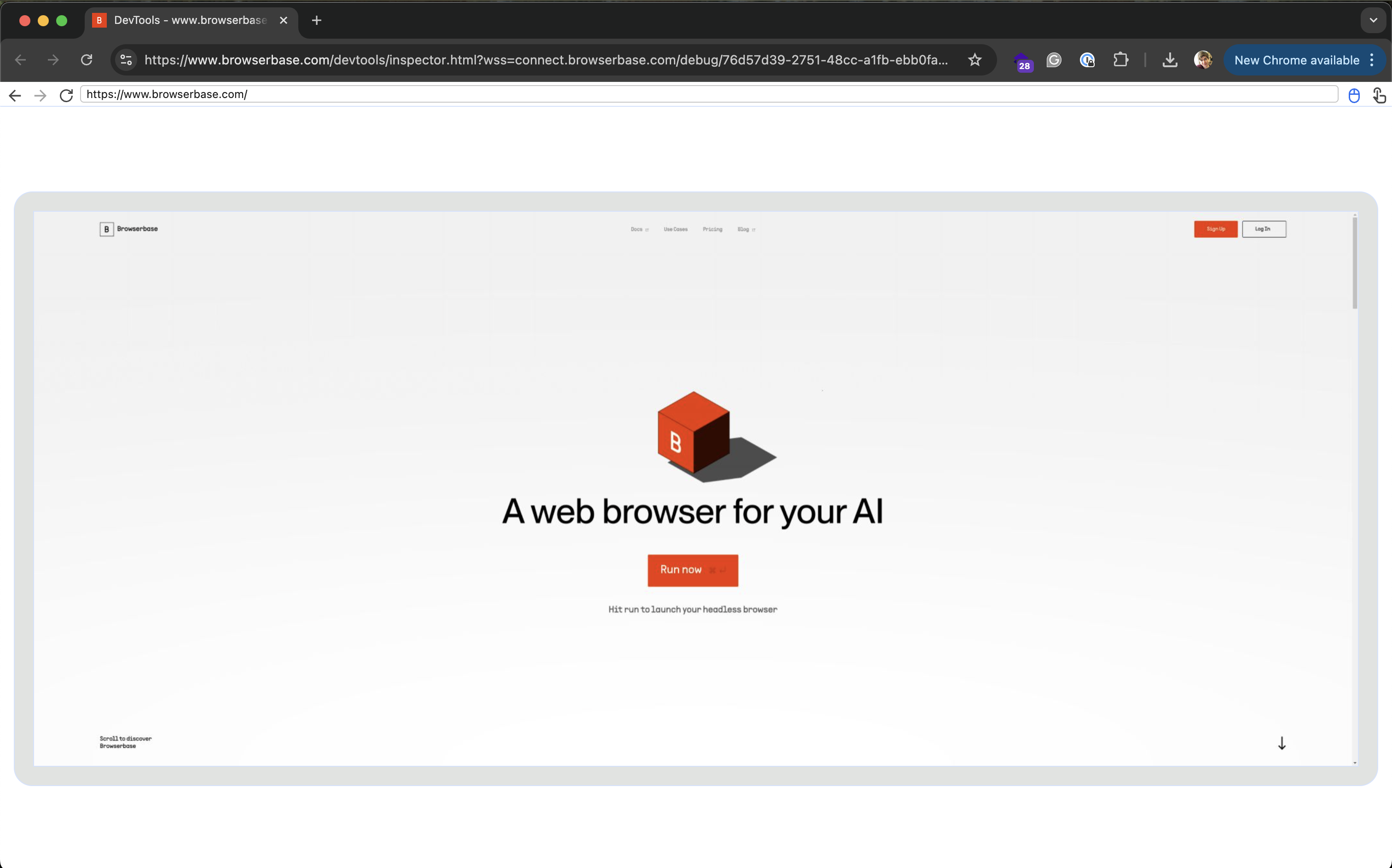
Hide the navbar
The live view includes a navbar at the top for context and navigation. Hide it to maximize the visible area or when your UI already provides context.Hide the scrollbar
- JavaScript
- Python
Troubleshooting
- Blank or empty window You may be on another tab. Check if there are multiple tabs open via the web session inspector or the pages list.
- Lag Check out the performance guide.
-
Looks off
Often caused by headless browser rendering differences. Some issues may be fixable by adjusting CSS styling through
page.evaluate(). -
Lost Connection
If the live view loses its connection to the browser, the iframe will post a
browserbase-disconnectedmessage. See Handling Disconnects for how to listen for this event.