

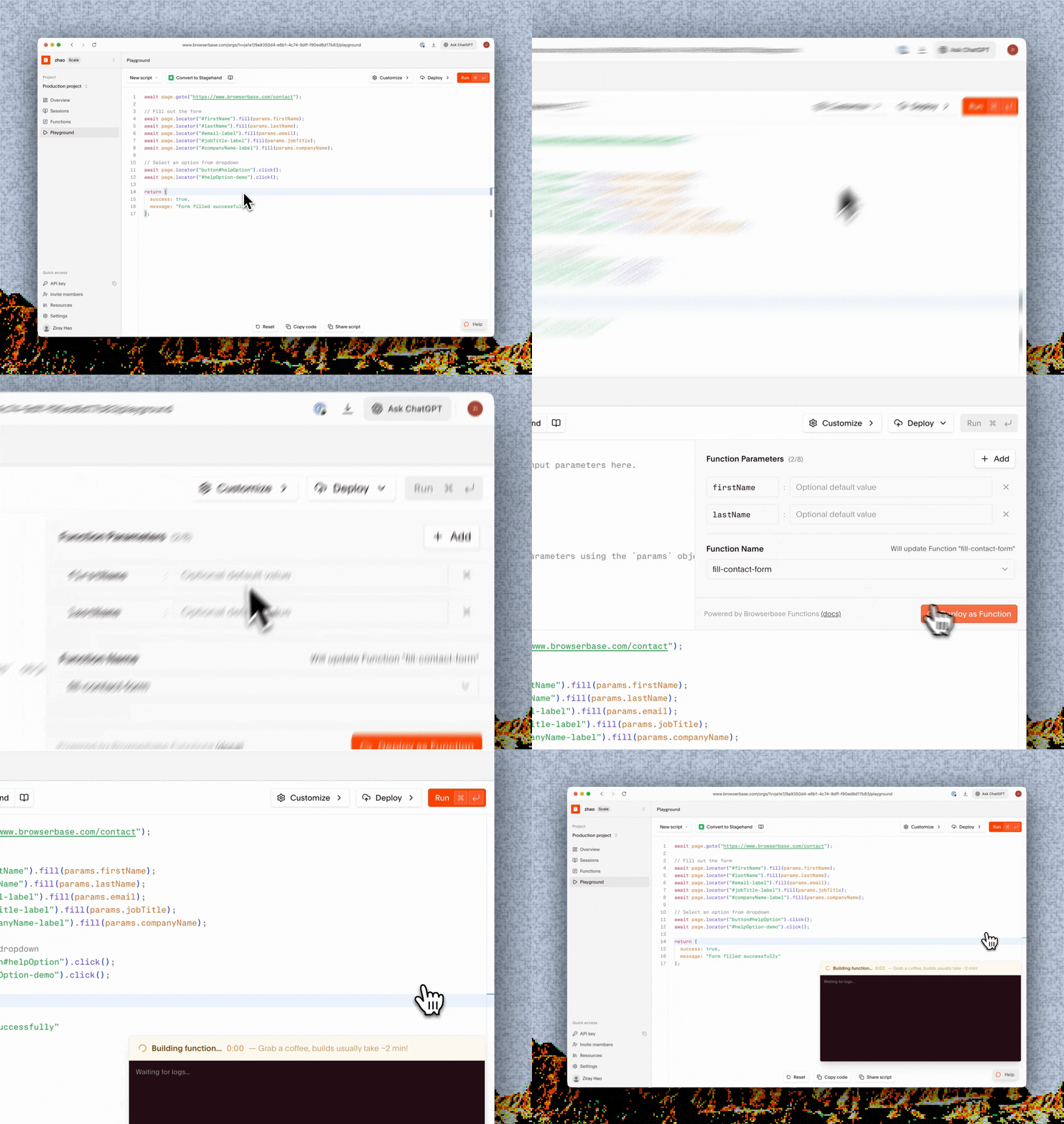
Why use the playground?
- No local setup - Start writing Functions immediately without installing any tools
- Instant feedback - Test your automation and see results in real-time
- Built-in editor - Full-featured code editor with Stagehand support
- Function parameters - Define input parameters with optional default values
- One-click deploy - Publish your Function directly to Browserbase infrastructure
- Live session view - Watch your automation run in a live browser view
Creating and deploying a Function
1
Open the playground
Navigate to the Browserbase Dashboard and click on Playground in the navigation bar.
2
Write your script
The Playground editor comes pre-loaded with a Stagehand template. Write your automation logic using Stagehand:The Playground exposes
connectUrl, sessionId, apiKey, projectId, and z (Zod) as globals. Use the Convert to Stagehand button to convert plain Playwright scripts.3
Define Function parameters
Open the Deploy panel and use the Function Parameters section to define inputs for your deployed Function. Click Add to create parameters: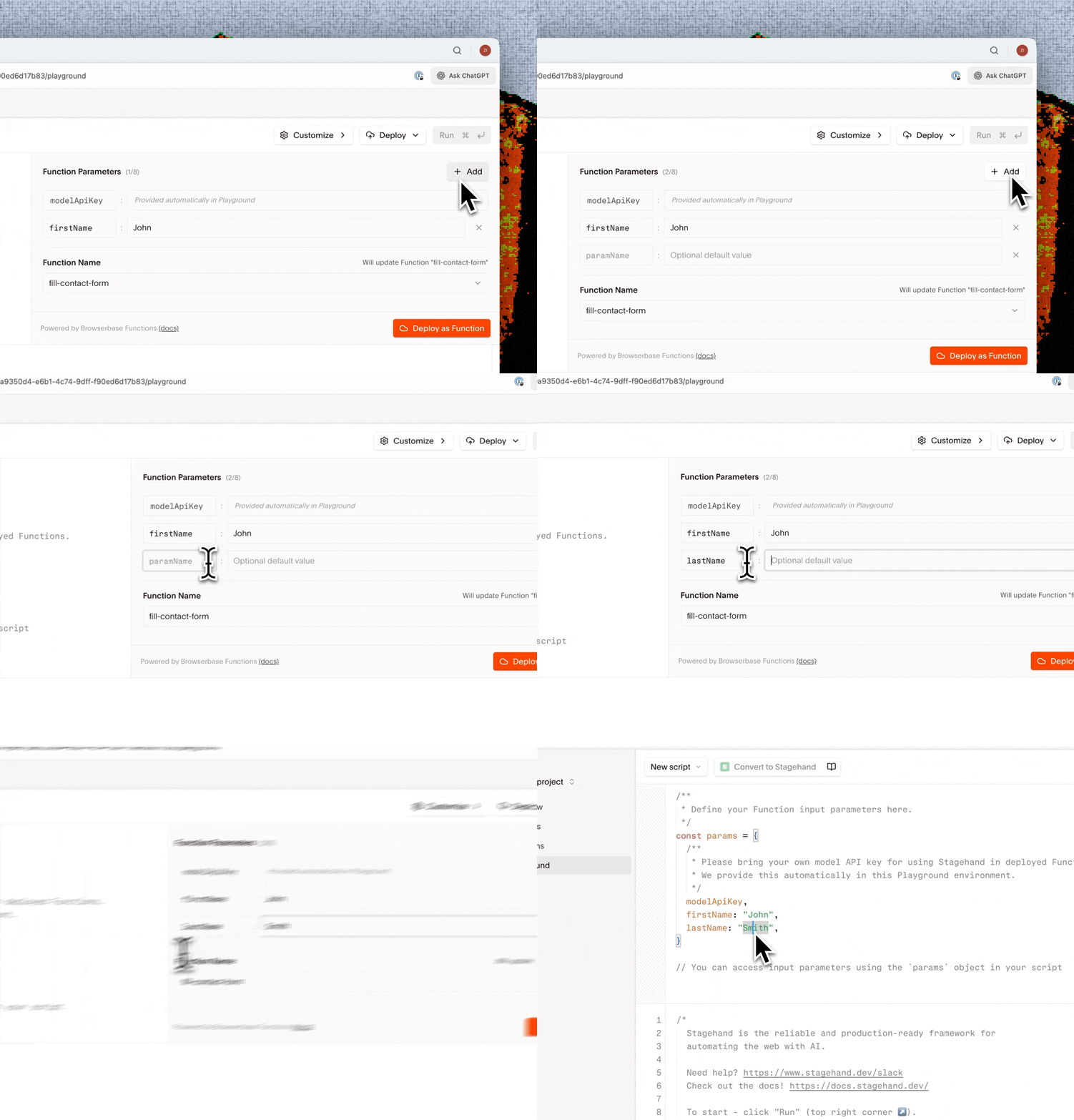
- paramName - The key used to access the value (e.g.,
searchQuery) - Optional default value - Fallback used if the caller doesn’t supply the parameter at invocation
params object at runtime. Reference them in your script the same way you would in any deployed Function:params is only populated when your Function is invoked after deployment. Clicking Run in the Playground executes your script without params — supply a literal value while iterating, then switch to params.<name> before you deploy. You can define up to 8 Function parameters.4
Test your script
Click the Run button to test your script. The Playground will:
- Create a new browser session
- Execute your automation code
- Display console output and results
- Show a live view of the browser session
5
Deploy as a Function
Once you’re satisfied with your script:
- Click Deploy in the toolbar to open the Deploy panel
-
Enter a Function Name (e.g.,
search-hacker-news) -
Click Deploy as Function
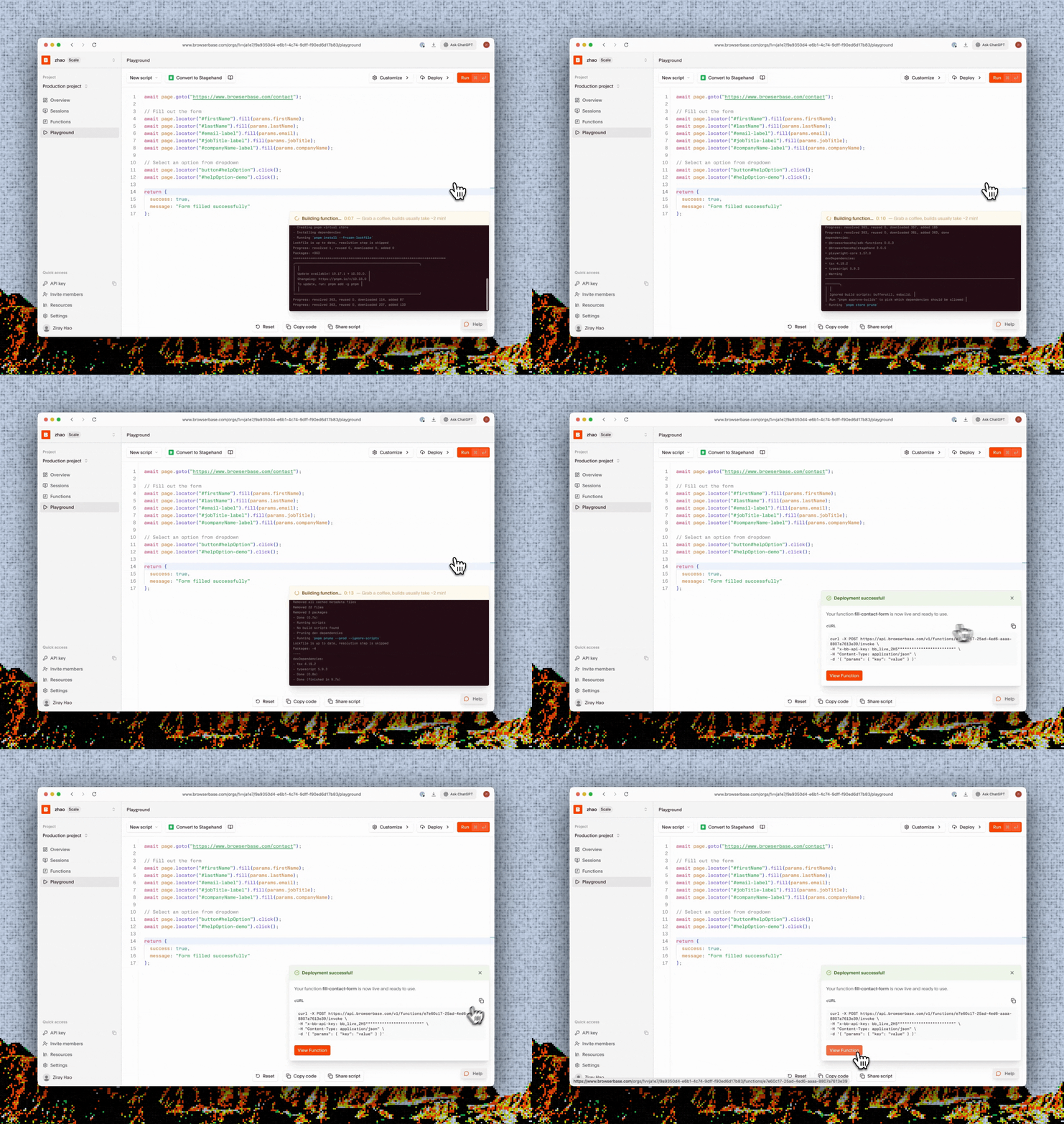
- Confirmation that your Function is live
- A ready-to-use cURL command for invoking your Function
- A View Function button to see your Function in the Functions dashboard
Managing deployed Functions
Click View Function in the deployment modal or navigate to the Functions tab to see your deployed Functions. From here you can:- View Function details and invocation history
- See previous versions of your Function
- Copy the invoke URL and cURL commands
- Delete Functions you no longer need
Transitioning to local development
As your Functions grow more complex, you may want to transition to local development for better tooling and version control. See the Functions documentation for setup instructions.Next steps
Functions quickstart
Set up a local development environment for advanced Function development
Functions reference
Learn more about the Functions API and configuration options