

production from beta, or marking the different models used for
sessions, such as gpt6 or opus5.5, or labeling the website workflow, such as verizon.com
or comcast.com. You can control the Label catalog per Browserbase project.
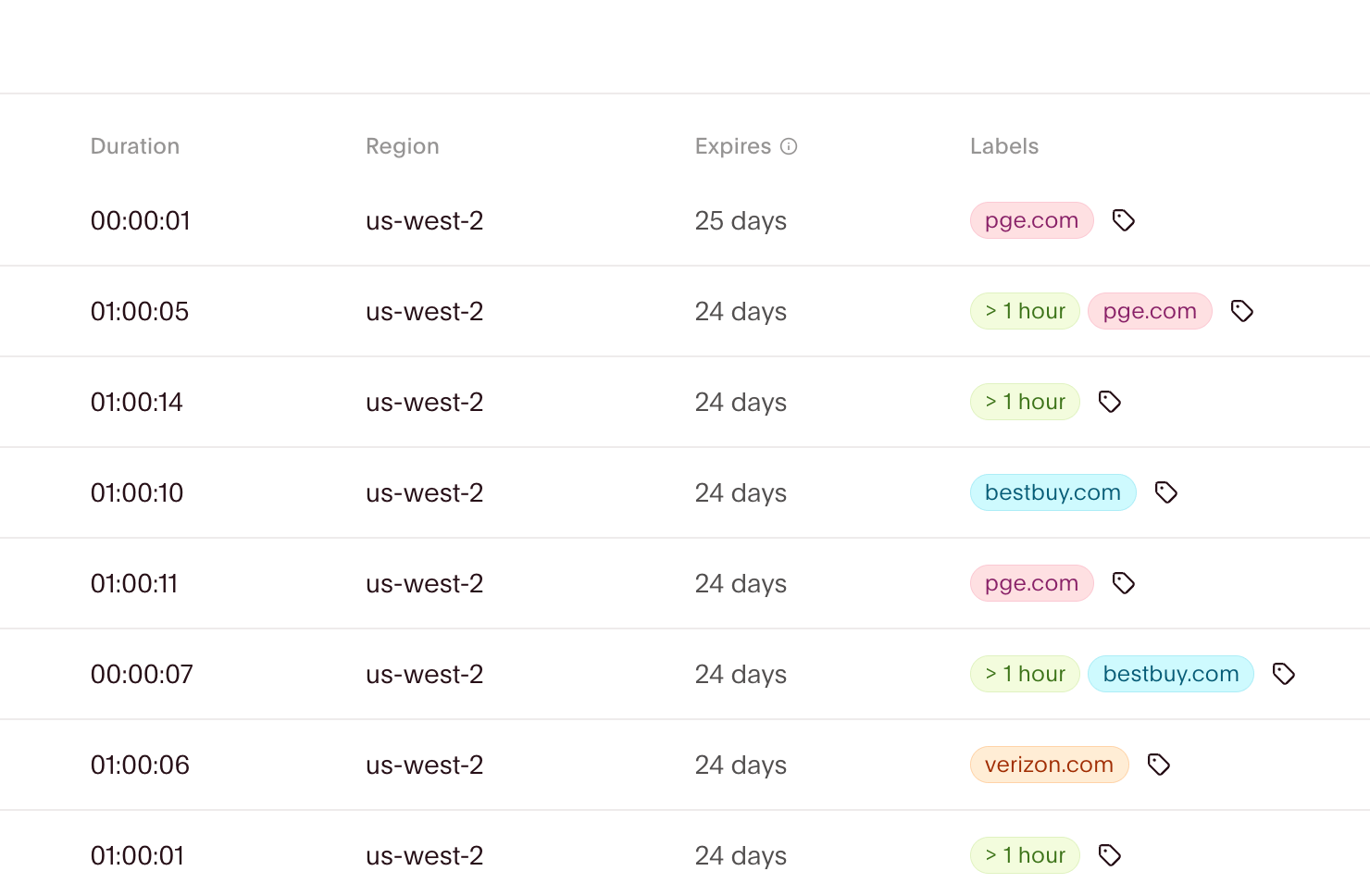
In the dashboard, Labels are shown next to each session.
Create Labels
In the dashboard
On the Sessions page, click the tag icon in a session’s Labels column. Type a new name in Search or create, then click Create “my-new-label”. This creates the Label and assigns it to that session.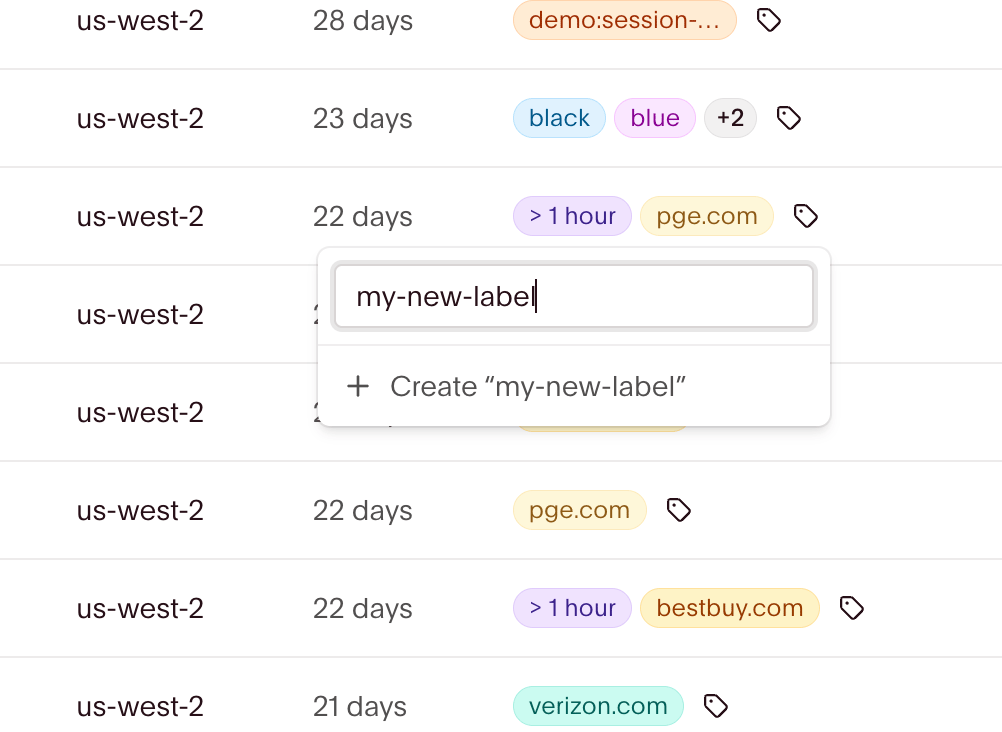
Using the API
The easiest way to create Labels is to pass their names when creating a session. Browserbase reuses existing Labels and creates missing ones:cURL
cURL
id to rename or delete the Label later.
Browserbase trims surrounding Unicode whitespace before validating names. A name
must contain 1–128 Unicode characters after trimming and cannot contain NUL.
Names are unique within a project, ignoring case. The standalone Create a Label
endpoint returns
409 if the name already exists.Assign or replace a session’s Labels
In the dashboard
Click the tag icon in the session’s Labels column. Search for a Label, then check it to assign it or uncheck it to remove the assignment. Changes save automatically; removing an assignment keeps the Label available for other sessions.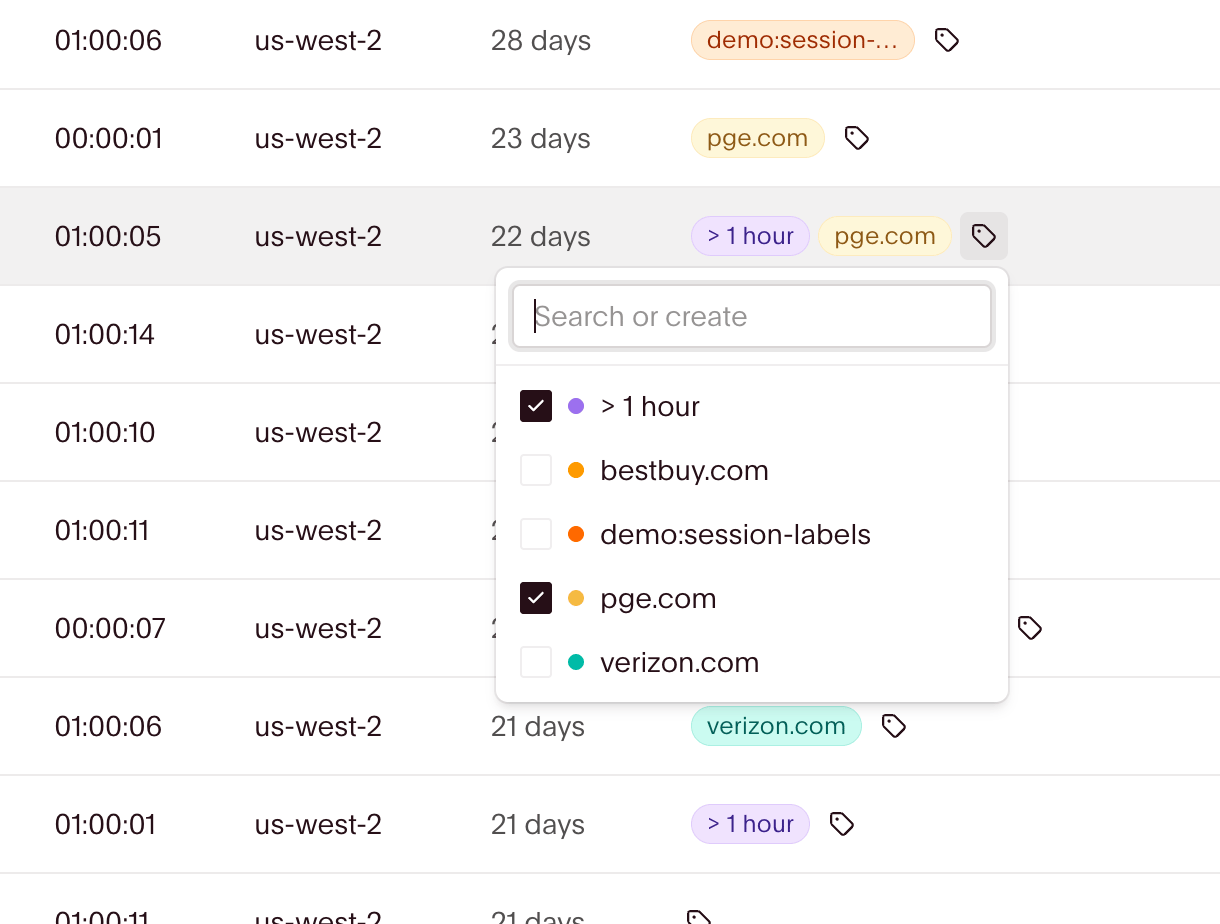
Using the API
Call Set Session Labels with the complete set of Labels you want on the session:cURL
{ "labels": [...] }.
Each request accepts up to 1,000 names. The project’s catalog allowance may be
lower. Assigning existing Labels or clearing assignments does not create catalog
entries.
Send { "labels": [] } to clear the session’s assignments. Clearing assignments
keeps the catalog Labels available for other sessions.
Filter sessions by Labels in the dashboard
On the Sessions page, click + in the filter bar, choose Labels, and select the Labels to filter by. Sessions must have all selected Labels to match. Use the search field to find a Label. Click the filter’s × to remove it, or Clear filters to reset all filters.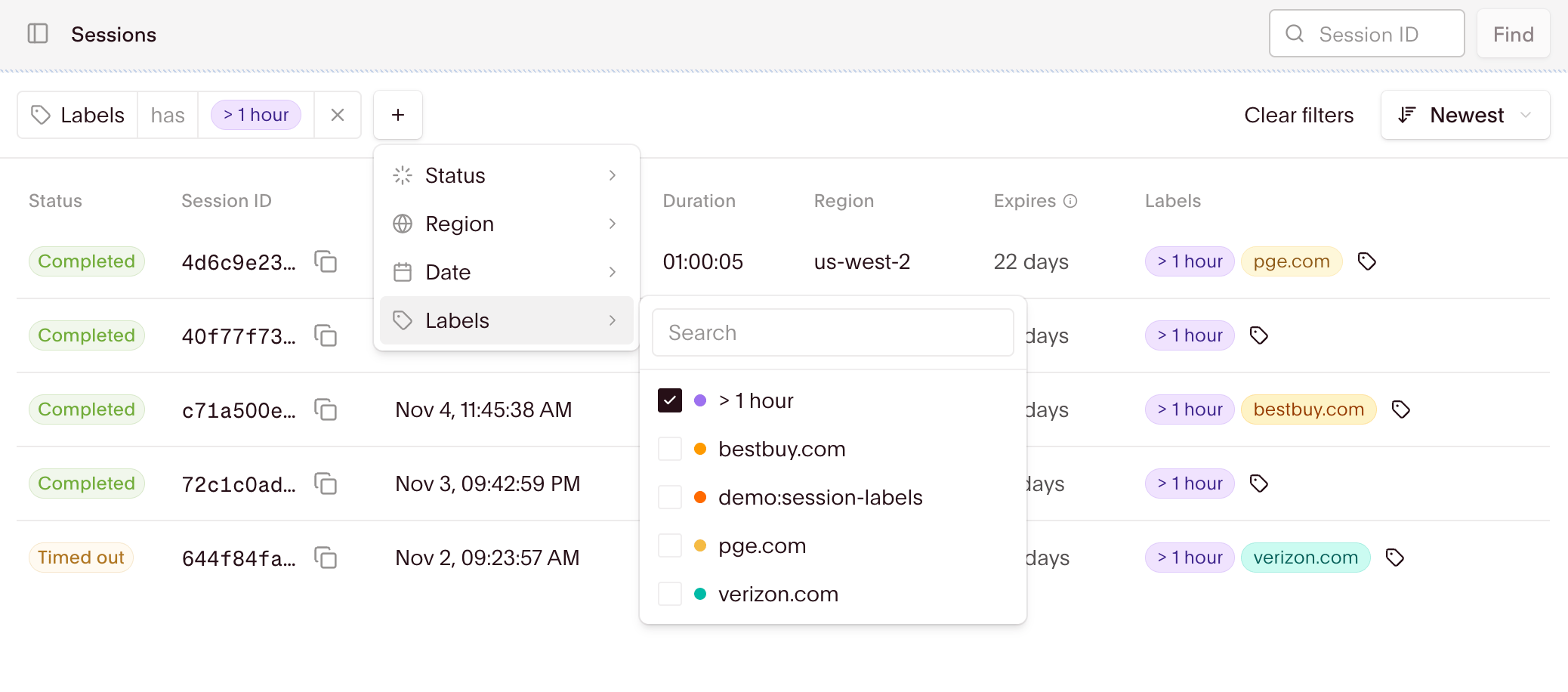
Read assigned Labels
Get a Session omits Labels by default. AddincludeLabels=true to request the assigned Label IDs and current names:
cURL
labels: [{ id, name }], or labels: [] when the session
has no assignments. Omitting includeLabels or setting it to false skips the
Label lookup and omits the field.
Rename or delete a Label
In the dashboard
Click the tag icon in a session’s Labels column, then open the Label’s … menu and choose Rename. Enter the new name and press Enter or click the checkmark to save. Renaming updates the Label across all sessions that use it.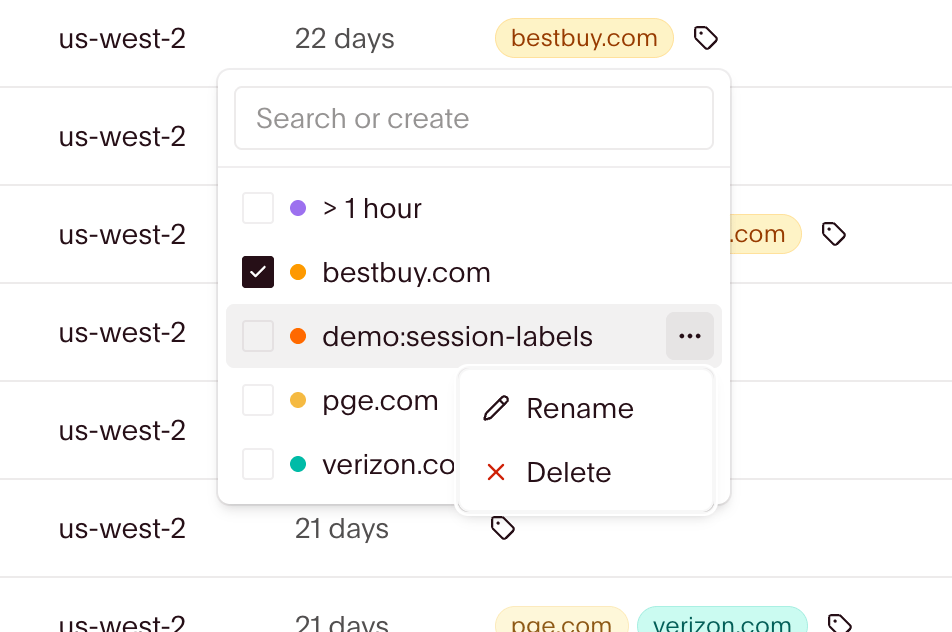
Using the API
Call Update a Label with its catalog ID and a new name. The ID and session assignments stay the same.cURL
cURL
204, preserves sessions, and also succeeds when the Label is
already absent. It frees active catalog capacity. Reusing the same name later
creates a new catalog entry; it does not restore the old assignments.
Handle errors
400: invalid Label names, request shape, or identifiers.401: missing or invalid API credentials.404: the requested session or Label is not in the authenticated project.409: a catalog Label with the requested name already exists.422: creating new catalog entries would exceed the project’s allowance. Reuse existing Labels or delete unused catalog Labels before trying again.429: your requests exceed the API rate limit.
Related guides
Session metadata
Attach custom data to sessions and query it later.
Browser observability
Inspect browser activity and diagnose failed runs.