

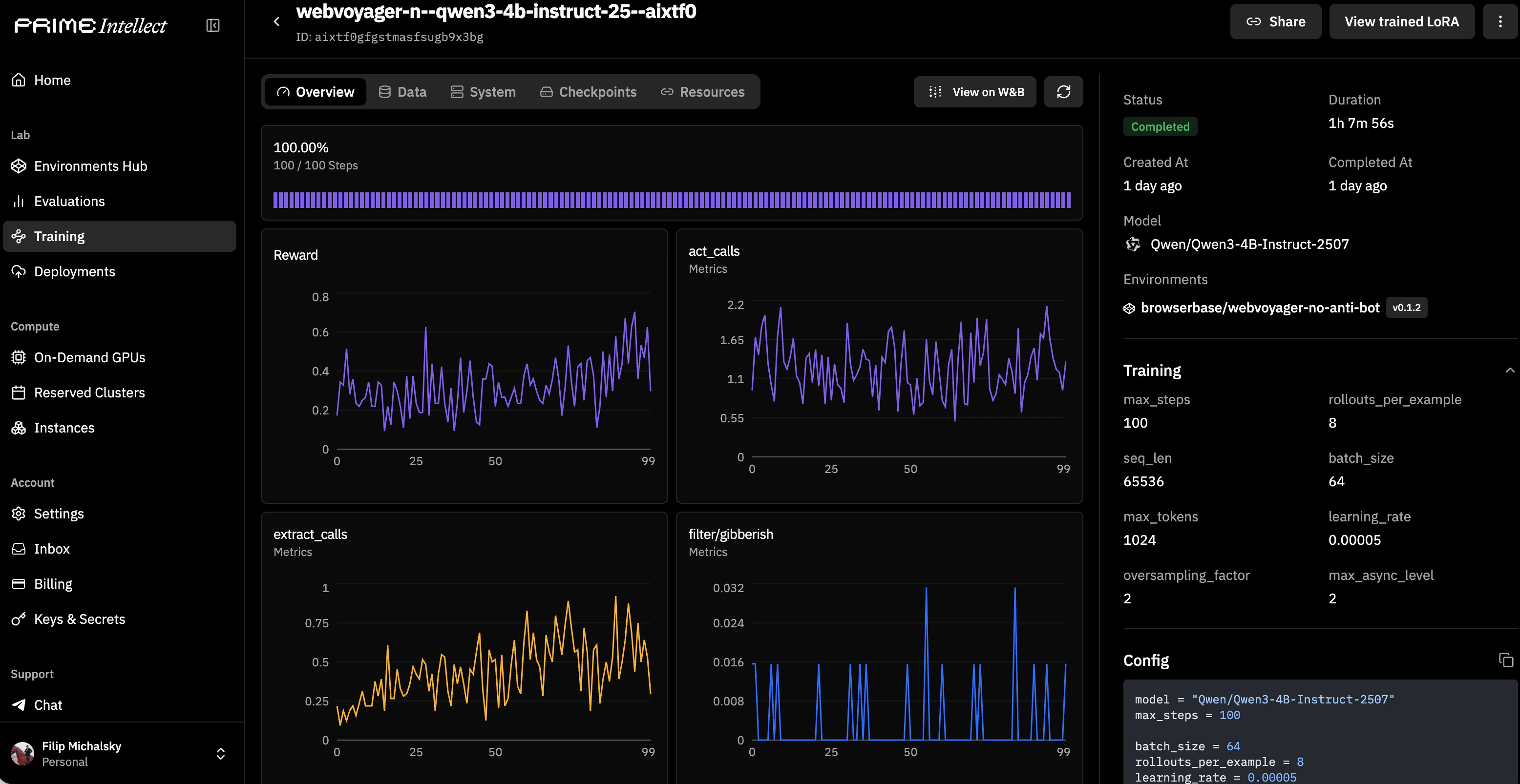
BrowserEnv in Prime Intellect’s reinforcement learning pipelines. This guide covers how to wire Browserbase-backed environments into Hosted Training and self-managed prime-rl setups.
This guide focuses on connecting
BrowserEnv to Prime’s training workflows. For RL concepts, reward shaping, and training configuration details, see Prime’s training documentation.Before you train
- Validate with evals first. Run
prime eval runagainst your environment and verify that reward signals are meaningful. Invest time in understanding and perfecting your judge rubric; your model will only learn if it has a good judge producing accurate reward signals. Training on a broken reward function wastes compute. - Check reward distribution. Ensure your environment produces a useful range of rewards, not all zeros or all ones.
- Test at small scale. Start with a short training run to confirm the environment, credentials, and networking all work before committing to a full run.
Setup
Install and configure the Prime CLI
Install your BrowserEnv environment
Set Browserbase credentials
The training workers need access to Browserbase. Export your credentials:Hosted training
With Prime’s Hosted Training, you define your environment in a TOML config and Prime handles orchestration.Minimal config
[[env]] section references a published Browserbase environment from the Prime hub. Environment-specific args can be passed via [env.args], the same args you’d pass via -a in prime eval run.
Launch training
Where do Browserbase credentials go?
Where do Browserbase credentials go?
Browserbase credentials (
BROWSERBASE_API_KEY) are read from environment variables by the training workers. Set them in your training environment configuration or pass them as secrets through Prime’s secret management. Don’t put them in the TOML config file.Self-managed prime-rl
For full control over the training loop, useprime-rl directly.
Setup
Run training
Choosing DOM vs CUA for training
Performance and cost considerations
Rollout latency
Rollout latency
Each training step involves creating or reusing a browser session, loading a page, and exchanging observations/actions. This adds latency compared to text-only environments. Budget for slower rollouts in your training timeline.
Session costs
Session costs
Every rollout step consumes Browserbase session time. Monitor your usage on the Browserbase dashboard and factor session costs into your training budget. See Measuring Usage for tracking details.
CUA vs DOM overhead
CUA vs DOM overhead
CUA mode is heavier than DOM mode. Screenshots must be rendered, tokenized, and consumed by the model. If your task doesn’t require visual grounding, DOM mode will give you faster and cheaper training runs.
Related resources
Prime hosted training
Getting started with Prime’s Hosted Training
Prime verifiers Training Docs
Environment configuration for training workflows
BrowserEnv Evals Guide
Validate your environment before training
Browserbase cost optimization
Reduce session costs in production workloads