

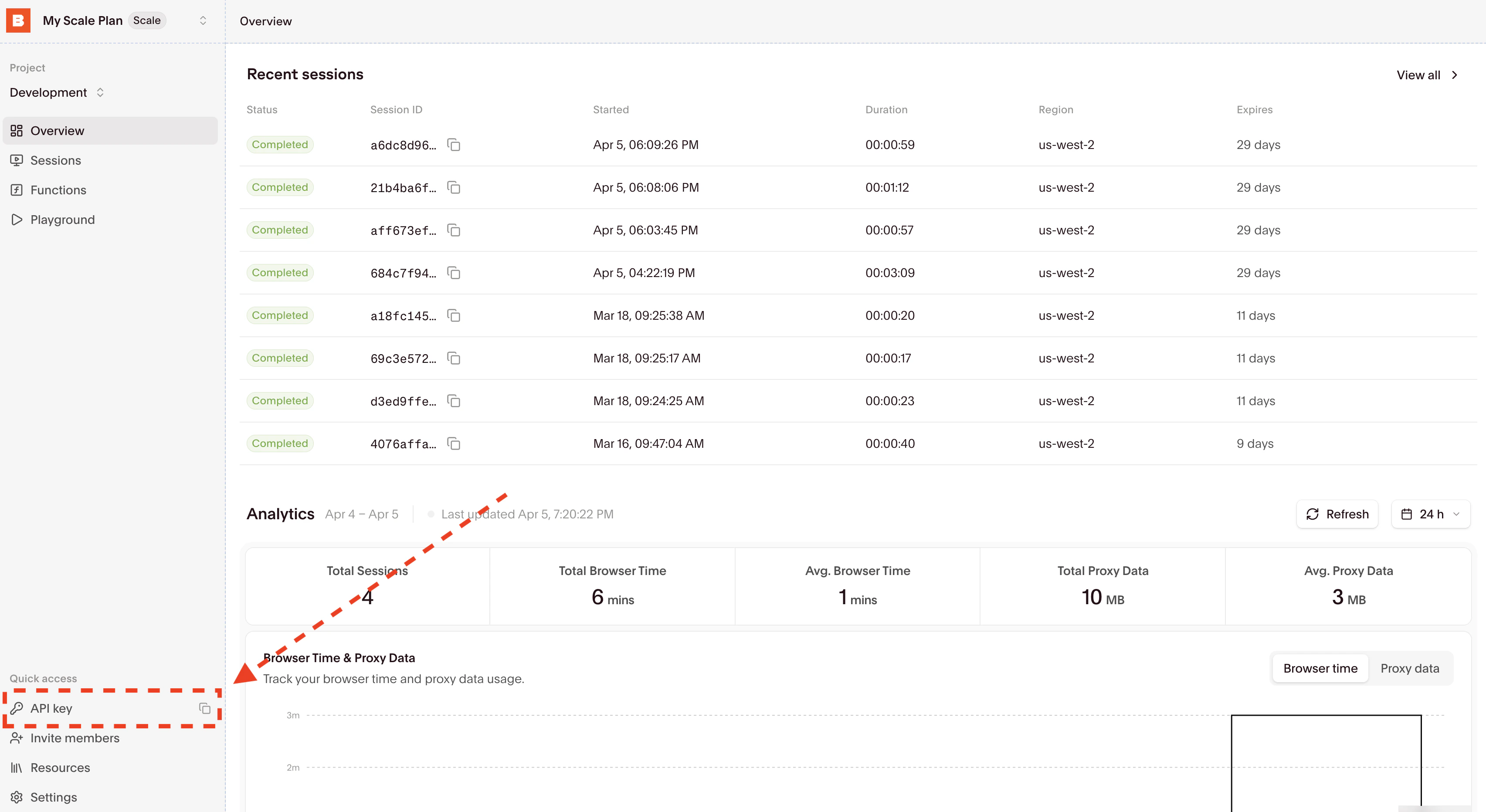
Get your API Key
Install Agent Browser
- npm
- npx
- Homebrew
install command downloads Chromium for local use. When using the Browserbase provider, the browser runs in the cloud instead.Open a page with Browserbase
Use the This creates a Browserbase session and navigates to the URL. You can view the session in your Browserbase Dashboard.
-p browserbase flag to run commands on a Browserbase cloud browser:Get an accessibility snapshot
The Output includes element refs that you can use in subsequent commands:Use the
snapshot command returns an accessibility tree with element references. This is the primary way AI agents understand page content:-i flag to show only interactive elements:All commands support the
-p browserbase flag to run on Browserbase cloud browsers. You can also set AGENT_BROWSER_PROVIDER=browserbase as an environment variable to avoid passing the flag each time. See the Agent Browser README for the full command reference.Connecting via CDP
You can also connect Agent Browser to a Browserbase session directly using the CDP WebSocket URL:Node.js
Expected output
The open command navigates the cloud browser, and the snapshot command prints an accessibility tree with element references. The available references depend on the current page; use the latest snapshot when selecting an element.Cleanup
Use the close command from the final setup step to end the browser connection. If you created a session separately through the SDK, also release it using Manage browser sessions. Unset the Browserbase API key in the terminal when you finish testing.Related guides
Agent Browser GitHub
Full documentation, examples, and source code.
Browserbase sessions API
Learn more about creating and managing Browserbase sessions.