> ## Documentation Index
> Fetch the complete documentation index at: https://docs.browserbase.com/llms.txt
> Use this file to discover all available pages before exploring further.
# Start your first session with Selenium
> Connect Selenium WebDriver to Browserbase cloud browsers. Run cross-browser automation at scale with session recording and observability.
Get started with Browserbase and Selenium in Node.js.
Get started with Browserbase and Selenium in Python.
Your API key is displayed in the [Dashboard Navigation row](https://www.browserbase.com/sessions). The API key is all you need to get started. The project is inferred from your API key.
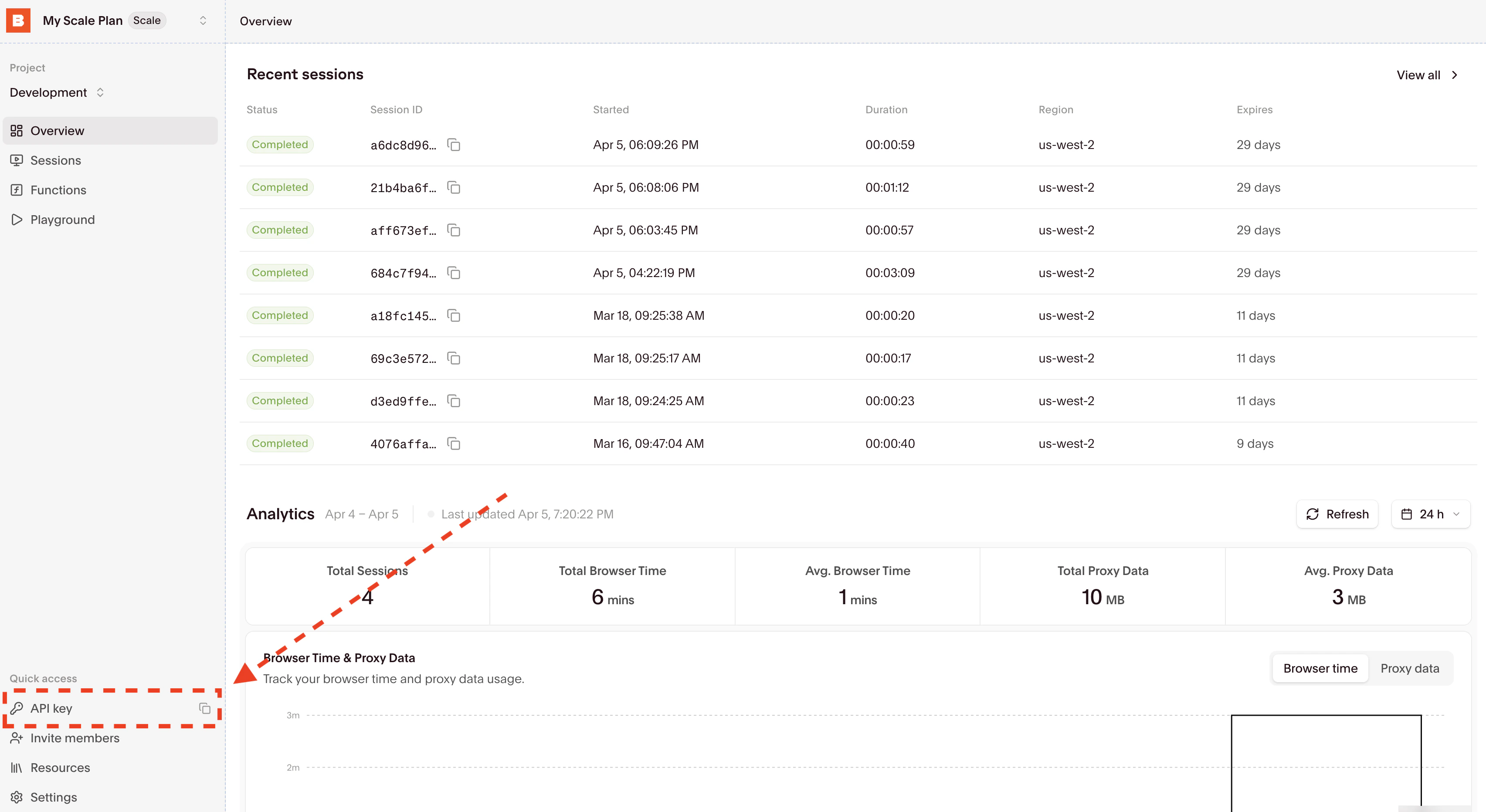 Copy your API key from the input fields, then update your .env file by adding entries for `BROWSERBASE_API_KEY`.
Alternatively, you can temporarily set the environment variables with a single bash command by prefixing it with `BROWSERBASE_API_KEY=` in your terminal.
```bash theme={null}
npm i selenium-webdriver @browserbasehq/sdk
```
```bash theme={null}
pip install selenium browserbase
```
Running your existing code with Browserbase only requires a few line changes:
```typescript theme={null}
import http from "http";
import { Builder } from "selenium-webdriver";
import Browserbase from "@browserbasehq/sdk";
const bb = new Browserbase({
apiKey: process.env.BROWSERBASE_API_KEY,
});
const session = await bb.sessions.create();
console.log(`Session created, id: ${session.id}`);
console.log("Starting remote browser...");
const customHttpAgent = new http.Agent({});
(customHttpAgent as any).addRequest = (req: any, options: any) => {
req.setHeader("x-bb-signing-key", session.signingKey);
(http.Agent.prototype as any).addRequest.call(customHttpAgent, req, options);
};
const driver = new Builder()
.forBrowser("chrome")
.usingHttpAgent(customHttpAgent)
.usingServer(session.seleniumRemoteUrl)
.build();
await driver.get("https://www.browserbase.com");
const debugUrl = await bb.sessions.debug(session.id);
console.log(
`Session started, live debug accessible here: ${debugUrl.debuggerUrl}.`,
);
console.log("Taking a screenshot!");
await driver.takeScreenshot();
console.log("Shutting down...");
await driver.quit();
console.log(
`Session complete! View recording at https://browserbase.com/sessions/${session.id}`,
);
```
Set your `BROWSERBASE_API_KEY` in the environment variables.
```python theme={null}
from typing import Dict
from selenium import webdriver
from selenium.webdriver.remote.remote_connection import RemoteConnection
from browserbase import Browserbase
import os
BROWSERBASE_API_KEY = os.environ["BROWSERBASE_API_KEY"]
bb = Browserbase(api_key=BROWSERBASE_API_KEY)
class BrowserbaseConnection(RemoteConnection):
session_id: str
def __init__(self, session_id: str, *args, **kwargs):
super().__init__(*args, **kwargs)
self.session_id = session_id
def get_remote_connection_headers(
self, parsed_url: str, keep_alive: bool = False
) -> Dict[str, str]:
headers = super().get_remote_connection_headers(parsed_url, keep_alive)
headers["x-bb-api-key"] = BROWSERBASE_API_KEY
headers["session-id"] = self.session_id
return headers
def run() -> None:
session = bb.sessions.create()
connection = BrowserbaseConnection(session.id, session.selenium_remote_url)
driver = webdriver.Remote(
command_executor=connection, options=webdriver.ChromeOptions()
)
print(f"Live debug URL: https://browserbase.com/sessions/{session.id}")
try:
driver.get("https://www.sfmoma.org")
print(f"At URL: {driver.current_url} | Title: {driver.title}")
finally:
driver.quit()
if __name__ == "__main__":
run()
```
Set your `BROWSERBASE_API_KEY` in the environment variables.
Get started with Browserbase and Selenium in Python.
Copy your API key from the input fields, then update your .env file by adding entries for `BROWSERBASE_API_KEY`.
Alternatively, you can temporarily set the environment variables with a single bash command by prefixing it with `BROWSERBASE_API_KEY=` in your terminal.
```bash theme={null}
npm i selenium-webdriver @browserbasehq/sdk
```
```bash theme={null}
pip install selenium browserbase
```
Running your existing code with Browserbase only requires a few line changes:
```typescript theme={null}
import http from "http";
import { Builder } from "selenium-webdriver";
import Browserbase from "@browserbasehq/sdk";
const bb = new Browserbase({
apiKey: process.env.BROWSERBASE_API_KEY,
});
const session = await bb.sessions.create();
console.log(`Session created, id: ${session.id}`);
console.log("Starting remote browser...");
const customHttpAgent = new http.Agent({});
(customHttpAgent as any).addRequest = (req: any, options: any) => {
req.setHeader("x-bb-signing-key", session.signingKey);
(http.Agent.prototype as any).addRequest.call(customHttpAgent, req, options);
};
const driver = new Builder()
.forBrowser("chrome")
.usingHttpAgent(customHttpAgent)
.usingServer(session.seleniumRemoteUrl)
.build();
await driver.get("https://www.browserbase.com");
const debugUrl = await bb.sessions.debug(session.id);
console.log(
`Session started, live debug accessible here: ${debugUrl.debuggerUrl}.`,
);
console.log("Taking a screenshot!");
await driver.takeScreenshot();
console.log("Shutting down...");
await driver.quit();
console.log(
`Session complete! View recording at https://browserbase.com/sessions/${session.id}`,
);
```
Set your `BROWSERBASE_API_KEY` in the environment variables.
```python theme={null}
from typing import Dict
from selenium import webdriver
from selenium.webdriver.remote.remote_connection import RemoteConnection
from browserbase import Browserbase
import os
BROWSERBASE_API_KEY = os.environ["BROWSERBASE_API_KEY"]
bb = Browserbase(api_key=BROWSERBASE_API_KEY)
class BrowserbaseConnection(RemoteConnection):
session_id: str
def __init__(self, session_id: str, *args, **kwargs):
super().__init__(*args, **kwargs)
self.session_id = session_id
def get_remote_connection_headers(
self, parsed_url: str, keep_alive: bool = False
) -> Dict[str, str]:
headers = super().get_remote_connection_headers(parsed_url, keep_alive)
headers["x-bb-api-key"] = BROWSERBASE_API_KEY
headers["session-id"] = self.session_id
return headers
def run() -> None:
session = bb.sessions.create()
connection = BrowserbaseConnection(session.id, session.selenium_remote_url)
driver = webdriver.Remote(
command_executor=connection, options=webdriver.ChromeOptions()
)
print(f"Live debug URL: https://browserbase.com/sessions/{session.id}")
try:
driver.get("https://www.sfmoma.org")
print(f"At URL: {driver.current_url} | Title: {driver.title}")
finally:
driver.quit()
if __name__ == "__main__":
run()
```
Set your `BROWSERBASE_API_KEY` in the environment variables.
Get started with Browserbase and Selenium in Python.
Find your recent sessions on the overview dashboard:
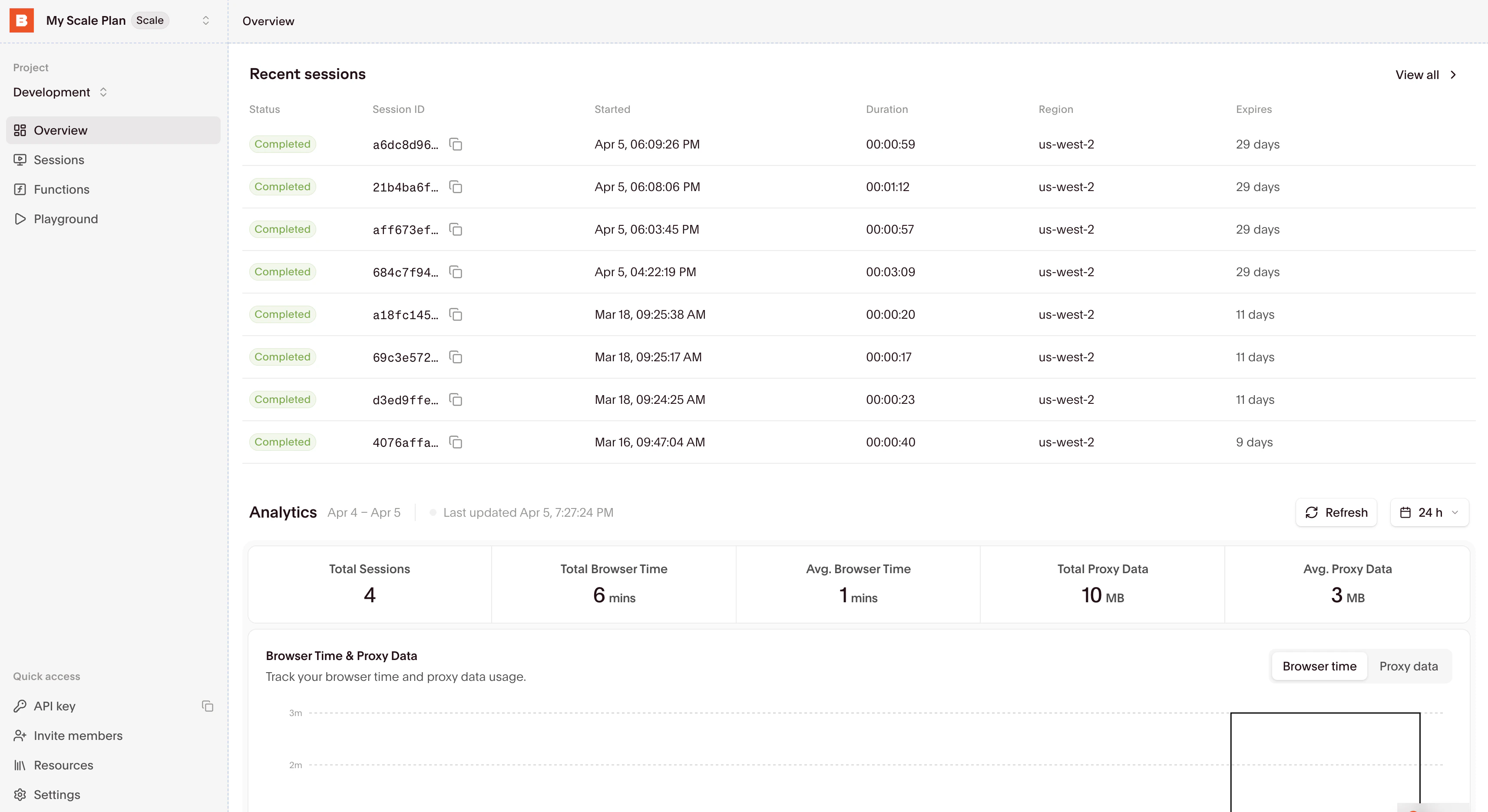 Select a session to inspect it with the [Session Inspector](/platform/browser/observability/observability).
## Start building
Learn how to connect to and interact with browser sessions effectively.
Understand how to properly end sessions and manage their lifecycle.
Select a session to inspect it with the [Session Inspector](/platform/browser/observability/observability).
## Start building
Learn how to connect to and interact with browser sessions effectively.
Understand how to properly end sessions and manage their lifecycle.