> ## Documentation Index
> Fetch the complete documentation index at: https://docs.browserbase.com/llms.txt
> Use this file to discover all available pages before exploring further.
# Start your first session with Puppeteer
> Connect Puppeteer to Browserbase cloud browsers. Run headless Chrome automation at scale with built-in session management and debugging.
Get started with Browserbase and Puppeteer in Node.js.
Your API key is displayed in the [Dashboard Navigation row](https://www.browserbase.com/sessions). The API key is all you need to get started. The project is inferred from your API key.
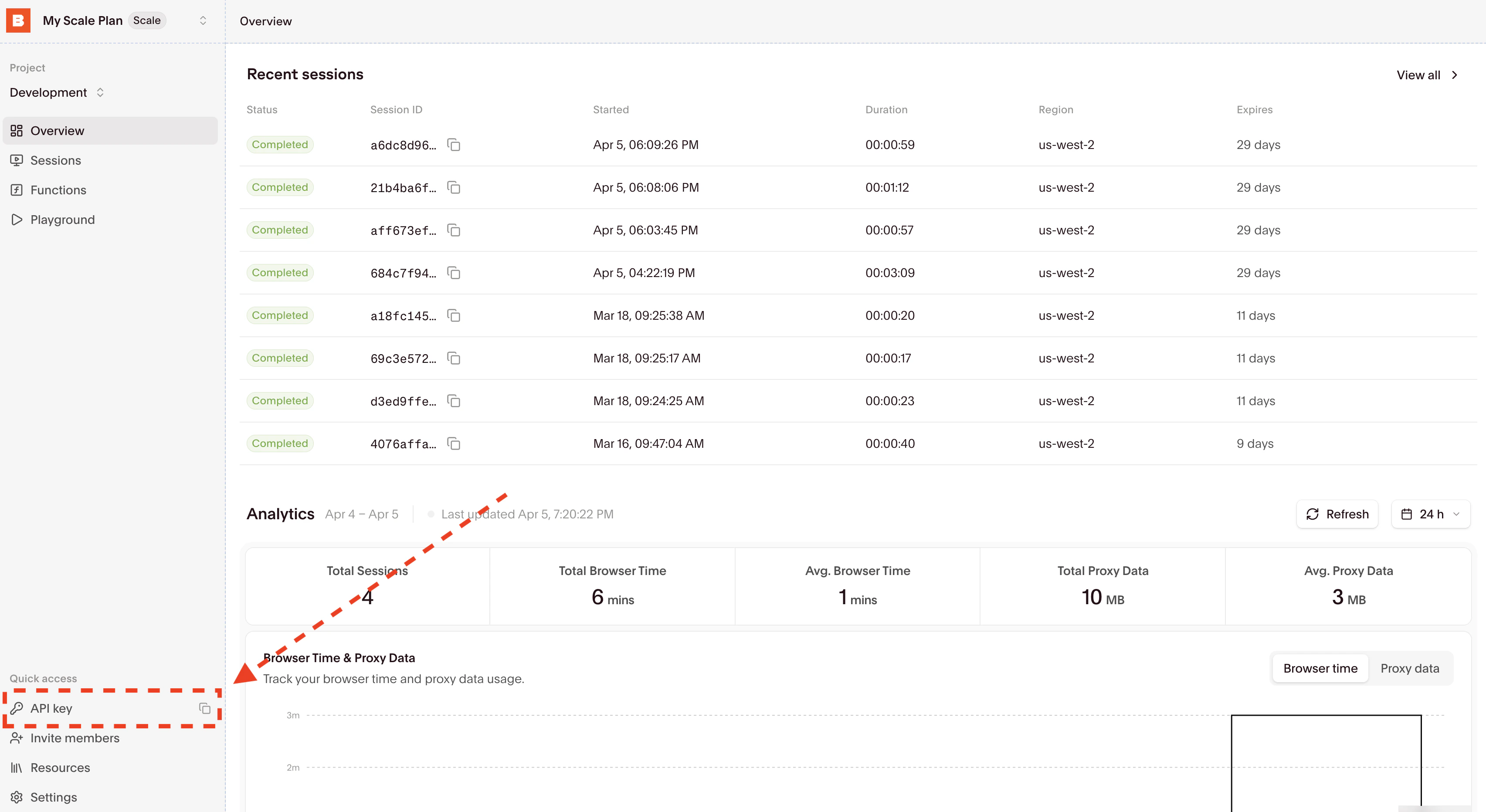 Copy your API key and update your `.env` by adding the `BROWSERBASE_API_KEY` entry.
Alternatively, you can temporarily set the environment variable for a single bash command by prefixing it with `BROWSERBASE_API_KEY=` in your terminal.
```bash Node.js theme={null}
npm i puppeteer-core @browserbasehq/sdk
```
Copy your API key and update your `.env` by adding the `BROWSERBASE_API_KEY` entry.
Alternatively, you can temporarily set the environment variable for a single bash command by prefixing it with `BROWSERBASE_API_KEY=` in your terminal.
```bash Node.js theme={null}
npm i puppeteer-core @browserbasehq/sdk
```
Running your existing code with Browserbase only requires a few line changes:
```typescript Node.js theme={null}
import puppeteer from "puppeteer-core";
import Browserbase from "@browserbasehq/sdk";
const bb = new Browserbase({
apiKey: process.env.BROWSERBASE_API_KEY,
});
(async () => {
const session = await bb.sessions.create();
console.log(`Session created, id: ${session.id}`);
const browser = await puppeteer.connect({
browserWSEndpoint: session.connectUrl,
});
const page = await browser.newPage();
await page.goto("https://www.browserbase.com/", {
waitUntil: "domcontentloaded",
});
const debugUrl = await bb.sessions.debug(session.id);
console.log(
`Session started, live debug accessible here: ${debugUrl.debuggerUrl}.`,
);
console.log("Taking a screenshot!");
await page.screenshot({ fullPage: true });
console.log("Shutting down...");
await page.close();
await browser.close();
console.log(
`Session complete! View recording at https://browserbase.com/sessions/${session.id}`,
);
})();
```
Set your `BROWSERBASE_API_KEY` in the environment variables.
Find your recent sessions on the overview dashboard:
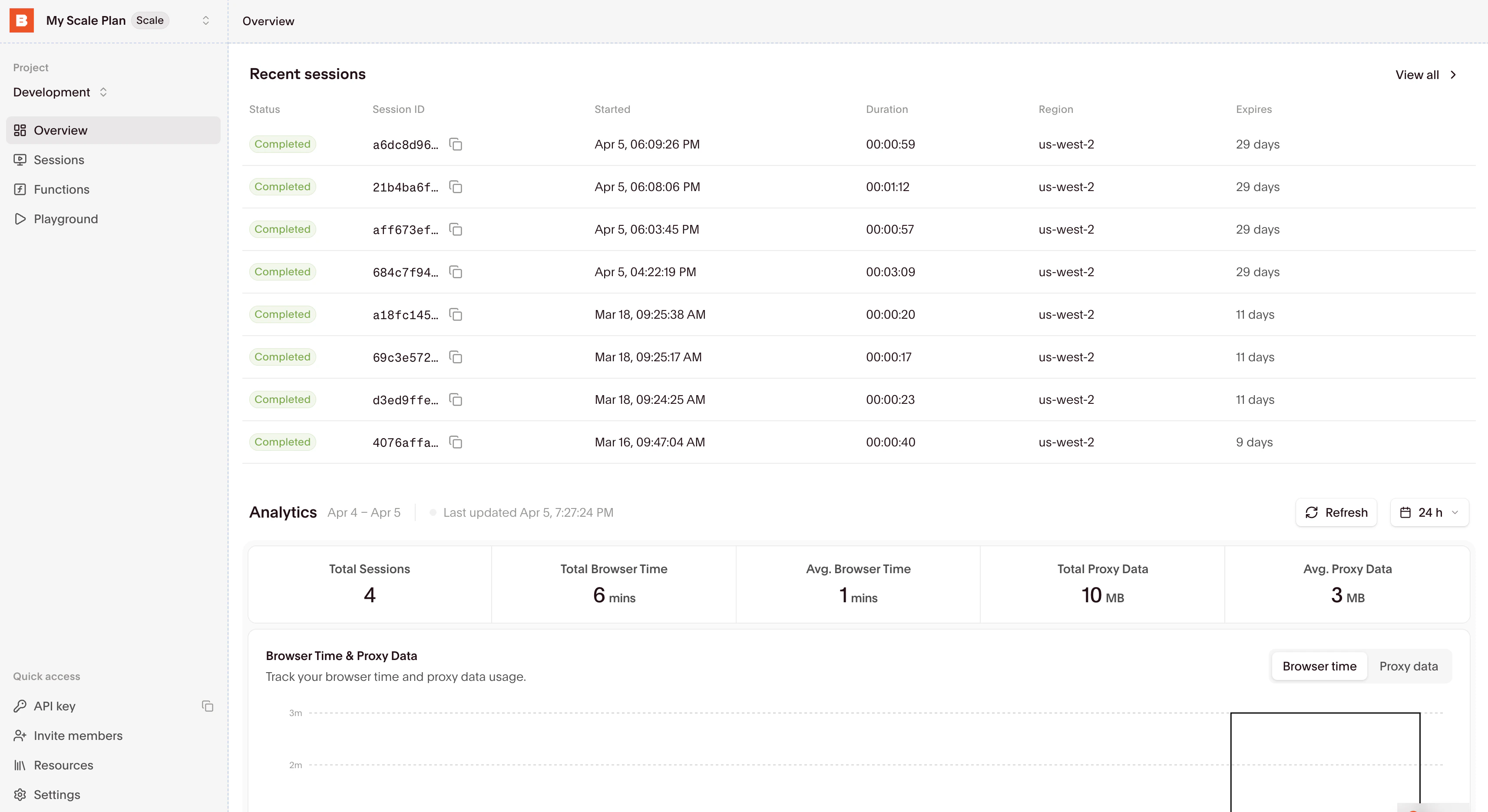 Select a session to inspect it with the [Session Inspector](/platform/browser/observability/observability).
## Start building
Learn how to connect to and interact with browser sessions effectively.
Understand how to properly end sessions and manage their lifecycle.
Select a session to inspect it with the [Session Inspector](/platform/browser/observability/observability).
## Start building
Learn how to connect to and interact with browser sessions effectively.
Understand how to properly end sessions and manage their lifecycle.