> ## Documentation Index
> Fetch the complete documentation index at: https://docs.browserbase.com/llms.txt
> Use this file to discover all available pages before exploring further.
# Browserbase Agents
> Run your first browser agent in 1-minute.
Agents is the quickest way to get your first agent on the web. No framework or deployment required.
Create your Browserbase Agent from the dashboard by describing the goal in natural language.
Then, trigger runs using the Browserbase API or SDK.
## Quickstart
Open the [Browserbase Dashboard on the Agents page](#):
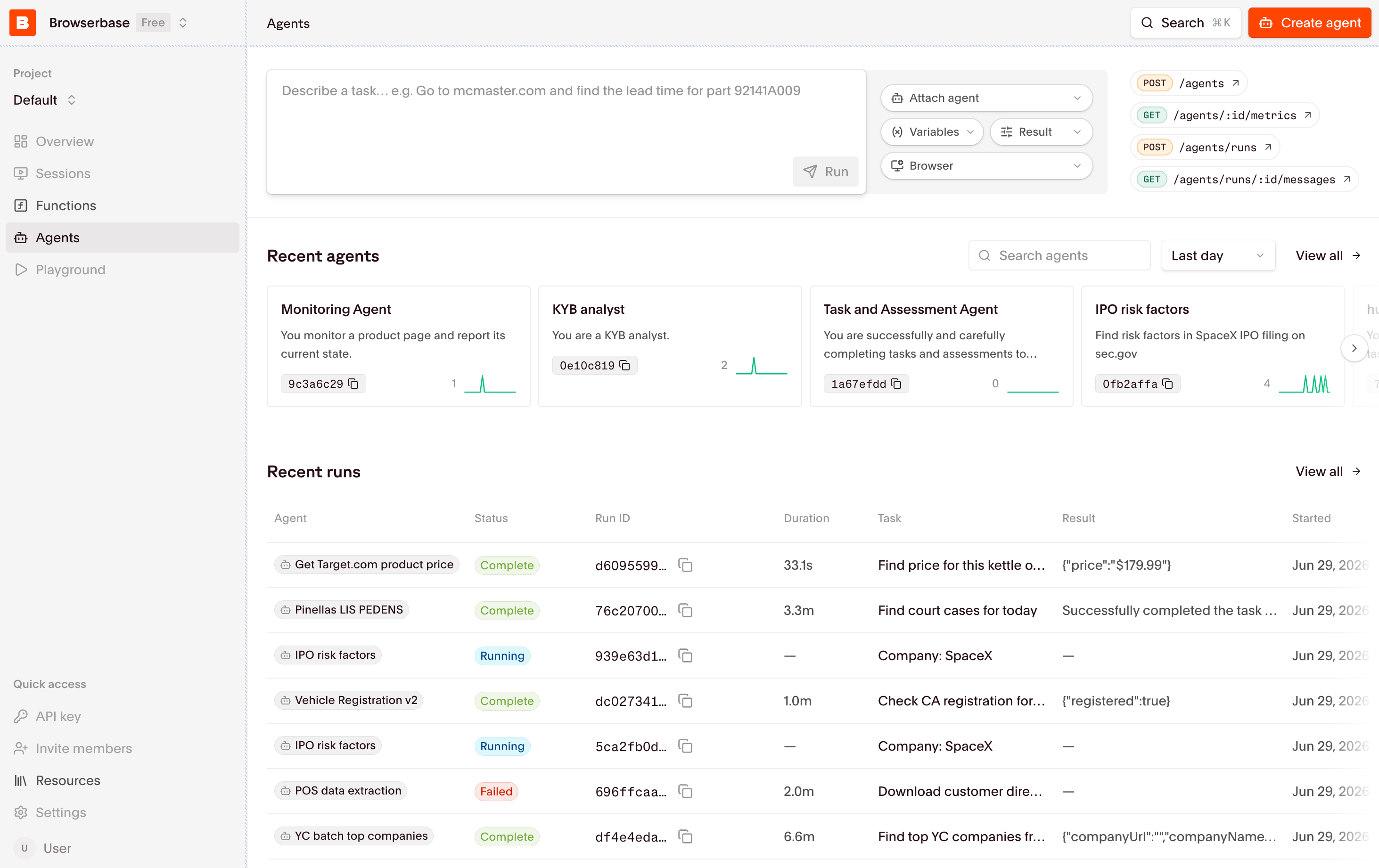 Let's create a "Job Finder" agent, that, given a job title and a company name returns the best fit open position.
Click on the top right "Create Agent" button, and provide the following `system prompt`:
```
You are a job-finding agent. Each session gives you a company name and optionally a role or keyword. Find that company's official job listings and return the best matching open role.
Discovery (never assume a careers URL):
- Search the web for the company's careers page, e.g. "{company} careers".
- Open the OFFICIAL source only: the company's own site (/careers, /jobs) or its real applicant tracking system (Greenhouse, Lever, Ashby, Workday, and similar). Confirm it's that specific company's board, not a generic list.
- Never use job aggregators (LinkedIn, Indeed, Glassdoor, ZipRecruiter). They are gated, stale, and block bots. If only an aggregator is reachable, set found to false and stop.
Extract:
- Read the open roles. If a role or keyword was given, pick the single best
match and count how many roles match.
Rules:
- Return only values you actually read from the page. Never invent a title,
location, or link.
- Read-only: do not log in, apply, enter personal info, or click Apply.
- If no official board or no matching role is found, set found to false and
leave the role fields empty rather than guessing.
```
The above prompt define the agent's goal and scope its work by defining high-level steps and success definition.
Now, let's instruct the desired structured output with a JSON Schema:
```json theme={null}
{
"type": "object",
"properties": {
"found": { "type": "boolean", "description": "Whether an official board with a matching role was located" },
"roleTitle": { "type": "string", "description": "Title of the single best-matching open role" },
"location": { "type": "string", "description": "Location of that role (city, Remote, etc.)" },
"jobUrl": { "type": "string", "description": "Direct link to that role's posting" }
},
"required": ["found"]
}
```
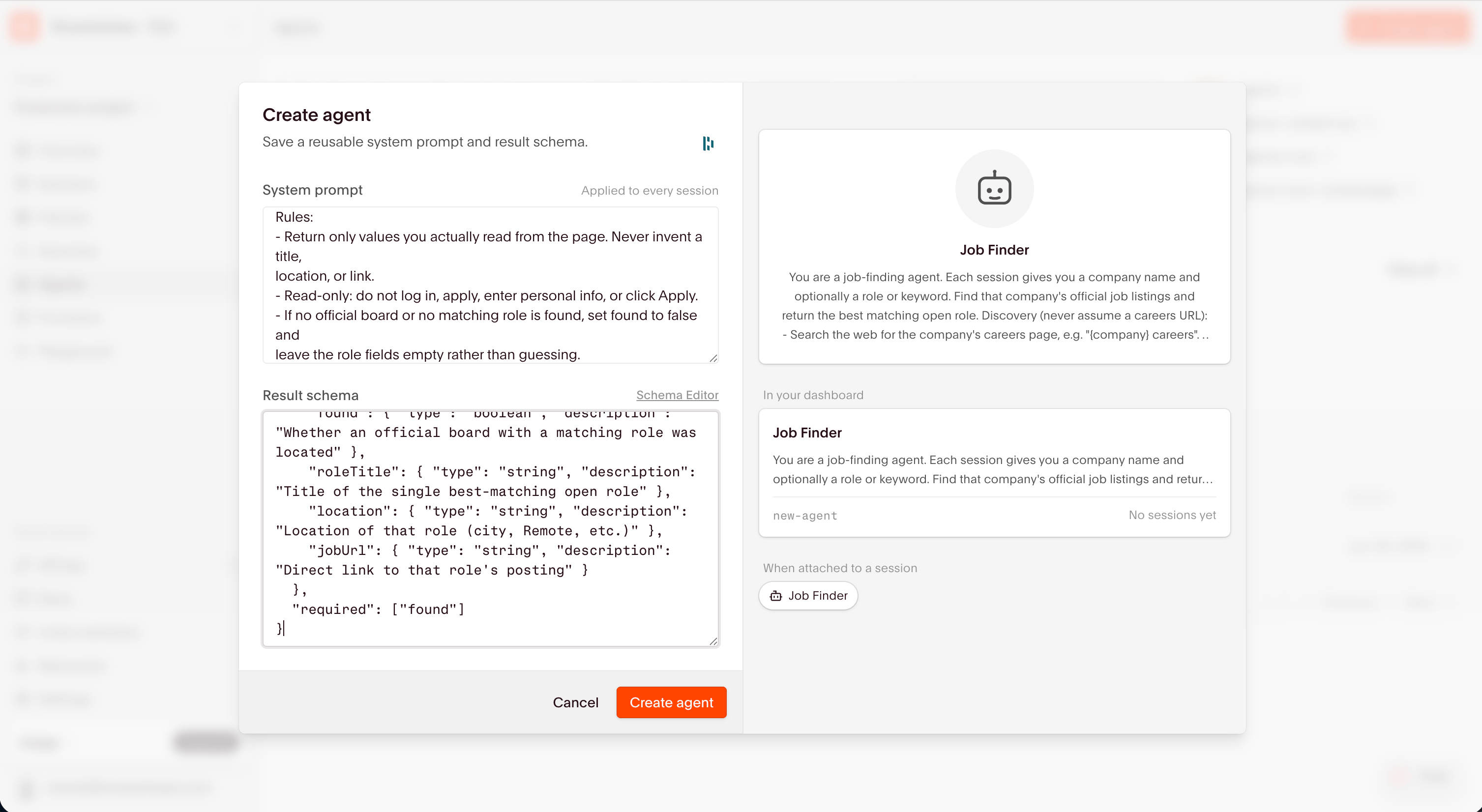
Your "Job Finder" form should look as follow:
Let's create a "Job Finder" agent, that, given a job title and a company name returns the best fit open position.
Click on the top right "Create Agent" button, and provide the following `system prompt`:
```
You are a job-finding agent. Each session gives you a company name and optionally a role or keyword. Find that company's official job listings and return the best matching open role.
Discovery (never assume a careers URL):
- Search the web for the company's careers page, e.g. "{company} careers".
- Open the OFFICIAL source only: the company's own site (/careers, /jobs) or its real applicant tracking system (Greenhouse, Lever, Ashby, Workday, and similar). Confirm it's that specific company's board, not a generic list.
- Never use job aggregators (LinkedIn, Indeed, Glassdoor, ZipRecruiter). They are gated, stale, and block bots. If only an aggregator is reachable, set found to false and stop.
Extract:
- Read the open roles. If a role or keyword was given, pick the single best
match and count how many roles match.
Rules:
- Return only values you actually read from the page. Never invent a title,
location, or link.
- Read-only: do not log in, apply, enter personal info, or click Apply.
- If no official board or no matching role is found, set found to false and
leave the role fields empty rather than guessing.
```
The above prompt define the agent's goal and scope its work by defining high-level steps and success definition.
Now, let's instruct the desired structured output with a JSON Schema:
```json theme={null}
{
"type": "object",
"properties": {
"found": { "type": "boolean", "description": "Whether an official board with a matching role was located" },
"roleTitle": { "type": "string", "description": "Title of the single best-matching open role" },
"location": { "type": "string", "description": "Location of that role (city, Remote, etc.)" },
"jobUrl": { "type": "string", "description": "Direct link to that role's posting" }
},
"required": ["found"]
}
```
Your "Job Finder" form should look as follow:
 Click on "Create Agent"
Creating an agent redirects to its page where you can:
* edit its config
* quickly access key statistics (success rate, average duration)
* runs list
Let's kick off our first "Job Finder" run by clicking the top right "Run" button:
Click on "Create Agent"
Creating an agent redirects to its page where you can:
* edit its config
* quickly access key statistics (success rate, average duration)
* runs list
Let's kick off our first "Job Finder" run by clicking the top right "Run" button:
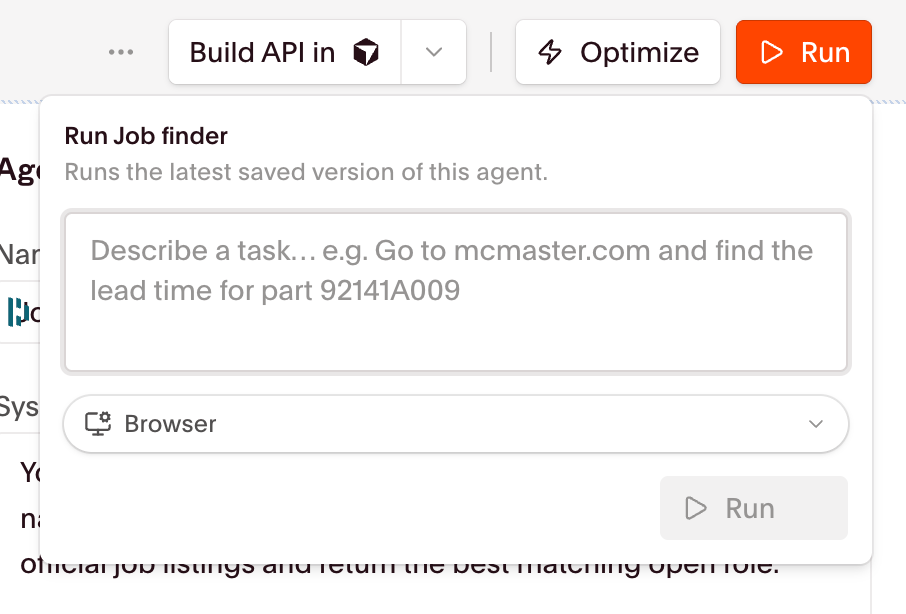 Provide your own prompt or use the following one:
```
Backend engineer at Browserbase
```
Then, click on "Run".
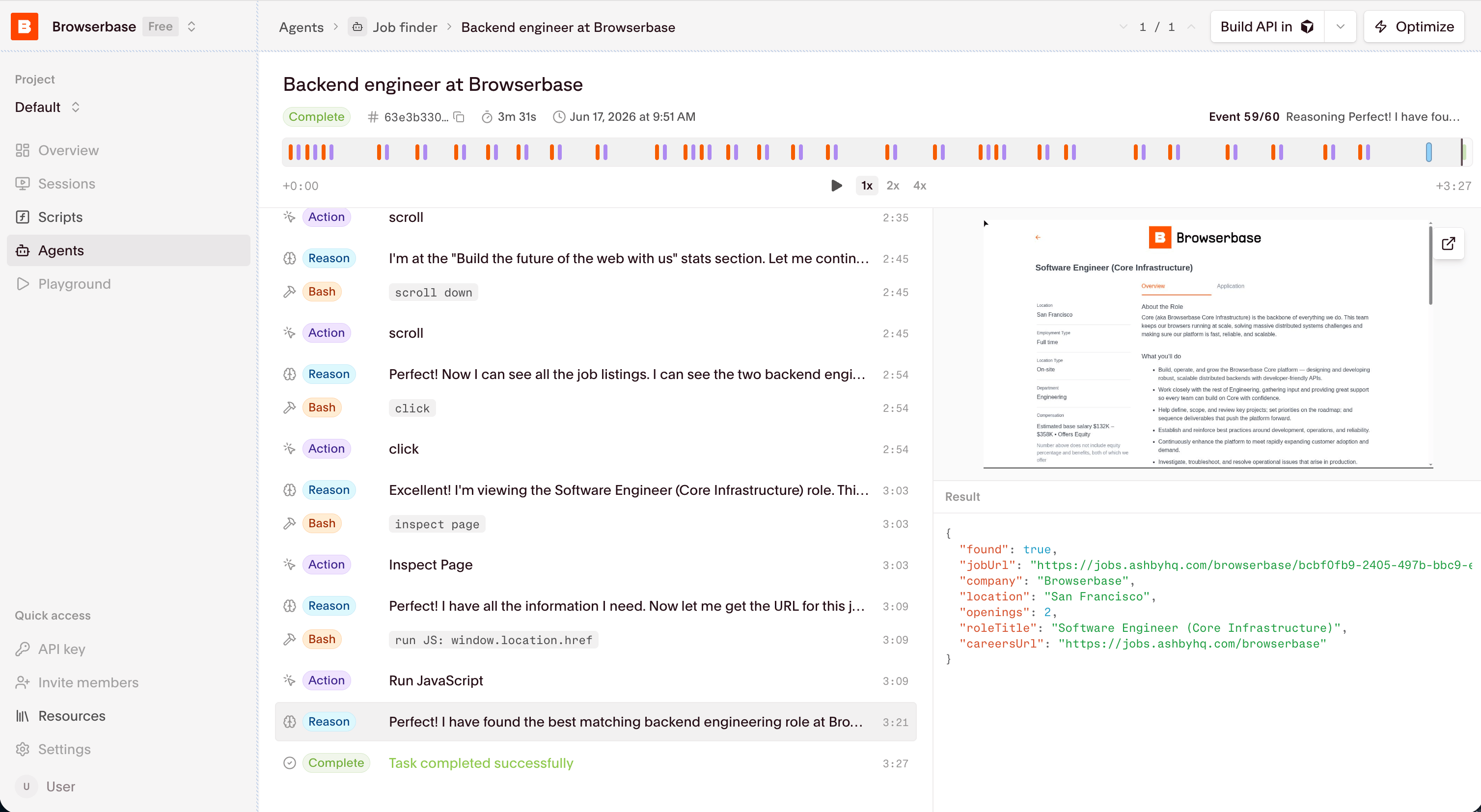
Triggering an agent run redirects to the run view where you can inspect:
* every step of the run: reasoning, actions and more
* see the live browser session
* interact with the timeline to inspect a specific step
After a few minutes, our first run is complete!
Provide your own prompt or use the following one:
```
Backend engineer at Browserbase
```
Then, click on "Run".
Triggering an agent run redirects to the run view where you can inspect:
* every step of the run: reasoning, actions and more
* see the live browser session
* interact with the timeline to inspect a specific step
After a few minutes, our first run is complete!
 Congratulations!
A first agent run is always exploratory, the agent faces issues for the first time, resulting in a slow and repeated steps.
Browserbase Agents provide an "Optimize" feature, available from the agent run view, that suggests optimization based on your
agent's previous exploration.
From our first agent run view, click on the "Optimize" button at the top right and select "Make it faster":
Congratulations!
A first agent run is always exploratory, the agent faces issues for the first time, resulting in a slow and repeated steps.
Browserbase Agents provide an "Optimize" feature, available from the agent run view, that suggests optimization based on your
agent's previous exploration.
From our first agent run view, click on the "Optimize" button at the top right and select "Make it faster":
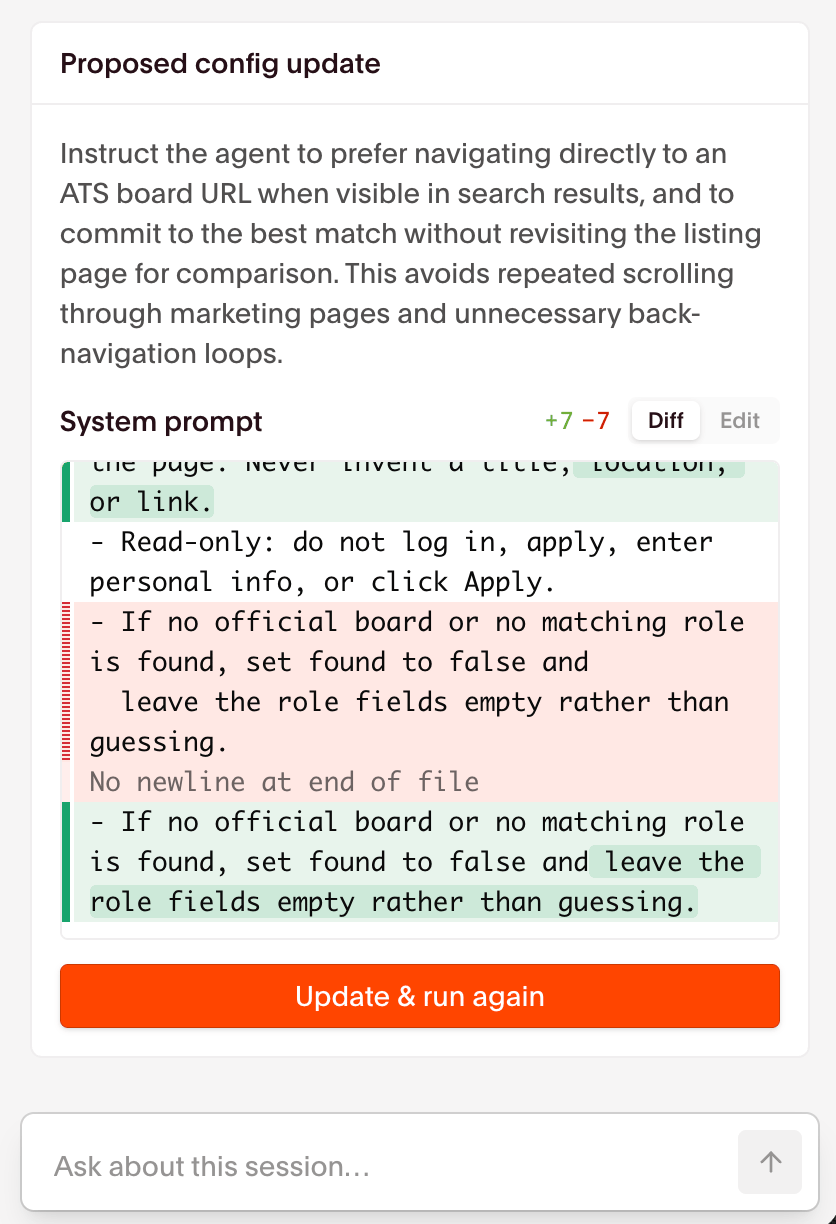
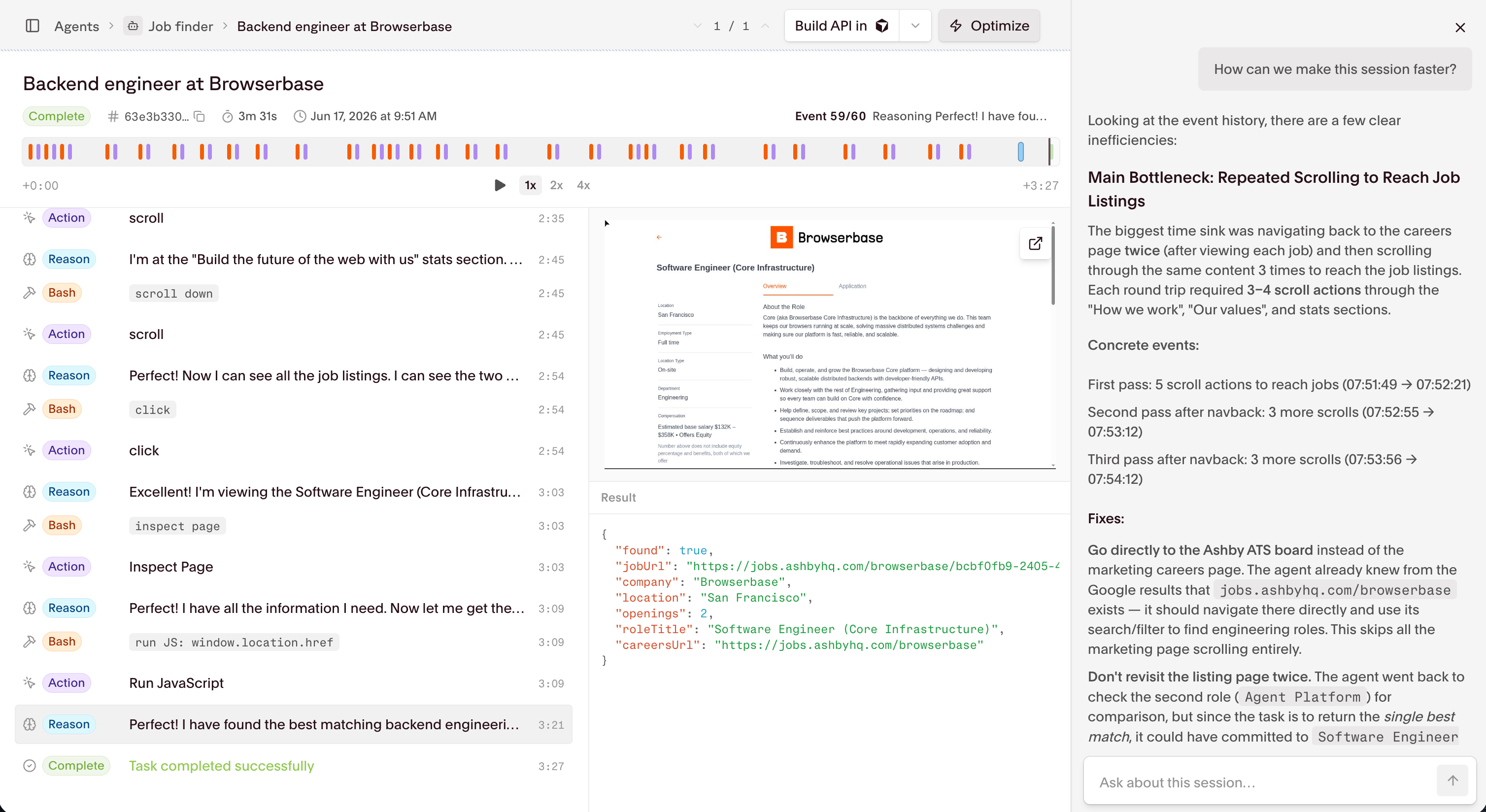 No matter what your selected prompt was, the Optimize tool will likely suggest to update your
agent's prompt to always navigate to an Ashby page if available (*instead of exploring the company website*).
By accepting the suggestion solution, the Optimize tool will update your agent's prompt and trigger a new run:
No matter what your selected prompt was, the Optimize tool will likely suggest to update your
agent's prompt to always navigate to an Ashby page if available (*instead of exploring the company website*).
By accepting the suggestion solution, the Optimize tool will update your agent's prompt and trigger a new run:
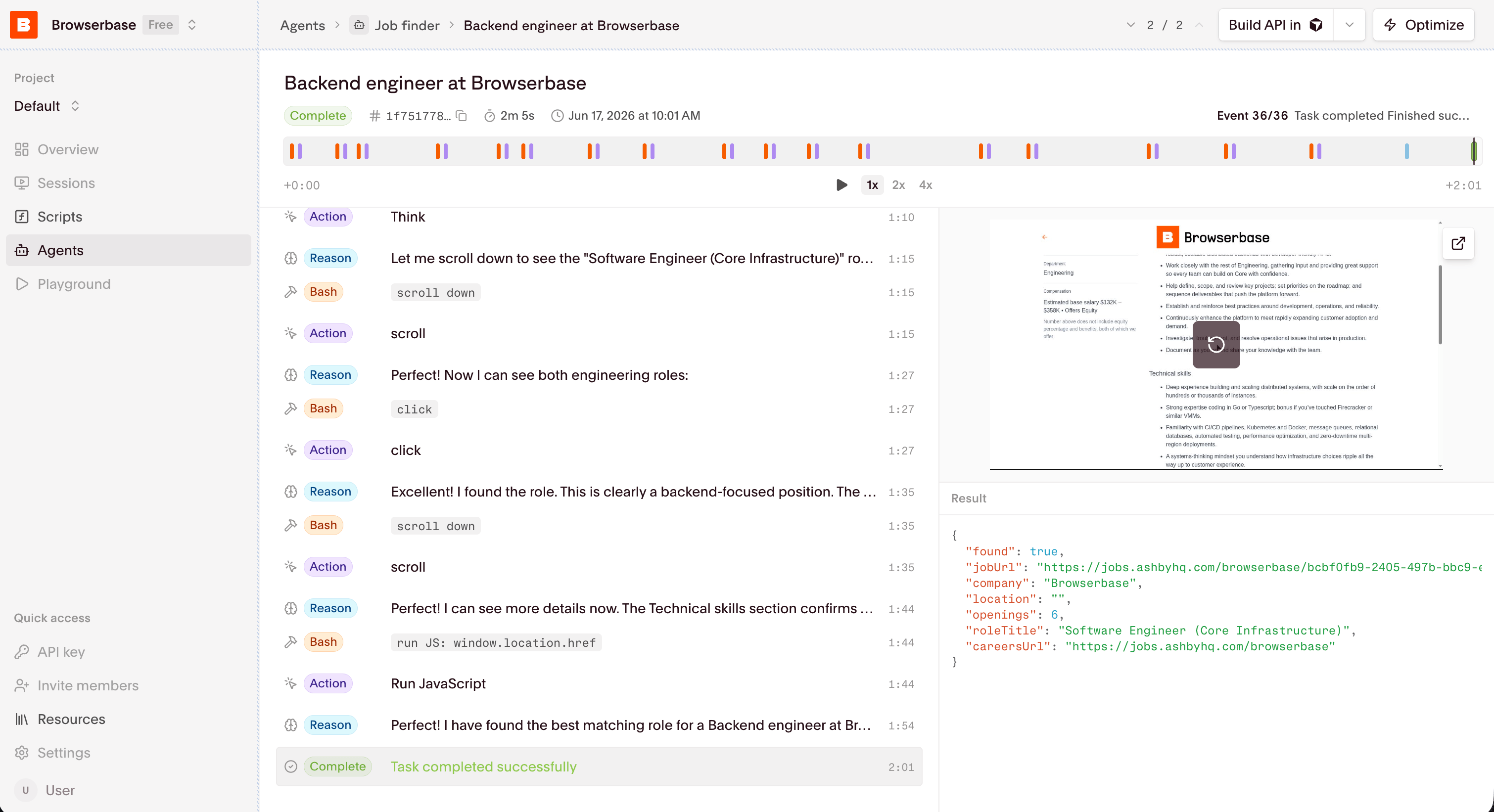
 By updating the prompt, your agent should run now 30% quicker ⚡️
 **When should I use the Optimize tool?**
* If you want to speed up your agent
* If your agent success rate is dropping, ask it to find solutions
Congratulations, your first Browserbase Agent is now up and running!
You can now [integrate it in your application using the Browserbase API or SDK](/platform/agents/integrate-api-sdk).
## Next steps
Learn run states, configuration options, observability, and production notes.
The execution loop, built-in tools, run lifecycle, and session observability
Dive into the Agents API endpoint to create an agent and manage runs.
Understand when to use Agents versus a custom browser-agent stack.
**When should I use the Optimize tool?**
* If you want to speed up your agent
* If your agent success rate is dropping, ask it to find solutions
Congratulations, your first Browserbase Agent is now up and running!
You can now [integrate it in your application using the Browserbase API or SDK](/platform/agents/integrate-api-sdk).
## Next steps
Learn run states, configuration options, observability, and production notes.
The execution loop, built-in tools, run lifecycle, and session observability
Dive into the Agents API endpoint to create an agent and manage runs.
Understand when to use Agents versus a custom browser-agent stack.