> ## Documentation Index
> Fetch the complete documentation index at: https://docs.browserbase.com/llms.txt
> Use this file to discover all available pages before exploring further.
# Overview
Run your first browser session and learn the Browserbase basics.
**Using Claude Code, Cursor, or another coding agent?** Paste this into your prompt to browse the web, debug sessions, and manage your entire project via the Browserbase CLI:
```
Read https://browserbase.com/SKILL.md to set up Browserbase
```
## Creating your account
[Sign up for a Browserbase account](https://www.browserbase.com/sign-up). The free plan includes:
* One browser session running at a time
* 60 minutes of browser time per month
Having trouble with phone verification? Reach out via the [support portal](https://portal.usepylon.com/browserbase/forms/talk-to-an-engineer) or email [support@browserbase.com](mailto:support@browserbase.com).
## Overview dashboard
The overview dashboard is the first page you'll see when you log in to Browserbase and click into a project. It gives you a quick snapshot of your browser sessions, usage, and status.
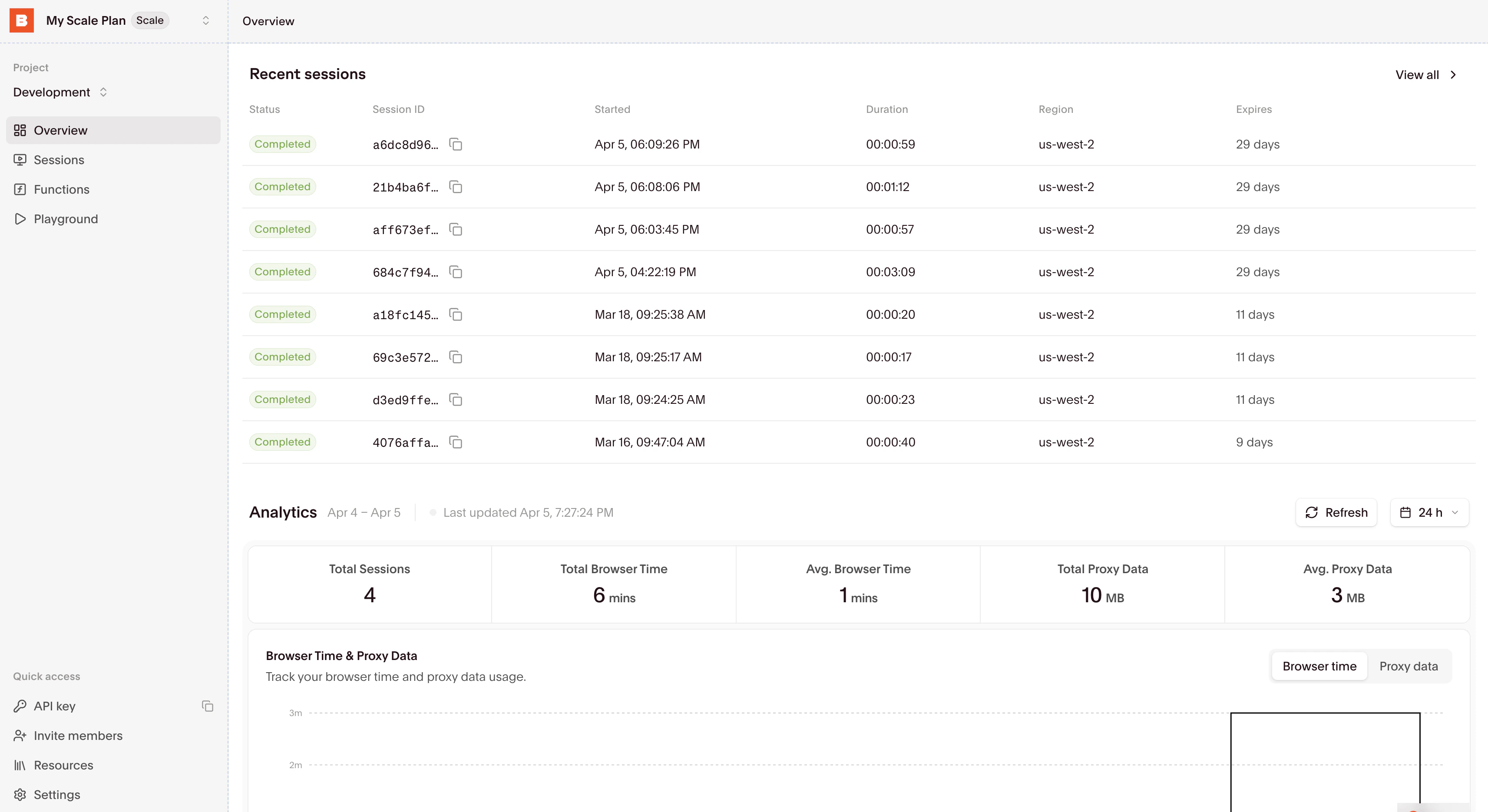 On the [overview page](https://www.browserbase.com/overview), you'll find:
* **Your API key** (and **Project ID**, if you need it) on the right side
* Currently running and recently completed sessions
* Historical usage statistics, performance metrics, and system status
## Using the playground
The [Playground](https://www.browserbase.com/playground) lets you try Browserbase directly in your browser with no local setup needed.
1. Navigate to the [Playground](https://www.browserbase.com/playground)
2. Command + Click on one of the templates in the code editor
3. Click "Run" to start a browser session and execute the code
4. Watch the session via [Live View](/platform/browser/observability/session-live-view) on the right
5. Click "Stop" to shut down the browser
After completing a session in the Playground, click the "View Session" button to open the Session Inspector.
## Session Inspector
Use the [Session Inspector](/platform/browser/observability/observability) to watch sessions in real time, view recordings, or inspect logs.
## Sessions list
Find all your sessions in the [Sessions](https://www.browserbase.com/sessions) tab. From there, you can open the Session Inspector for any session.
On the [overview page](https://www.browserbase.com/overview), you'll find:
* **Your API key** (and **Project ID**, if you need it) on the right side
* Currently running and recently completed sessions
* Historical usage statistics, performance metrics, and system status
## Using the playground
The [Playground](https://www.browserbase.com/playground) lets you try Browserbase directly in your browser with no local setup needed.
1. Navigate to the [Playground](https://www.browserbase.com/playground)
2. Command + Click on one of the templates in the code editor
3. Click "Run" to start a browser session and execute the code
4. Watch the session via [Live View](/platform/browser/observability/session-live-view) on the right
5. Click "Stop" to shut down the browser
After completing a session in the Playground, click the "View Session" button to open the Session Inspector.
## Session Inspector
Use the [Session Inspector](/platform/browser/observability/observability) to watch sessions in real time, view recordings, or inspect logs.
## Sessions list
Find all your sessions in the [Sessions](https://www.browserbase.com/sessions) tab. From there, you can open the Session Inspector for any session.
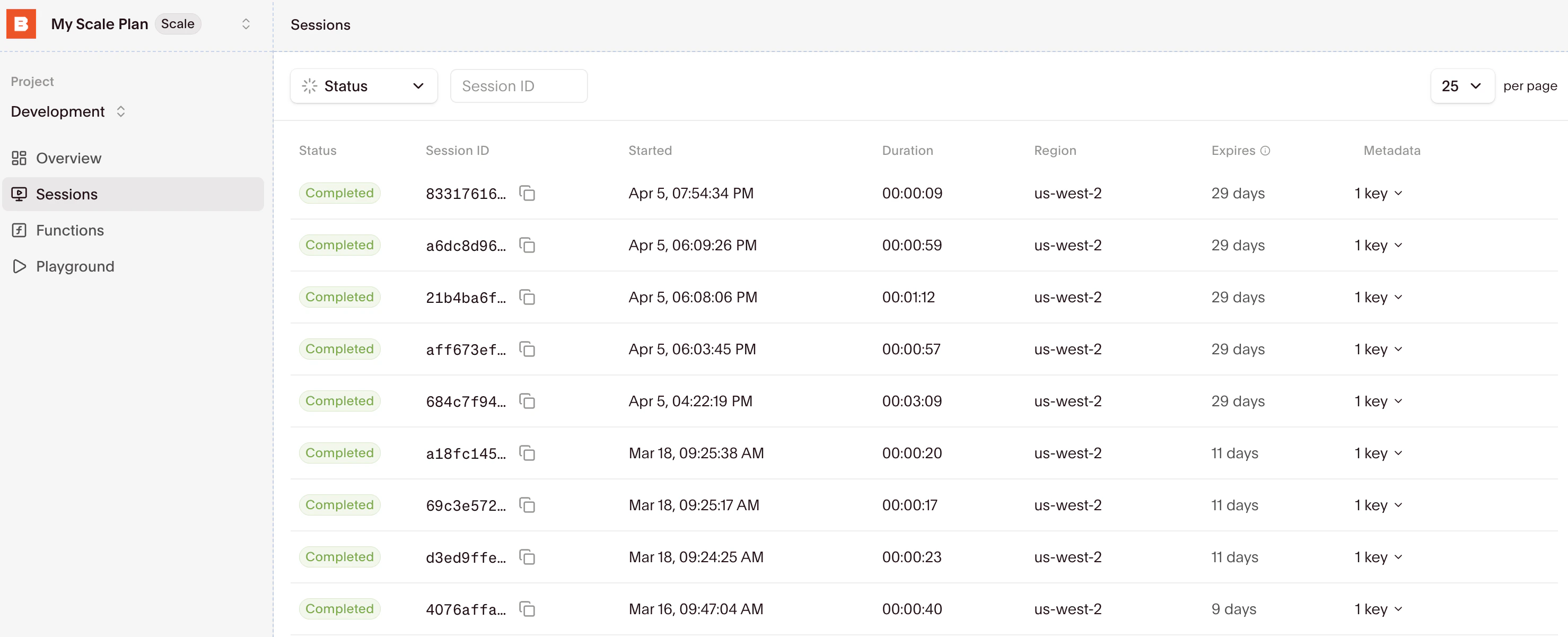 If you know your session ID, you can also access the Session Inspector by navigating to `https://www.browserbase.com/sessions/[session-id]`.
## Next steps
Once you've run a session in the playground, you'll likely want to integrate Browserbase into your own codebase. You have two main approaches:
1. **Direct session control**: Create browser sessions and control them with your preferred automation framework
2. **Cloud Functions**: Deploy browser agents as cloud functions invocable via API
### Using browser sessions
Pick a browser automation framework and follow the framework-specific quickstart to get a Browserbase project running locally. Browserbase supports all popular frameworks and many [integrations](/integrations).
If you're not sure which framework to use,
[Stagehand](/welcome/quickstarts/stagehand) is recommended as it's built and
maintained by the Browserbase team.
**Recommended for AI-native workflows**
* JavaScript and Python support
* Self-healing page automations
* LLM-powered browser control
* AI-first architecture
**Recommended for traditional automation**
* JavaScript, Python, Java, and C# support
* Static workflow definitions
* Robust testing capabilities
* Extensive API support
**Recommended for Puppeteer users**
* JavaScript support
* Static workflow definitions
* Robust testing capabilities
* Extensive API support
**Recommended for Selenium users**
* JS, Python, Java, C#, and Ruby support
* Static workflow definitions
* Robust testing capabilities
* Extensive API support
### Not sure which API to use?
Think about [Search](/platform/search/overview) -> [Fetch](/platform/fetch/overview) -> [Browsers](/platform/browser/getting-started/create-browser-session)
* **[Search:](/platform/search/overview)** Find relevant sources (website, news, docs).
* **[Fetch:](/platform/fetch/overview)** Quickly extract content from most pages, and filter out low-value results.
* **[Browsers:](/platform/browser/getting-started/create-browser-session)** Log in to portals with [agent identity](/platform/identity/overview), navigate complex pages, and extract the hard-to-reach data.
Read our [full guide](https://www.browserbase.com/blog/search-vs-fetch-vs-browsers) breaking down which API to use with examples.
### Need to deploy your code?
[Functions](/platform/runtime/overview) let you deploy browser agents directly to Browserbase's infrastructure. Perfect for webhooks, scheduled tasks, or API endpoints with zero server management.
**Recommended for serverless workflows**
* Zero infrastructure management
* API-invocable browser agents
* Built-in session management
* Perfect for webhooks and scheduled tasks
## Use Browserbase with Claude Code
Paste this into your agent to get started:
```
Read https://browserbase.com/SKILL.md to set up Browserbase
```
If you know your session ID, you can also access the Session Inspector by navigating to `https://www.browserbase.com/sessions/[session-id]`.
## Next steps
Once you've run a session in the playground, you'll likely want to integrate Browserbase into your own codebase. You have two main approaches:
1. **Direct session control**: Create browser sessions and control them with your preferred automation framework
2. **Cloud Functions**: Deploy browser agents as cloud functions invocable via API
### Using browser sessions
Pick a browser automation framework and follow the framework-specific quickstart to get a Browserbase project running locally. Browserbase supports all popular frameworks and many [integrations](/integrations).
If you're not sure which framework to use,
[Stagehand](/welcome/quickstarts/stagehand) is recommended as it's built and
maintained by the Browserbase team.
**Recommended for AI-native workflows**
* JavaScript and Python support
* Self-healing page automations
* LLM-powered browser control
* AI-first architecture
**Recommended for traditional automation**
* JavaScript, Python, Java, and C# support
* Static workflow definitions
* Robust testing capabilities
* Extensive API support
**Recommended for Puppeteer users**
* JavaScript support
* Static workflow definitions
* Robust testing capabilities
* Extensive API support
**Recommended for Selenium users**
* JS, Python, Java, C#, and Ruby support
* Static workflow definitions
* Robust testing capabilities
* Extensive API support
### Not sure which API to use?
Think about [Search](/platform/search/overview) -> [Fetch](/platform/fetch/overview) -> [Browsers](/platform/browser/getting-started/create-browser-session)
* **[Search:](/platform/search/overview)** Find relevant sources (website, news, docs).
* **[Fetch:](/platform/fetch/overview)** Quickly extract content from most pages, and filter out low-value results.
* **[Browsers:](/platform/browser/getting-started/create-browser-session)** Log in to portals with [agent identity](/platform/identity/overview), navigate complex pages, and extract the hard-to-reach data.
Read our [full guide](https://www.browserbase.com/blog/search-vs-fetch-vs-browsers) breaking down which API to use with examples.
### Need to deploy your code?
[Functions](/platform/runtime/overview) let you deploy browser agents directly to Browserbase's infrastructure. Perfect for webhooks, scheduled tasks, or API endpoints with zero server management.
**Recommended for serverless workflows**
* Zero infrastructure management
* API-invocable browser agents
* Built-in session management
* Perfect for webhooks and scheduled tasks
## Use Browserbase with Claude Code
Paste this into your agent to get started:
```
Read https://browserbase.com/SKILL.md to set up Browserbase
```