> ## Documentation Index
> Fetch the complete documentation index at: https://docs.browserbase.com/llms.txt
> Use this file to discover all available pages before exploring further.
# Deploy a Function
> Publish a Browserbase Function from the CLI or the Playground.
You can publish a Function from a local TypeScript project or from the Browserbase Playground. Both paths create a Function version that you invoke through the API.
Functions are currently only available in the **us-west-2** region.
## Deploy from the CLI
Use the CLI when you want version control, custom dependencies, or local editor tooling. If you don't have a local project yet, follow the [Functions quickstart](/platform/functions/quickstart).
```typescript Node.js theme={null}
// index.ts
import { defineFn } from "@browserbasehq/sdk-functions";
import { chromium } from "playwright-core";
defineFn("page-title", async (context, params) => {
const browser = await chromium.connectOverCDP(
context.session.connectUrl,
);
const page = browser.contexts()[0]!.pages()[0]!;
await page.goto(params.url);
return { title: await page.title() };
});
```
```bash theme={null}
pnpm bb publish index.ts
```
The command builds the Function and prints its Function ID. Save that ID for [invoke](/platform/functions/invoke).
Functions don't support pnpm workspaces. Keep `pnpm-lock.yaml` or `package-lock.json` in the Function project directory, not only at a workspace root.
Publishing again with the same Function name creates a new version. Callers keep using the same Function ID.
To ship several Functions from one entrypoint, see [publish multiple Functions](/platform/functions/write#publish-multiple-functions).
## Deploy from the Playground
The Playground lets you write and publish a Function without a local project. Test Stagehand or Playwright code in a live browser, define input parameters, then publish.
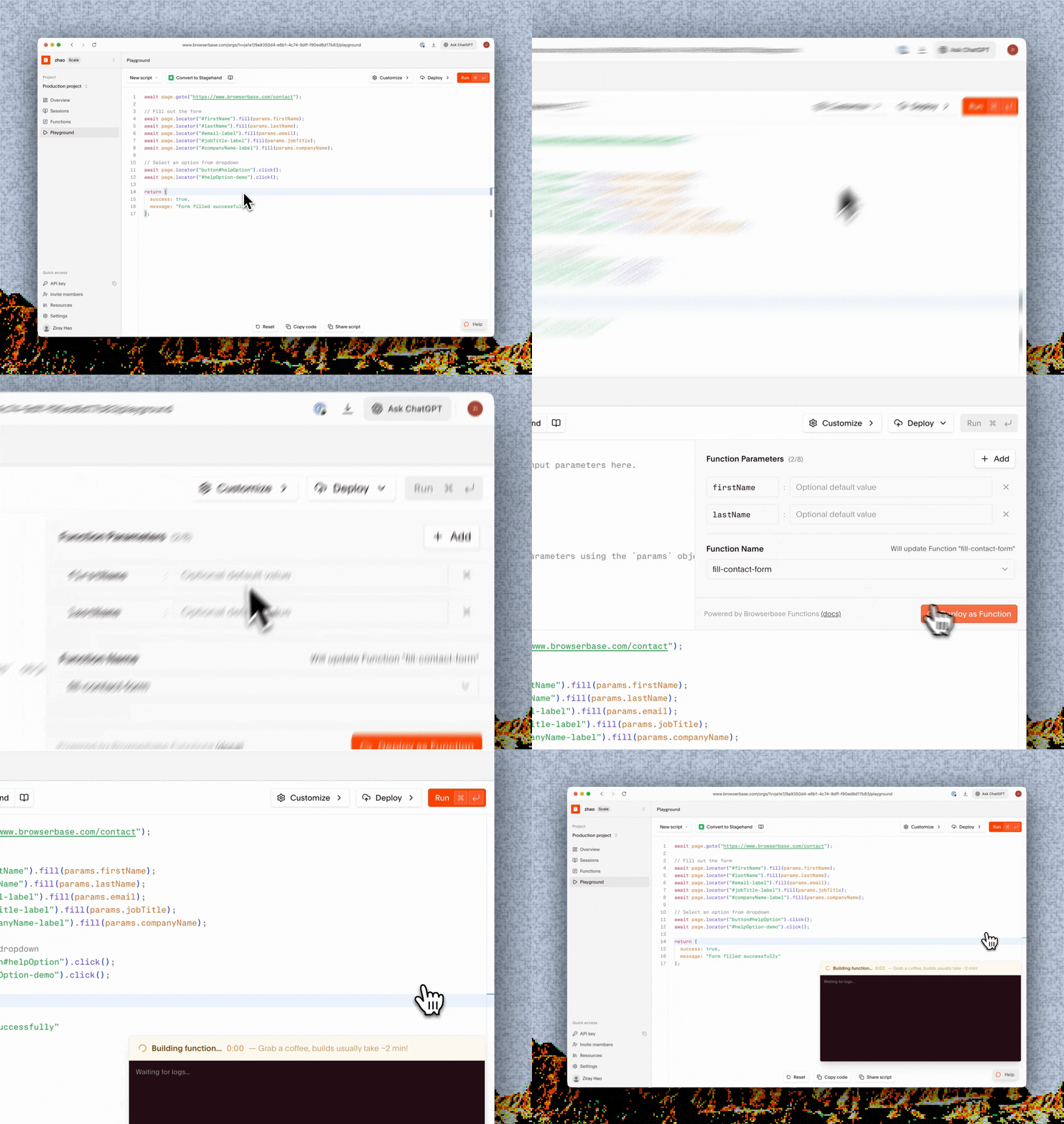 Open the [Browserbase dashboard](https://www.browserbase.com/overview), then select **Playground**.
The editor starts with a Stagehand template. Write the browser logic that the Function will run:
```javascript Playground theme={null}
import { localBrowser, Stagehand } from "@browserbasehq/stagehand";
const browser = await localBrowser.connect({ cdpUrl: connectUrl });
const stagehand = await Stagehand.create({ browser });
const page = await browser.context.activePage();
await page.goto("https://example.com");
await stagehand.act("Click the More information link");
return {
url: page.url(),
title: await page.title(),
};
```
The Playground provides `connectUrl`, `sessionId`, `apiKey`, and `z` as globals. Use **Convert to Stagehand** to convert a Playwright script.
The Playground does not compile TypeScript. Your code runs as JavaScript, so type annotations, interfaces, and casting will throw a SyntaxError. When you publish, the Playground puts your script into an index.ts file.
Select **Run**. The Playground creates a browser session, runs the script, displays its output, and opens a live browser view.
Use the console output and live view to fix the script before you publish it.
Open **Deploy**, then add inputs under **Function Parameters**:
Open the [Browserbase dashboard](https://www.browserbase.com/overview), then select **Playground**.
The editor starts with a Stagehand template. Write the browser logic that the Function will run:
```javascript Playground theme={null}
import { localBrowser, Stagehand } from "@browserbasehq/stagehand";
const browser = await localBrowser.connect({ cdpUrl: connectUrl });
const stagehand = await Stagehand.create({ browser });
const page = await browser.context.activePage();
await page.goto("https://example.com");
await stagehand.act("Click the More information link");
return {
url: page.url(),
title: await page.title(),
};
```
The Playground provides `connectUrl`, `sessionId`, `apiKey`, and `z` as globals. Use **Convert to Stagehand** to convert a Playwright script.
The Playground does not compile TypeScript. Your code runs as JavaScript, so type annotations, interfaces, and casting will throw a SyntaxError. When you publish, the Playground puts your script into an index.ts file.
Select **Run**. The Playground creates a browser session, runs the script, displays its output, and opens a live browser view.
Use the console output and live view to fix the script before you publish it.
Open **Deploy**, then add inputs under **Function Parameters**:
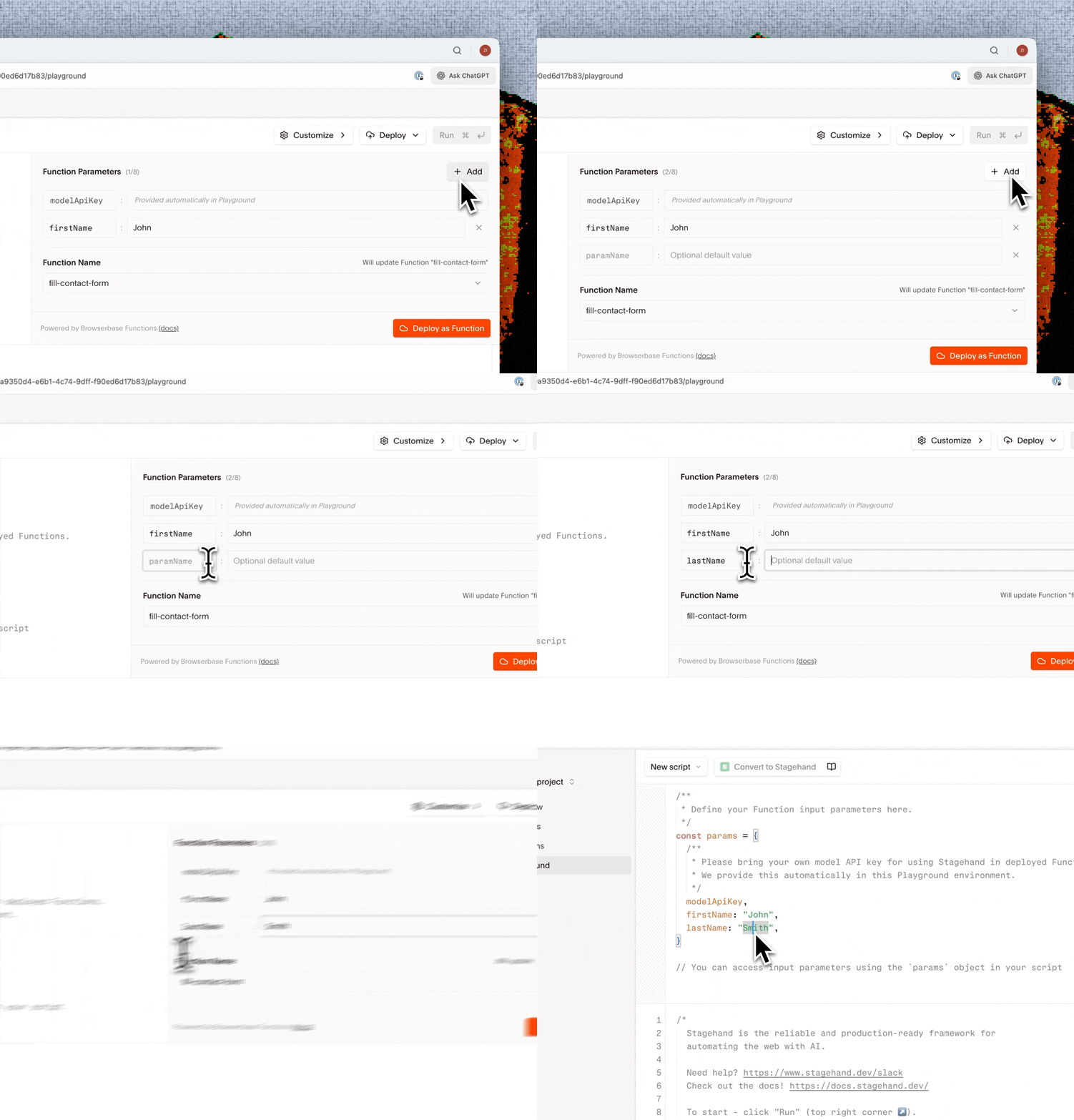 Each parameter has a name and an optional default value. The published Function receives the values through `params`:
```javascript Playground theme={null}
await stagehand.act(`Search for "${params.searchQuery}"`);
```
**Run** doesn't populate `params`. Use a literal value while you test, then replace it with `params.` before you publish. You can define up to eight parameters.
In the **Deploy** panel:
1. Enter a Function name.
2. Select **Deploy as Function**.
Each parameter has a name and an optional default value. The published Function receives the values through `params`:
```javascript Playground theme={null}
await stagehand.act(`Search for "${params.searchQuery}"`);
```
**Run** doesn't populate `params`. Use a literal value while you test, then replace it with `params.` before you publish. You can define up to eight parameters.
In the **Deploy** panel:
1. Enter a Function name.
2. Select **Deploy as Function**.
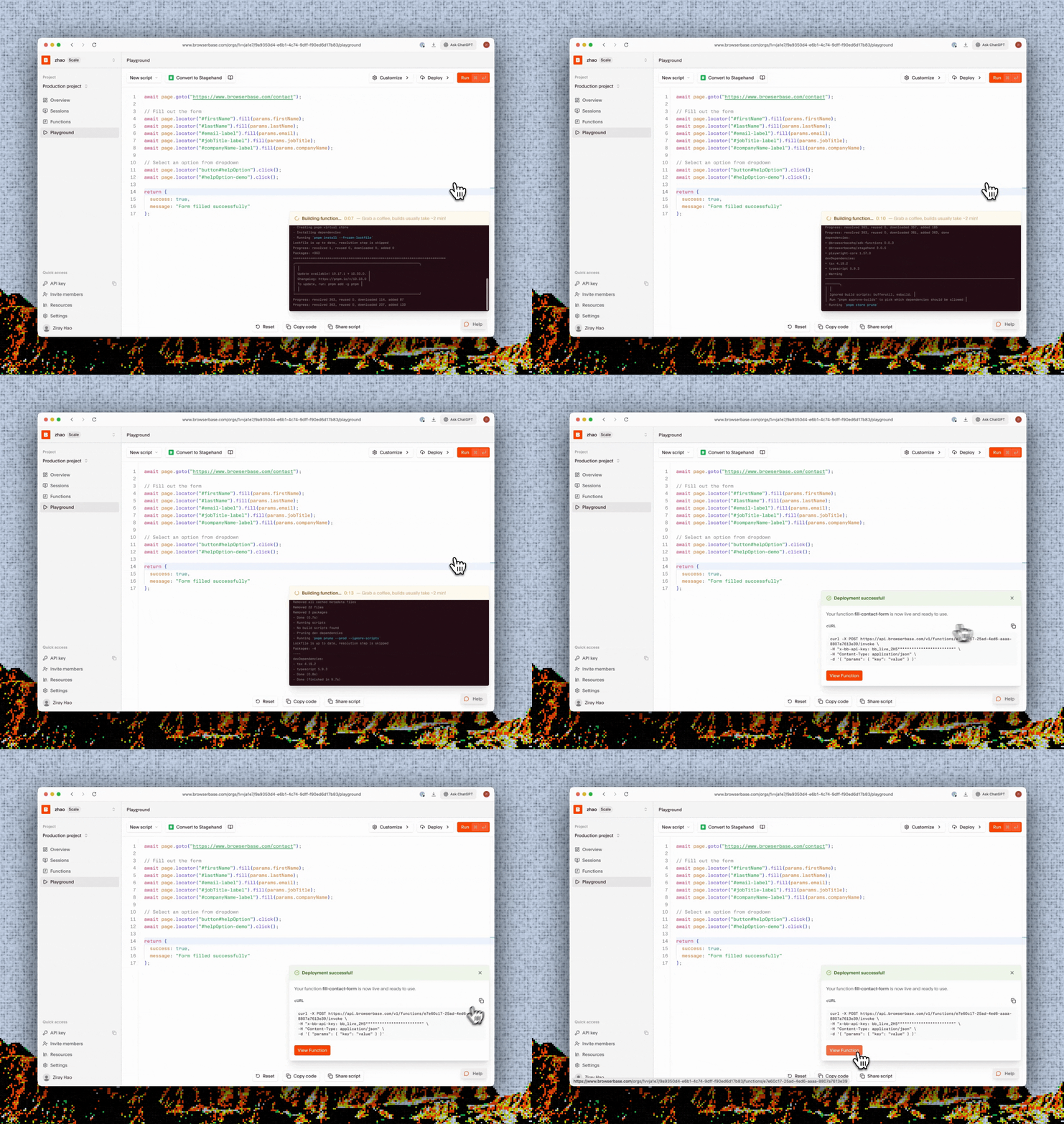 After the build completes, the Playground shows an invoke command and a link to the Function details.
Publishing the same Function name creates a new version of the existing Function.
Move to a local project and [deploy from the CLI](#deploy-from-the-cli) when you need version control, multiple files, custom dependencies, or local editor tooling.
## After you deploy
Open **Functions** in the dashboard to:
* Copy the Function ID and invoke command.
* Review builds, versions, and invocation history.
* Inspect invocation logs and browser sessions.
* Delete a Function.
Pass parameters and retrieve asynchronous results.
Configure schemas, browser settings, and multiple Functions.
After the build completes, the Playground shows an invoke command and a link to the Function details.
Publishing the same Function name creates a new version of the existing Function.
Move to a local project and [deploy from the CLI](#deploy-from-the-cli) when you need version control, multiple files, custom dependencies, or local editor tooling.
## After you deploy
Open **Functions** in the dashboard to:
* Copy the Function ID and invoke command.
* Review builds, versions, and invocation history.
* Inspect invocation logs and browser sessions.
* Delete a Function.
Pass parameters and retrieve asynchronous results.
Configure schemas, browser settings, and multiple Functions.