> ## Documentation Index
> Fetch the complete documentation index at: https://docs.browserbase.com/llms.txt
> Use this file to discover all available pages before exploring further.
# Using a browser session
> Learn how to connect to and interact with browser sessions
## Connecting to a session
Once you [create a session](/platform/browser/getting-started/create-browser-session), you'll receive a connection URL to use with your preferred automation framework. Here's how to connect:
```javascript Stagehand theme={null}
import { Stagehand } from "@browserbasehq/stagehand";
const stagehand = new Stagehand({
env: "BROWSERBASE",
});
await stagehand.init();
// Get the default page
const page = stagehand.context.pages()[0];
```
```javascript Playwright theme={null}
import { chromium } from "playwright-core";
import { Browserbase } from "@browserbasehq/sdk";
const bb = new Browserbase({ apiKey: process.env.BROWSERBASE_API_KEY });
// Create a session
const session = await bb.sessions.create();
const browser = await chromium.connectOverCDP(session.connectUrl);
// Use the default context and page
const context = browser.contexts()[0];
const page = context.pages()[0];
```
```javascript Puppeteer theme={null}
import puppeteer from "puppeteer-core";
import { Browserbase } from "@browserbasehq/sdk";
const bb = new Browserbase({ apiKey: process.env.BROWSERBASE_API_KEY });
// Create a session
const session = await bb.sessions.create();
const browser = await puppeteer.connect({
browserWSEndpoint: session.connectUrl
});
// Use the default page
const page = (await browser.pages())[0];
```
```javascript Selenium theme={null}
import { Builder } from 'selenium-webdriver';
import { Options } from 'selenium-webdriver/chrome';
import { Browserbase } from "@browserbasehq/sdk";
class BrowserbaseConnection {
constructor(sessionId) {
this.sessionId = sessionId;
}
getHeaders() {
return {
'x-bb-api-key': process.env.BROWSERBASE_API_KEY,
'session-id': this.sessionId
};
}
}
// Create a session
const bb = new Browserbase({ apiKey: process.env.BROWSERBASE_API_KEY });
const session = await bb.sessions.create();
// Create connection with custom headers
const connection = new BrowserbaseConnection(session.id);
// Configure WebDriver
const driver = await new Builder()
.usingServer(session.seleniumRemoteUrl)
.setChromeOptions(new Options())
.build();
// Add custom headers to all requests
const originalExecute = driver.executor_.execute.bind(driver.executor_);
driver.executor_.execute = async function (command) {
command.headers = { ...command.headers, ...connection.getHeaders() };
return originalExecute(command);
};
```
```python Stagehand theme={null}
import os
import asyncio
from stagehand import AsyncStagehand
async def main():
async with AsyncStagehand(
browserbase_api_key=os.environ.get("BROWSERBASE_API_KEY"),
browserbase_project_id=os.environ.get("BROWSERBASE_PROJECT_ID"),
model_api_key=os.environ.get("MODEL_API_KEY"),
) as client:
session = await client.sessions.start(
model_name="anthropic/claude-sonnet-4-6",
)
asyncio.run(main())
```
```python Playwright theme={null}
import os
from playwright.sync_api import sync_playwright
from browserbase import Browserbase
# Create a session
bb = Browserbase(api_key=os.environ["BROWSERBASE_API_KEY"])
session = bb.sessions.create()
with sync_playwright() as playwright:
browser = playwright.chromium.connect_over_cdp(session.connect_url)
# Use the default context and page
context = browser.contexts[0]
page = context.pages[0]
```
```python Selenium theme={null}
import os
from selenium import webdriver
from selenium.webdriver.remote.webdriver import WebDriver
from selenium.webdriver.remote.remote_connection import RemoteConnection
from browserbase import Browserbase
class BrowserbaseConnection(RemoteConnection):
"""Manage a single session with Browserbase."""
def __init__(self, session_id, *args, **kwargs):
self.session_id = session_id
super().__init__(*args, **kwargs)
def get_remote_connection_headers(self, parsed_url, keep_alive=False):
headers = super().get_remote_connection_headers(parsed_url, keep_alive)
headers.update({
"x-bb-api-key": os.environ["BROWSERBASE_API_KEY"],
"session-id": self.session_id,
})
return headers
# Create a session
bb = Browserbase(api_key=os.environ["BROWSERBASE_API_KEY"])
session = bb.sessions.create()
# Connect using custom connection class
connection = BrowserbaseConnection(
session.id,
session.selenium_remote_url
)
driver = webdriver.Remote(
command_executor=connection,
options=webdriver.ChromeOptions()
)
```
### Connection best practices
1. **Connection timeout**: You have 5 minutes to connect to a newly created session before it terminates. To prevent timeouts:
* Connect promptly after creation
* Enable [keep alive](/platform/browser/long-sessions/overview) for sessions that need to persist
* Use the connection URL immediately after receiving it
2. **Use default context**: Always use the default context and page when possible to ensure proper functionality of Verified features:
```typescript Stagehand theme={null}
// Stagehand manages the context: get the default page directly
const page = stagehand.context.pages()[0];
```
```typescript Playwright theme={null}
const context = browser.contexts()[0];
const page = context.pages()[0];
```
```typescript Puppeteer theme={null}
const page = (await browser.pages())[0];
```
```typescript Selenium theme={null}
// Uses default context automatically
```
```python Stagehand theme={null}
# Stagehand manages the session: use the session object directly
session = await client.sessions.start(model_name="anthropic/claude-sonnet-4-6")
```
```python Playwright theme={null}
context = browser.contexts[0]
page = context.pages[0]
```
```python Selenium theme={null}
# Uses default context automatically
```
## Controlling the browser
Once connected, use your preferred framework's APIs to control the browser. Each framework has its own methods for navigation, interaction, and automation.
Build reliable browser automation with AI-powered element selection and self-healing scripts
{" "}
Create fast, reliable end-to-end tests with built-in auto-waiting and mobile
emulation
{" "}
Headless Chrome automation with a lightweight API and strong DevTools
integration
Industry-standard testing framework supporting all major browsers and programming languages
### Browserbase features
When running browsers in the cloud, certain operations require special handling through the Browserbase APIs:
Securely retrieve files from your cloud browser session
Capture high-quality browser screenshots with custom settings
Create PDFs with advanced formatting options
Transfer files directly to your browser session
### Live view
Live view gives you real-time visibility into your browser sessions through two interfaces:
#### Session Inspector
The [Session Inspector](/platform/browser/observability/observability) provides real-time debugging:
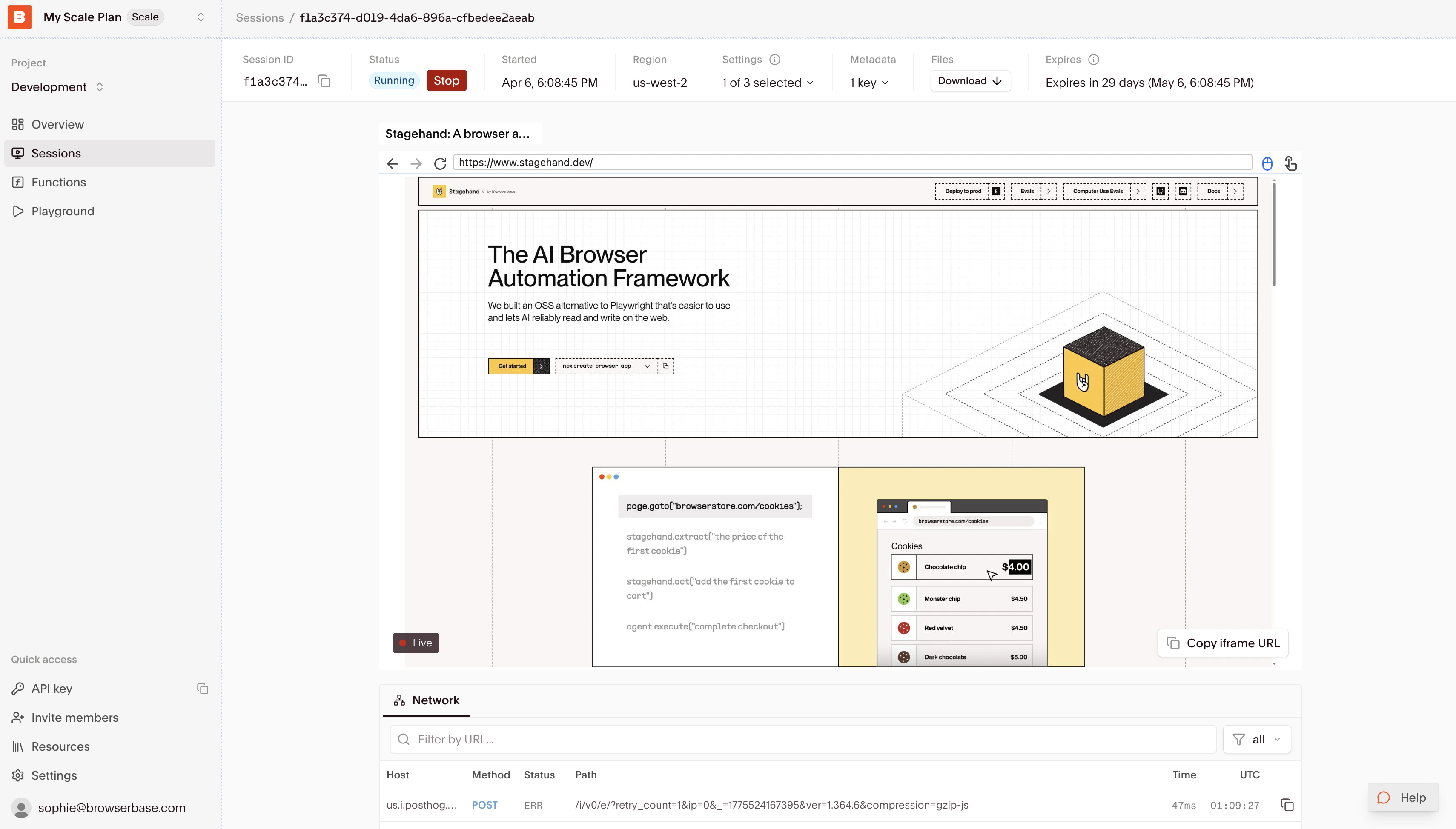 Monitor your session's activity with:
* Live browser state and interactions
* Real-time network requests and responses
* Console output and error tracking
* Performance metrics and resource usage
* Session recording and replay
#### Embedded view
Integrate the [Live View](/platform/browser/observability/session-live-view) directly into your application to show your users their automated browser sessions in real-time. The Live View enables remote control over the browser, unlocking human-in-the-loop possibilities to handle authentication, CAPTCHAs, or unexpected errors.
## Ending your session
Browserbase automatically handles session termination when you disconnect. For details about termination, timeouts, and lifecycle management best practices, see [Manage a browser session](/platform/browser/getting-started/manage-browser-session).
Monitor your session's activity with:
* Live browser state and interactions
* Real-time network requests and responses
* Console output and error tracking
* Performance metrics and resource usage
* Session recording and replay
#### Embedded view
Integrate the [Live View](/platform/browser/observability/session-live-view) directly into your application to show your users their automated browser sessions in real-time. The Live View enables remote control over the browser, unlocking human-in-the-loop possibilities to handle authentication, CAPTCHAs, or unexpected errors.
## Ending your session
Browserbase automatically handles session termination when you disconnect. For details about termination, timeouts, and lifecycle management best practices, see [Manage a browser session](/platform/browser/getting-started/manage-browser-session).