> ## Documentation Index
> Fetch the complete documentation index at: https://docs.browserbase.com/llms.txt
> Use this file to discover all available pages before exploring further.
# Optimizing agents
> Use the Optimize tool, tune your prompt and schema, and measure agent quality to make runs faster and more reliable.
A first run is always exploratory. The agent meets the site for the first time, so it backtracks, retries, and takes longer than it needs to. Optimization turns that exploration into a faster, more reliable path for every run that follows.
You have two levers: the **Optimize tool** in the dashboard, which suggests changes from past runs, and the agent configuration you control directly.
## The Optimize tool
The Optimize tool lives in the agent run view in the dashboard. Click **Optimize** at the top right to open the **Optimize this session** panel. It reads the run's event history and helps you turn what the agent did into a better system prompt.
From the agent's run view, open the run you want to improve and click **Optimize**.
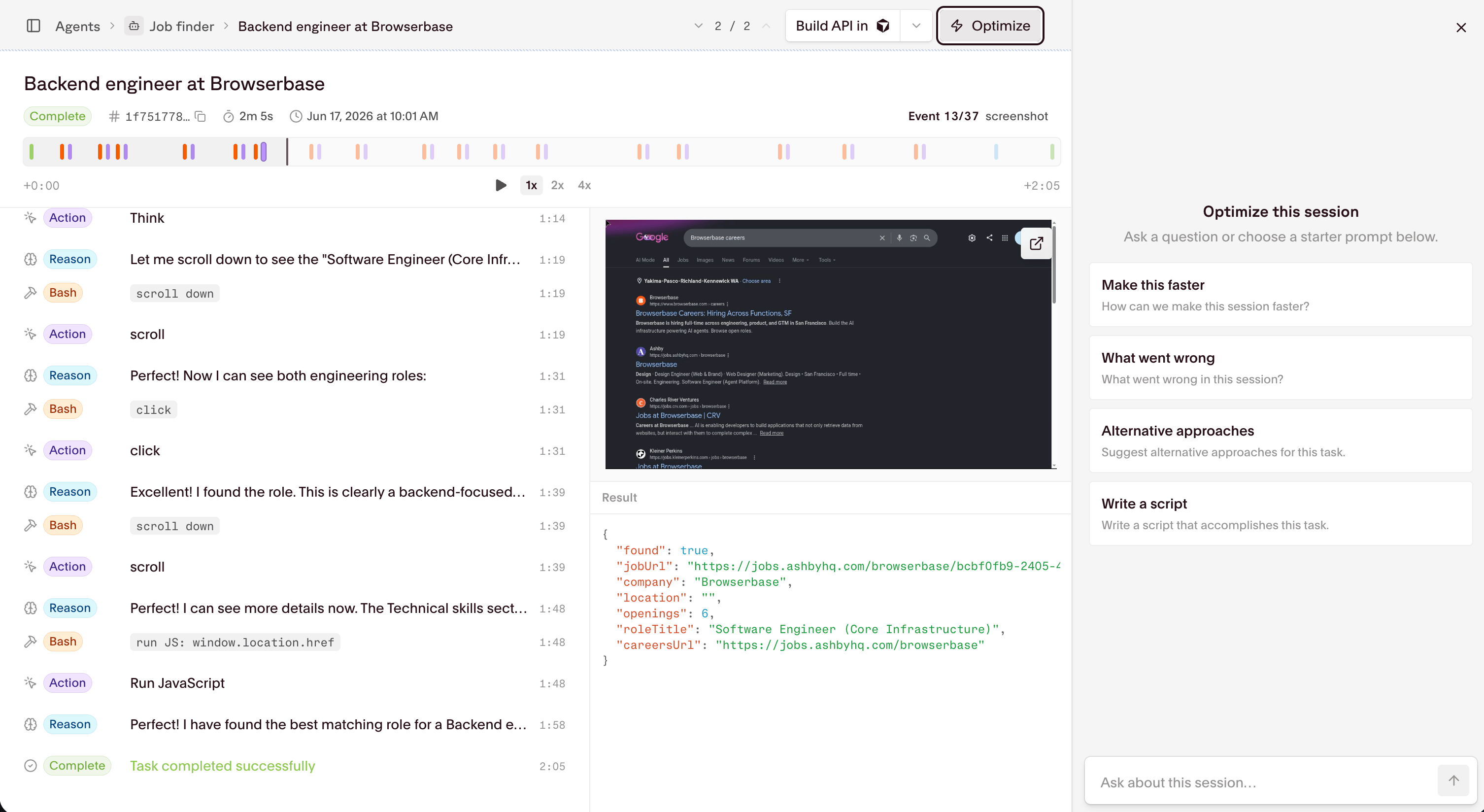 Choose a starter prompt or type your own question in **Ask about this session**. The starter prompts are:
* **Make this faster**: find steps that wasted time.
* **What went wrong**: diagnose a failed or off-target run.
* **Alternative approaches**: suggest a different way to do the task.
* **Write a script**: generate a script that accomplishes the task.
The tool returns a step-by-step analysis of the run: the specific actions that cost time, how much each cost, and what went well. For a job-finding agent it commonly flags an unnecessary opening screenshot, scrolling to discover roles instead of reading the page's accessibility tree, and scrolling a detail page instead of reading the URL directly.
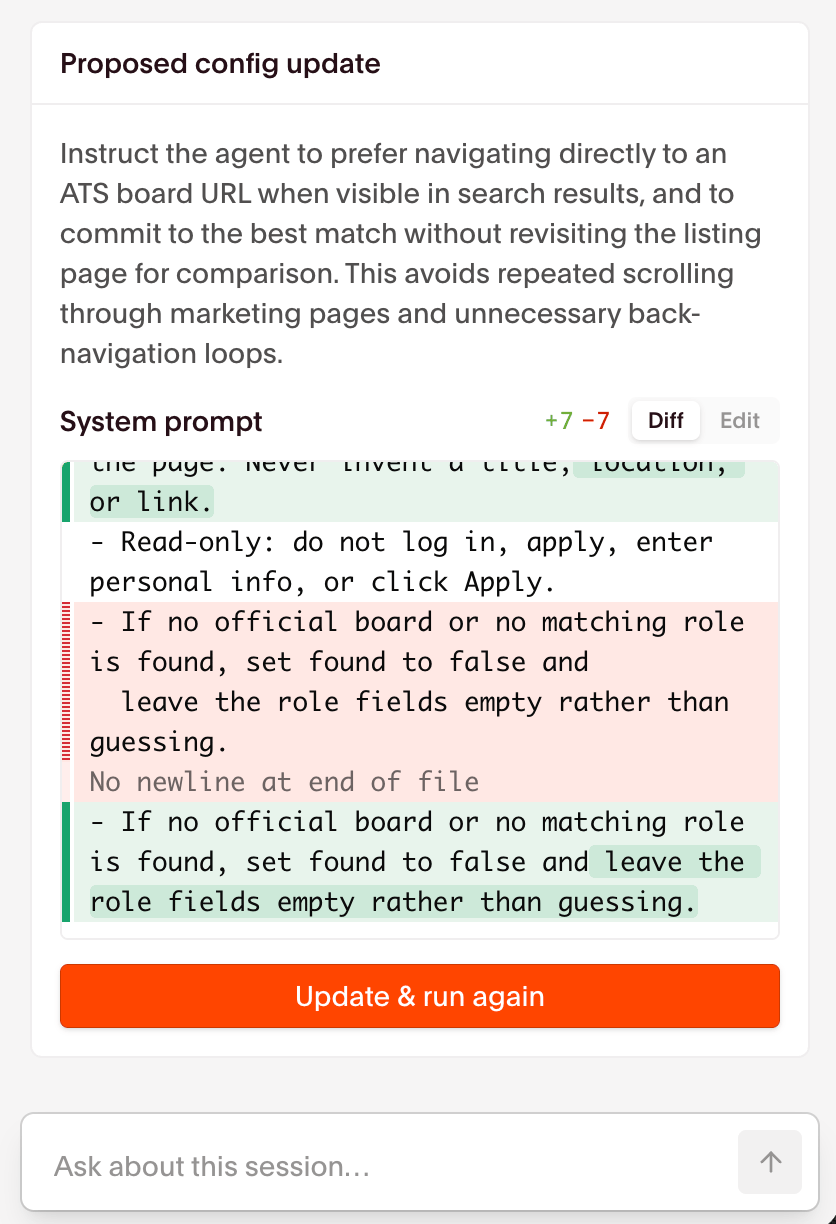
When you accept its offer to change the agent, the tool shows a **Proposed config update** with a `systemPrompt` diff (added and removed lines). Use **Edit** to adjust the wording, then **Update & run again** to save the new system prompt and start a fresh run so you can confirm the gain.
Choose a starter prompt or type your own question in **Ask about this session**. The starter prompts are:
* **Make this faster**: find steps that wasted time.
* **What went wrong**: diagnose a failed or off-target run.
* **Alternative approaches**: suggest a different way to do the task.
* **Write a script**: generate a script that accomplishes the task.
The tool returns a step-by-step analysis of the run: the specific actions that cost time, how much each cost, and what went well. For a job-finding agent it commonly flags an unnecessary opening screenshot, scrolling to discover roles instead of reading the page's accessibility tree, and scrolling a detail page instead of reading the URL directly.
When you accept its offer to change the agent, the tool shows a **Proposed config update** with a `systemPrompt` diff (added and removed lines). Use **Edit** to adjust the wording, then **Update & run again** to save the new system prompt and start a fresh run so you can confirm the gain.
 **When should you use the Optimize tool?**
* When you want to speed up an agent that works but wanders.
* When a run fails or returns the wrong result and you want to know why.
* When you want a second opinion on how to approach the task.
## Best practices
The Optimize tool proposes prompt changes for you, but you can optimize directly through the agent configuration. These levers map to real fields on [Create an agent](/reference/api/create-an-agent) and [Run an agent](/reference/api/run-an-agent).
* **Tighten the `systemPrompt`.** Give explicit steps, name the sources the agent should and shouldn't use, and define what success looks like. A scoped prompt removes guesswork that slows runs down.
* **Set a `resultSchema`.** A JSON Schema forces structured, repeatable output and stops the agent from returning prose when you need fields.
* **Use `variables` for per-run values.** Pass account numbers, dates, or confirmation codes as `%variable%` placeholders instead of rewriting the prompt for each run.
* **Prefer official sources.** Point the agent at a site's own pages or its real applicant tracking system, and steer it away from gated aggregators that block automated access.
## Measuring agent quality
Optimize against numbers, not impressions. Use the dashboard agent page and run history to watch the same signals over time:
| Field | Meaning |
| ----------------- | -------------------------------- |
| `completionRate` | Fraction of runs that completed. |
| `failRate` | Fraction of runs that failed. |
| `timeoutRate` | Fraction of runs that timed out. |
| `averageDuration` | Average run duration in seconds. |
A rising `timeoutRate` or `failRate` is the signal to revisit the prompt or run the Optimize tool again.
## Limitations
* **Optimize suggestions are advisory.** They come from past runs, so review a change before accepting it and confirm the gain on the re-run.
* **Agents can't call custom tools yet.** You can give an agent skills through the `systemPrompt`, but custom tool definitions aren't supported in the current version.
## Next steps
Trigger a run after updating an agent configuration
Define a reusable agent with a system prompt and result schema
Build and optimize an agent in the dashboard
Trigger runs and track them from your application
**When should you use the Optimize tool?**
* When you want to speed up an agent that works but wanders.
* When a run fails or returns the wrong result and you want to know why.
* When you want a second opinion on how to approach the task.
## Best practices
The Optimize tool proposes prompt changes for you, but you can optimize directly through the agent configuration. These levers map to real fields on [Create an agent](/reference/api/create-an-agent) and [Run an agent](/reference/api/run-an-agent).
* **Tighten the `systemPrompt`.** Give explicit steps, name the sources the agent should and shouldn't use, and define what success looks like. A scoped prompt removes guesswork that slows runs down.
* **Set a `resultSchema`.** A JSON Schema forces structured, repeatable output and stops the agent from returning prose when you need fields.
* **Use `variables` for per-run values.** Pass account numbers, dates, or confirmation codes as `%variable%` placeholders instead of rewriting the prompt for each run.
* **Prefer official sources.** Point the agent at a site's own pages or its real applicant tracking system, and steer it away from gated aggregators that block automated access.
## Measuring agent quality
Optimize against numbers, not impressions. Use the dashboard agent page and run history to watch the same signals over time:
| Field | Meaning |
| ----------------- | -------------------------------- |
| `completionRate` | Fraction of runs that completed. |
| `failRate` | Fraction of runs that failed. |
| `timeoutRate` | Fraction of runs that timed out. |
| `averageDuration` | Average run duration in seconds. |
A rising `timeoutRate` or `failRate` is the signal to revisit the prompt or run the Optimize tool again.
## Limitations
* **Optimize suggestions are advisory.** They come from past runs, so review a change before accepting it and confirm the gain on the re-run.
* **Agents can't call custom tools yet.** You can give an agent skills through the `systemPrompt`, but custom tool definitions aren't supported in the current version.
## Next steps
Trigger a run after updating an agent configuration
Define a reusable agent with a system prompt and result schema
Build and optimize an agent in the dashboard
Trigger runs and track them from your application