> ## Documentation Index
> Fetch the complete documentation index at: https://docs.browserbase.com/llms.txt
> Use this file to discover all available pages before exploring further.
# Browserbase MCP server setup
> Add the Browserbase MCP Server to your MCP client
## Quick installation
One-click installation directly in Cursor
You can also add Browserbase MCP to Claude Code with a single command:
```bash theme={null}
claude mcp add --transport http browserbase "https://mcp.browserbase.com/mcp?browserbaseApiKey=YOUR_BROWSERBASE_API_KEY"
```
Browserbase supports both local STDIO and hosted [Streamable HTTP](https://modelcontextprotocol.io/specification/2025-03-26/basic/transports#streamable-http) (SHTTP). Hosted [Streamable HTTP](https://modelcontextprotocol.io/specification/2025-03-26/basic/transports#streamable-http) is recommended for most users.
## Endpoint
Hosted [Streamable HTTP](https://modelcontextprotocol.io/specification/2025-03-26/basic/transports#streamable-http) endpoint (served on Browserbase infrastructure):
```text theme={null}
https://mcp.browserbase.com/mcp
```
## Prerequisites
Get your Browserbase API key from the [Browserbase Dashboard](https://www.browserbase.com/overview).
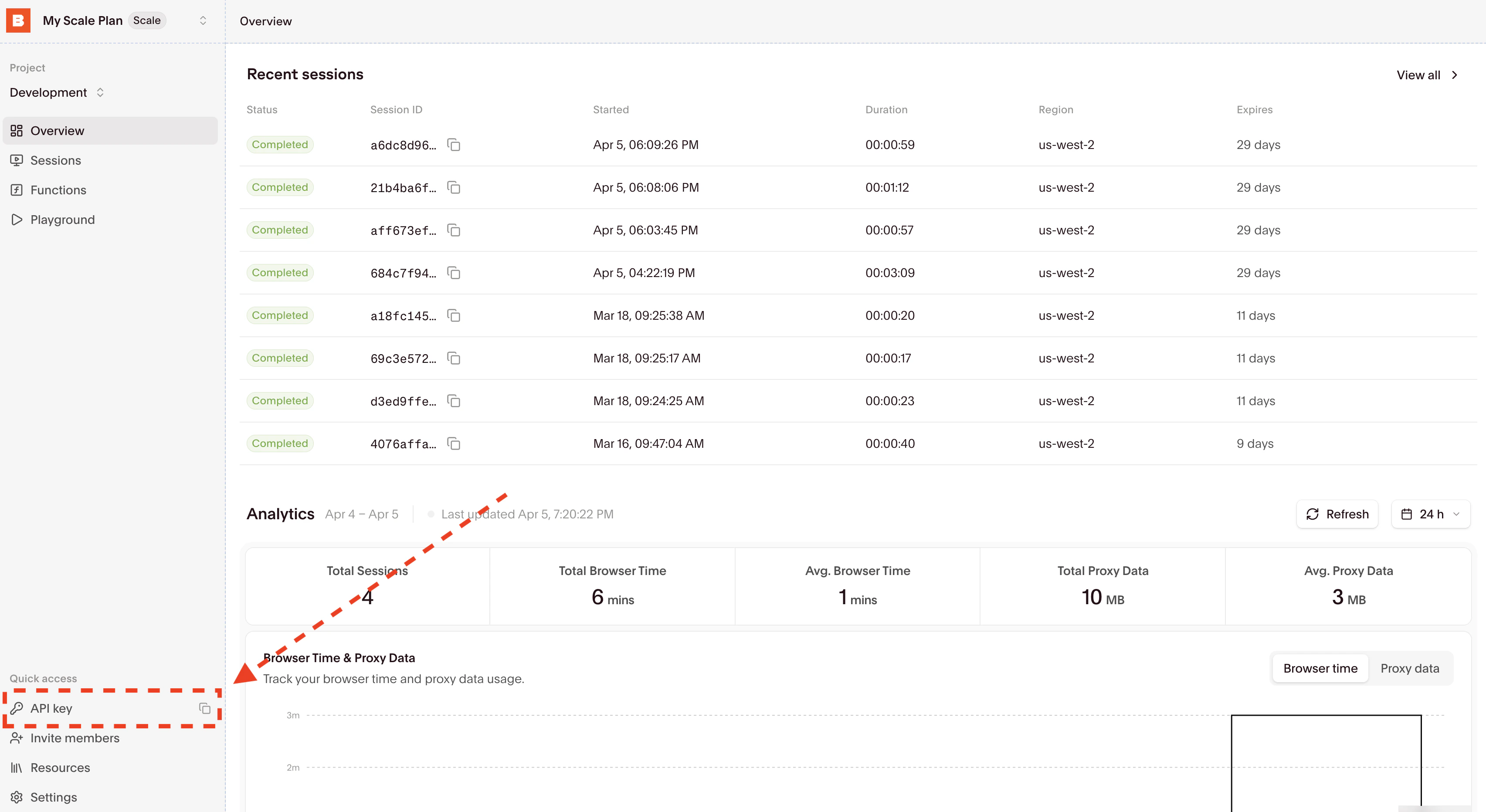 Then copy your API Key directly from the input.
## Query parameters (hosted [Streamable HTTP](https://modelcontextprotocol.io/specification/2025-03-26/basic/transports#streamable-http))
### Required for tool calls
Browserbase API key.
### Optional
| Query Param | Type | Behavior |
| ------------- | -------------- | ------------------------------------------ |
| `modelName` | string | Defaults to `google/gemini-2.5-flash-lite` |
| `modelApiKey` | string | Required when `modelName` is non-default |
| `keepAlive` | boolean string | `"true"` or `"false"` |
| `proxies` | boolean string | `"true"` or `"false"` |
| `verified` | boolean string | `"true"` or `"false"` |
Boolean query values must be exact strings: `"true"` or `"false"`.
## Available tools
Navigate to any URL in the browser
The URL to navigate to
Perform an action on the web page using natural language
The action to perform (e.g., "click the login button", "fill form field")
Observe and find actionable elements on the page.
Specific instruction for observation (e.g., "find the login button", "locate search form")
Extract data from the current page.
Optional extraction instruction.
Create or reuse a Browserbase session and set it as active for the current MCP transport session.
**Inputs**
No input parameters required.
**Output**
Browserbase session ID.
Close the active Browserbase session for the current MCP transport session.
No input parameters required.
## Local command-line flags
Command-line flags are only available when running the server locally (`npx @browserbasehq/mcp` with flags or local development setup).
| Flag | Description |
| -------------------------- | ---------------------------------------------------------------------------------------------------------------------------------------------------- |
| `--proxies` | Enable Browserbase proxies for the session |
| `--verified` | Enable Browserbase Verified (Scale Plan only) |
| `--keepAlive` | Enable Browserbase Keep Alive Session |
| `--contextId ` | Specify a Browserbase Context ID to use |
| `--persist [boolean]` | Whether to persist the Browserbase context (default: true) |
| `--port ` | Port to listen on for HTTP or [Streamable HTTP](https://modelcontextprotocol.io/specification/2025-03-26/basic/transports#streamable-http) transport |
| `--host ` | Host to bind server to (default: localhost, use 0.0.0.0 for all interfaces) |
| `--browserWidth ` | Browser viewport width (default: 1024) |
| `--browserHeight ` | Browser viewport height (default: 768) |
| `--modelName ` | The model to use for Stagehand (default: google/gemini-2.5-flash-lite) |
| `--modelApiKey ` | API key for the custom model provider (required when using custom models) |
| `--experimental` | Enable experimental features (default: false) |
## Installation methods
Use your MCP client config:
```json theme={null}
{
"mcpServers": {
"browserbase": {
"url": "https://mcp.browserbase.com/mcp?browserbaseApiKey=YOUR_BROWSERBASE_API_KEY"
}
}
}
```
For custom models, include `modelName` and `modelApiKey`:
```json theme={null}
{
"mcpServers": {
"browserbase": {
"url": "https://mcp.browserbase.com/mcp?browserbaseApiKey=YOUR_BROWSERBASE_API_KEY&modelName=openai/gpt-4.1&modelApiKey=YOUR_MODEL_API_KEY"
}
}
}
```
The easiest way to get started locally is using the NPM package.
If you'd like to use a different model, pass the model name and keys in the args. More info [here](#local-command-line-flags).
Go into your MCP Config JSON and add the Browserbase Server:
```json Claude Desktop theme={null}
{
"mcpServers": {
"browserbase": {
"command": "npx",
"args": ["@browserbasehq/mcp"],
"env": {
"BROWSERBASE_API_KEY": "your_api_key",
"GEMINI_API_KEY": "your_gemini_api_key"
}
}
}
}
```
That's it! Reload your MCP client and you'll be able to use Browserbase.
For local development or customization, you can run the server locally.
```bash theme={null}
# Clone the Repo
git clone https://github.com/browserbase/mcp-server-browserbase.git
cd mcp-server-browserbase
# Install the dependencies and build the project
npm install && npm run build
```
You can run locally using either STDIO or [Streamable HTTP](https://modelcontextprotocol.io/specification/2025-03-26/basic/transports#streamable-http).
Add the following to your MCP Config JSON file:
```json theme={null}
{
"mcpServers": {
"browserbase": {
"command": "node",
"args": ["/path/to/mcp-server-browserbase/cli.js"],
"env": {
"BROWSERBASE_API_KEY": "your_api_key",
"GEMINI_API_KEY": "your_gemini_api_key"
}
}
}
}
```
First, run the server:
```bash theme={null}
node cli.js --port 8931
```
Then add this to your MCP Config JSON file:
```json theme={null}
{
"mcpServers": {
"browserbase": {
"url": "http://localhost:8931/mcp",
"env": {
"BROWSERBASE_API_KEY": "your_api_key",
"GEMINI_API_KEY": "your_gemini_api_key"
}
}
}
}
```
Reload your MCP client and you should be good to go!
## Verify installation
Restart/refresh your MCP client app and verify tools are available.
Get started by asking your MCP client to navigate to any page and see your Browserbase browser in action on the [dashboard](https://www.browserbase.com/sessions).
Try: "Navigate to example.com and extract the main heading"
## Further reading
Learn more about the MCP protocol
Explore Browserbase features and capabilities
Get help from the Browserbase support team
Then copy your API Key directly from the input.
## Query parameters (hosted [Streamable HTTP](https://modelcontextprotocol.io/specification/2025-03-26/basic/transports#streamable-http))
### Required for tool calls
Browserbase API key.
### Optional
| Query Param | Type | Behavior |
| ------------- | -------------- | ------------------------------------------ |
| `modelName` | string | Defaults to `google/gemini-2.5-flash-lite` |
| `modelApiKey` | string | Required when `modelName` is non-default |
| `keepAlive` | boolean string | `"true"` or `"false"` |
| `proxies` | boolean string | `"true"` or `"false"` |
| `verified` | boolean string | `"true"` or `"false"` |
Boolean query values must be exact strings: `"true"` or `"false"`.
## Available tools
Navigate to any URL in the browser
The URL to navigate to
Perform an action on the web page using natural language
The action to perform (e.g., "click the login button", "fill form field")
Observe and find actionable elements on the page.
Specific instruction for observation (e.g., "find the login button", "locate search form")
Extract data from the current page.
Optional extraction instruction.
Create or reuse a Browserbase session and set it as active for the current MCP transport session.
**Inputs**
No input parameters required.
**Output**
Browserbase session ID.
Close the active Browserbase session for the current MCP transport session.
No input parameters required.
## Local command-line flags
Command-line flags are only available when running the server locally (`npx @browserbasehq/mcp` with flags or local development setup).
| Flag | Description |
| -------------------------- | ---------------------------------------------------------------------------------------------------------------------------------------------------- |
| `--proxies` | Enable Browserbase proxies for the session |
| `--verified` | Enable Browserbase Verified (Scale Plan only) |
| `--keepAlive` | Enable Browserbase Keep Alive Session |
| `--contextId ` | Specify a Browserbase Context ID to use |
| `--persist [boolean]` | Whether to persist the Browserbase context (default: true) |
| `--port ` | Port to listen on for HTTP or [Streamable HTTP](https://modelcontextprotocol.io/specification/2025-03-26/basic/transports#streamable-http) transport |
| `--host ` | Host to bind server to (default: localhost, use 0.0.0.0 for all interfaces) |
| `--browserWidth ` | Browser viewport width (default: 1024) |
| `--browserHeight ` | Browser viewport height (default: 768) |
| `--modelName ` | The model to use for Stagehand (default: google/gemini-2.5-flash-lite) |
| `--modelApiKey ` | API key for the custom model provider (required when using custom models) |
| `--experimental` | Enable experimental features (default: false) |
## Installation methods
Use your MCP client config:
```json theme={null}
{
"mcpServers": {
"browserbase": {
"url": "https://mcp.browserbase.com/mcp?browserbaseApiKey=YOUR_BROWSERBASE_API_KEY"
}
}
}
```
For custom models, include `modelName` and `modelApiKey`:
```json theme={null}
{
"mcpServers": {
"browserbase": {
"url": "https://mcp.browserbase.com/mcp?browserbaseApiKey=YOUR_BROWSERBASE_API_KEY&modelName=openai/gpt-4.1&modelApiKey=YOUR_MODEL_API_KEY"
}
}
}
```
The easiest way to get started locally is using the NPM package.
If you'd like to use a different model, pass the model name and keys in the args. More info [here](#local-command-line-flags).
Go into your MCP Config JSON and add the Browserbase Server:
```json Claude Desktop theme={null}
{
"mcpServers": {
"browserbase": {
"command": "npx",
"args": ["@browserbasehq/mcp"],
"env": {
"BROWSERBASE_API_KEY": "your_api_key",
"GEMINI_API_KEY": "your_gemini_api_key"
}
}
}
}
```
That's it! Reload your MCP client and you'll be able to use Browserbase.
For local development or customization, you can run the server locally.
```bash theme={null}
# Clone the Repo
git clone https://github.com/browserbase/mcp-server-browserbase.git
cd mcp-server-browserbase
# Install the dependencies and build the project
npm install && npm run build
```
You can run locally using either STDIO or [Streamable HTTP](https://modelcontextprotocol.io/specification/2025-03-26/basic/transports#streamable-http).
Add the following to your MCP Config JSON file:
```json theme={null}
{
"mcpServers": {
"browserbase": {
"command": "node",
"args": ["/path/to/mcp-server-browserbase/cli.js"],
"env": {
"BROWSERBASE_API_KEY": "your_api_key",
"GEMINI_API_KEY": "your_gemini_api_key"
}
}
}
}
```
First, run the server:
```bash theme={null}
node cli.js --port 8931
```
Then add this to your MCP Config JSON file:
```json theme={null}
{
"mcpServers": {
"browserbase": {
"url": "http://localhost:8931/mcp",
"env": {
"BROWSERBASE_API_KEY": "your_api_key",
"GEMINI_API_KEY": "your_gemini_api_key"
}
}
}
}
```
Reload your MCP client and you should be good to go!
## Verify installation
Restart/refresh your MCP client app and verify tools are available.
Get started by asking your MCP client to navigate to any page and see your Browserbase browser in action on the [dashboard](https://www.browserbase.com/sessions).
Try: "Navigate to example.com and extract the main heading"
## Further reading
Learn more about the MCP protocol
Explore Browserbase features and capabilities
Get help from the Browserbase support team