> ## Documentation Index
> Fetch the complete documentation index at: https://docs.browserbase.com/llms.txt
> Use this file to discover all available pages before exploring further.
# Add cloud browsers to Agent Browser
> Integrate Browserbase with Agent Browser for cloud-hosted browser automation.
Visit the [Dashboard's Settings tab](https://www.browserbase.com/settings):
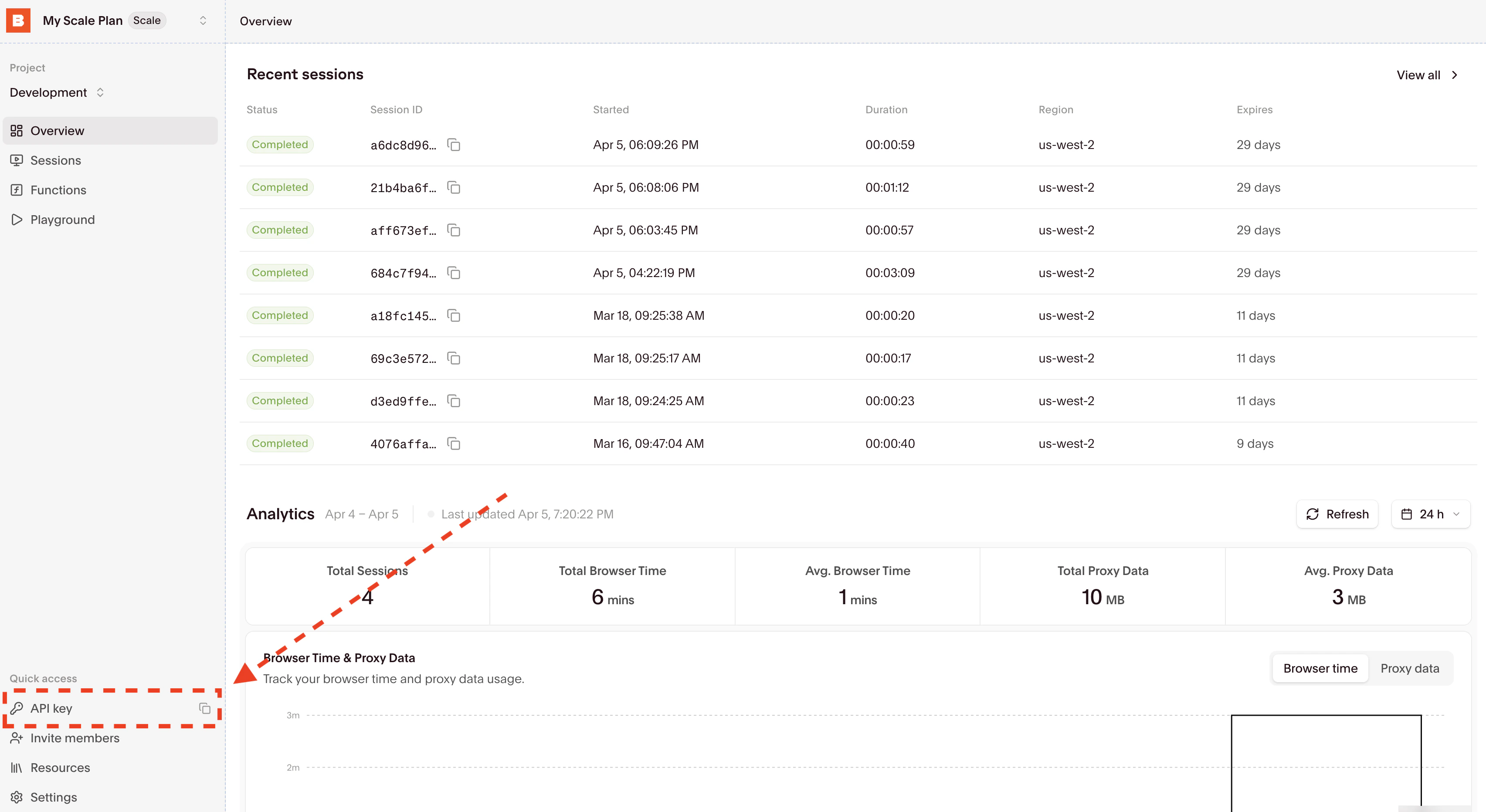 Copy your API key for the next step.
```bash theme={null}
npm install -g agent-browser
agent-browser install
```
```bash theme={null}
npx agent-browser install
```
```bash theme={null}
brew install agent-browser
agent-browser install
```
The `install` command downloads Chromium for local use. When using the Browserbase provider, the browser runs in the cloud instead.
Set your Browserbase credentials:
```bash theme={null}
export BROWSERBASE_API_KEY="bb_live_..."
```
Use the `-p browserbase` flag to run commands on a Browserbase cloud browser:
```bash theme={null}
agent-browser -p browserbase open https://example.com
```
This creates a Browserbase session and navigates to the URL. You can view the session in your [Browserbase Dashboard](https://www.browserbase.com/sessions).
The `snapshot` command returns an accessibility tree with element references. This is the primary way AI agents understand page content:
```bash theme={null}
agent-browser -p browserbase snapshot
```
Output includes element refs that you can use in subsequent commands:
```
- heading "Example Domain" [ref=e1] [level=1]
- paragraph "This domain is for use in illustrative examples."
- link "More information..." [ref=e3]
```
Use the `-i` flag to show only interactive elements:
```bash theme={null}
agent-browser -p browserbase snapshot -i
```
Use element refs from the snapshot to click, type, and fill:
```bash theme={null}
# Click a link by ref
agent-browser -p browserbase click @e3
# Fill a form field
agent-browser -p browserbase fill @e5 "test@example.com"
# Take a screenshot
agent-browser -p browserbase screenshot page.png
```
```bash theme={null}
agent-browser -p browserbase close
```
All commands support the `-p browserbase` flag to run on Browserbase cloud browsers. You can also set `AGENT_BROWSER_PROVIDER=browserbase` as an environment variable to avoid passing the flag each time. See the [Agent Browser README](https://github.com/vercel-labs/agent-browser) for the full command reference.
## Connecting via CDP
You can also connect Agent Browser to a Browserbase session directly using the CDP WebSocket URL:
```javascript theme={null}
import Browserbase from "@browserbasehq/sdk";
const bb = new Browserbase({ apiKey: process.env.BROWSERBASE_API_KEY });
const session = await bb.sessions.create();
console.log(session.connectUrl);
// wss://connect.browserbase.com/?sessionId=...
```
Then connect Agent Browser:
```bash theme={null}
agent-browser --cdp "wss://connect.browserbase.com/?sessionId=..." snapshot
```
Full documentation, examples, and source code.
Learn more about creating and managing Browserbase sessions.
Copy your API key for the next step.
```bash theme={null}
npm install -g agent-browser
agent-browser install
```
```bash theme={null}
npx agent-browser install
```
```bash theme={null}
brew install agent-browser
agent-browser install
```
The `install` command downloads Chromium for local use. When using the Browserbase provider, the browser runs in the cloud instead.
Set your Browserbase credentials:
```bash theme={null}
export BROWSERBASE_API_KEY="bb_live_..."
```
Use the `-p browserbase` flag to run commands on a Browserbase cloud browser:
```bash theme={null}
agent-browser -p browserbase open https://example.com
```
This creates a Browserbase session and navigates to the URL. You can view the session in your [Browserbase Dashboard](https://www.browserbase.com/sessions).
The `snapshot` command returns an accessibility tree with element references. This is the primary way AI agents understand page content:
```bash theme={null}
agent-browser -p browserbase snapshot
```
Output includes element refs that you can use in subsequent commands:
```
- heading "Example Domain" [ref=e1] [level=1]
- paragraph "This domain is for use in illustrative examples."
- link "More information..." [ref=e3]
```
Use the `-i` flag to show only interactive elements:
```bash theme={null}
agent-browser -p browserbase snapshot -i
```
Use element refs from the snapshot to click, type, and fill:
```bash theme={null}
# Click a link by ref
agent-browser -p browserbase click @e3
# Fill a form field
agent-browser -p browserbase fill @e5 "test@example.com"
# Take a screenshot
agent-browser -p browserbase screenshot page.png
```
```bash theme={null}
agent-browser -p browserbase close
```
All commands support the `-p browserbase` flag to run on Browserbase cloud browsers. You can also set `AGENT_BROWSER_PROVIDER=browserbase` as an environment variable to avoid passing the flag each time. See the [Agent Browser README](https://github.com/vercel-labs/agent-browser) for the full command reference.
## Connecting via CDP
You can also connect Agent Browser to a Browserbase session directly using the CDP WebSocket URL:
```javascript theme={null}
import Browserbase from "@browserbasehq/sdk";
const bb = new Browserbase({ apiKey: process.env.BROWSERBASE_API_KEY });
const session = await bb.sessions.create();
console.log(session.connectUrl);
// wss://connect.browserbase.com/?sessionId=...
```
Then connect Agent Browser:
```bash theme={null}
agent-browser --cdp "wss://connect.browserbase.com/?sessionId=..." snapshot
```
Full documentation, examples, and source code.
Learn more about creating and managing Browserbase sessions.