> ## Documentation Index
> Fetch the complete documentation index at: https://docs.browserbase.com/llms.txt
> Use this file to discover all available pages before exploring further.
# Set up 1Password Nightly Autofill for Director
> Enable agentic autofill in 1Password to securely authenticate with Director AI.
This setup enables **Agentic Autofill**, a Nightly feature that allows AI agents like Director to securely request and use credentials from your 1Password vault.
## Prerequisites
Before you begin, make sure you have:
* [A Browserbase account](https://www.browserbase.com/sign-up)
* [A 1Password Business account](https://1password.com/business-pricing)
A 1Password Business account is required for Policies access (\$7.99/mo). On a 1Password Enterprise or Extended Access Management plan? [Contact Browserbase](https://portal.usepylon.com/browserbase/forms/talk-to-an-engineer) if you run into any issues.
This guide uses **1Password Nightly**, a pre-release channel with experimental features. It's recommended for testing and development only.
***
## Admin setup (one-time)
You need **admin access** to a **1Password Business account** to enable Agentic Autofill policies.
This is a one-time setup per 1Password account/workspace. Once enabled, all members can use Agentic Autofill.
### Enable Agentic Autofill
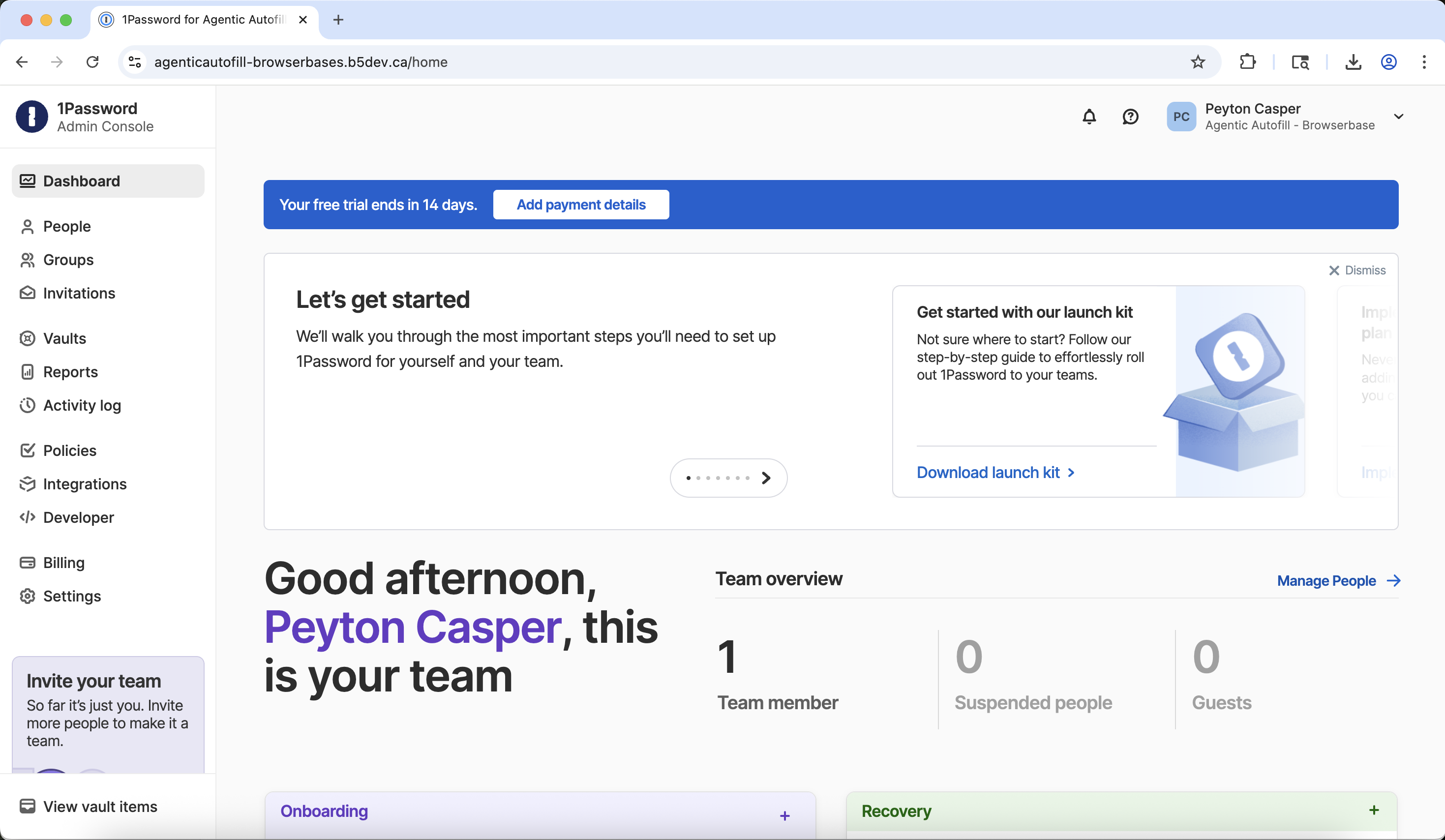
Sign in to [1Password.com](https://1password.com) and go to **Policies** in the left sidebar:
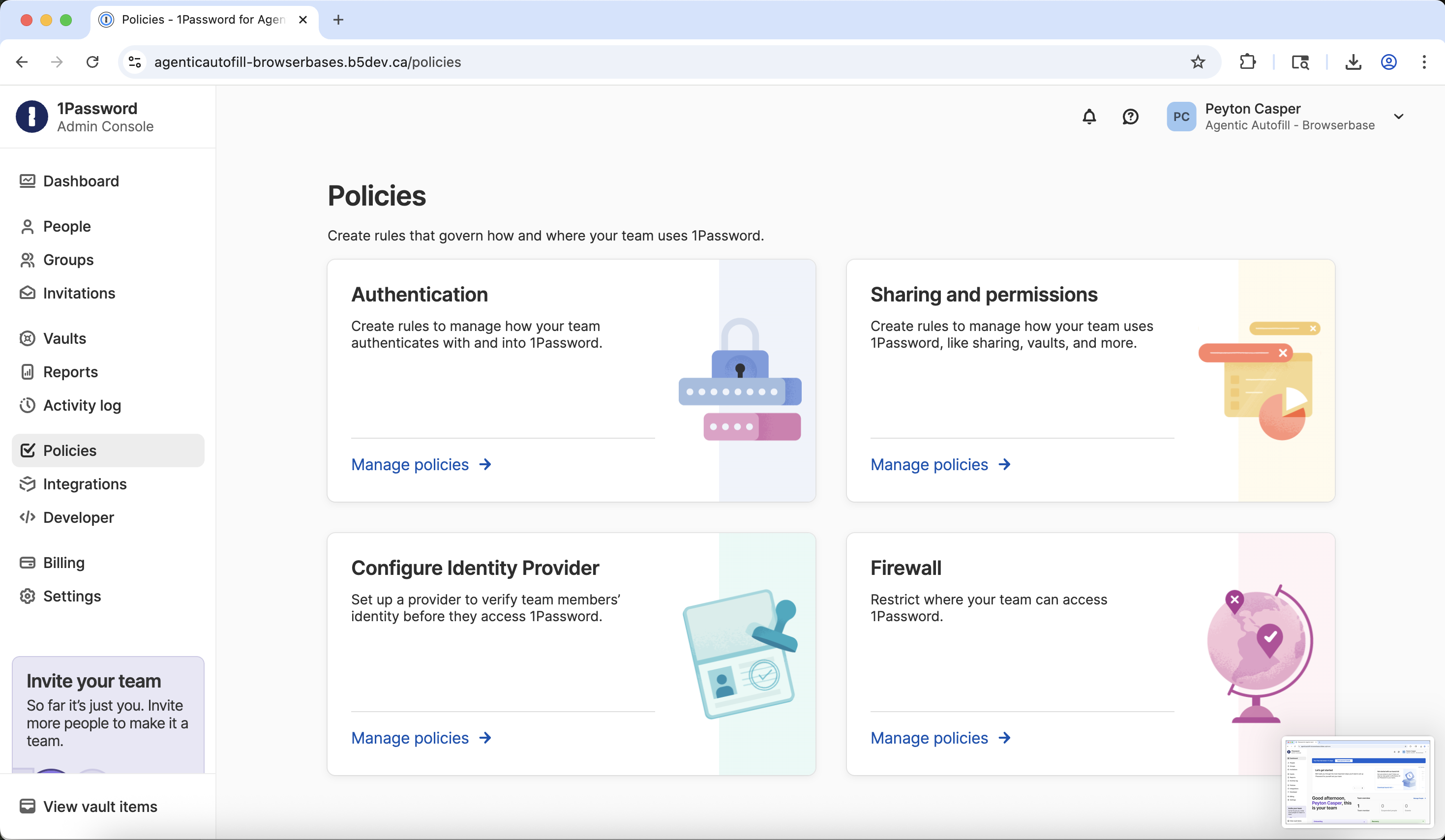
 Click **Sharing and permissions** then **Manage policies**:
 Scroll to the bottom and enable **Agentic permissions** to turn on Agentic Autofill:
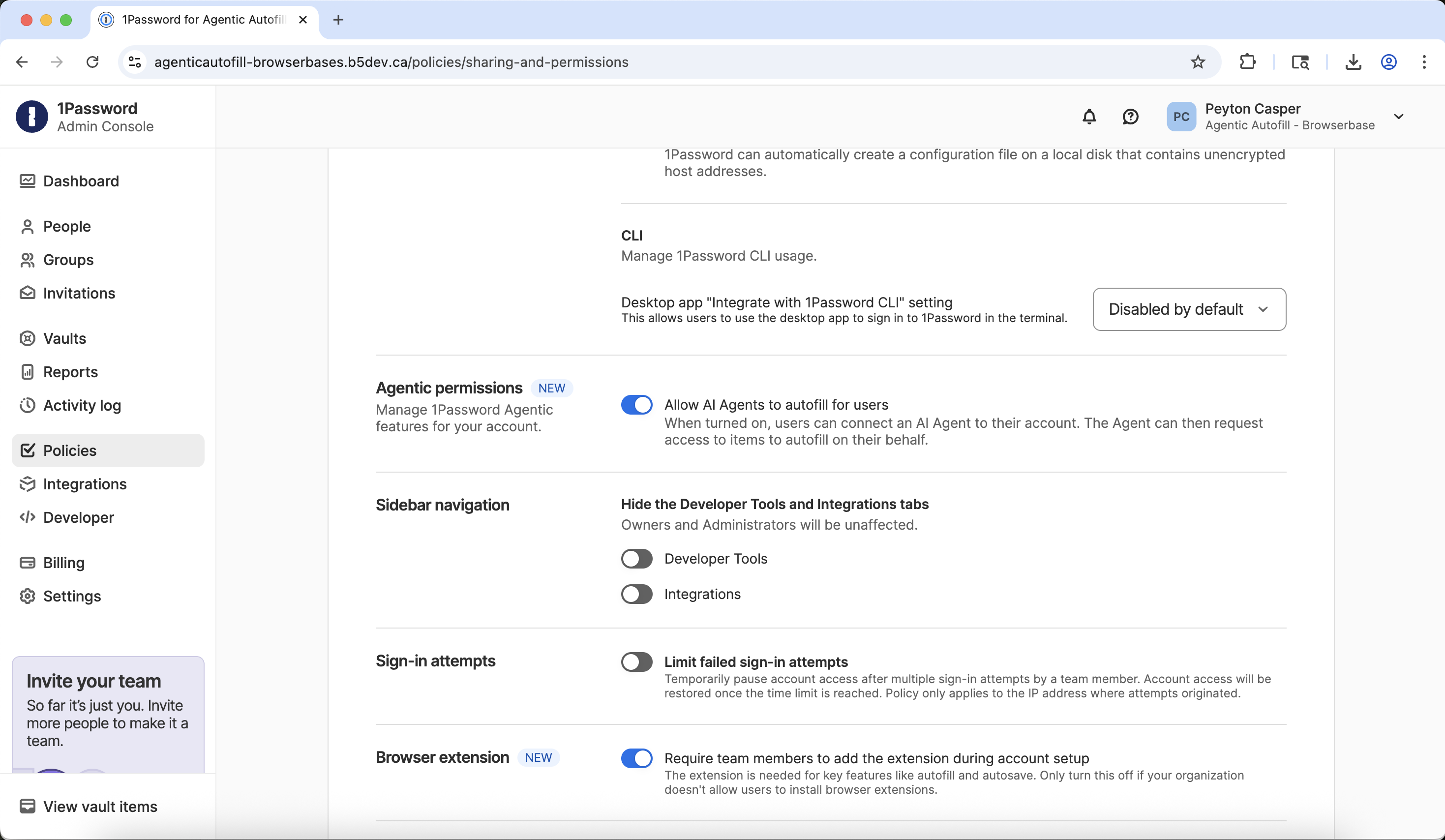 **Important:** Scroll to the very bottom and click **Save**.
***
## User setup
### 1. Install 1Password desktop app
Download and install the latest 1Password desktop application.
Visit the [1Password download page](https://1password.com/downloads/) and download the latest version.
If you have 1Password installed via Kandji or another management system:
1. Open **Finder**
2. Navigate to **Applications**
3. Right-click **1Password** and choose **Move to Trash**
If 1Password is still running in the macOS menu bar after closing, right-click the menu bar icon and select **Quit**.
Then install the new version:
1. In your **Downloads** folder, locate **1Password.zip**
2. Double-click to unzip and reveal "1Password Installer"
3. Open the installer and follow the prompts
***
### 2. Switch to the Nightly channel
When 1Password opens, your existing Browserbase account should appear automatically.
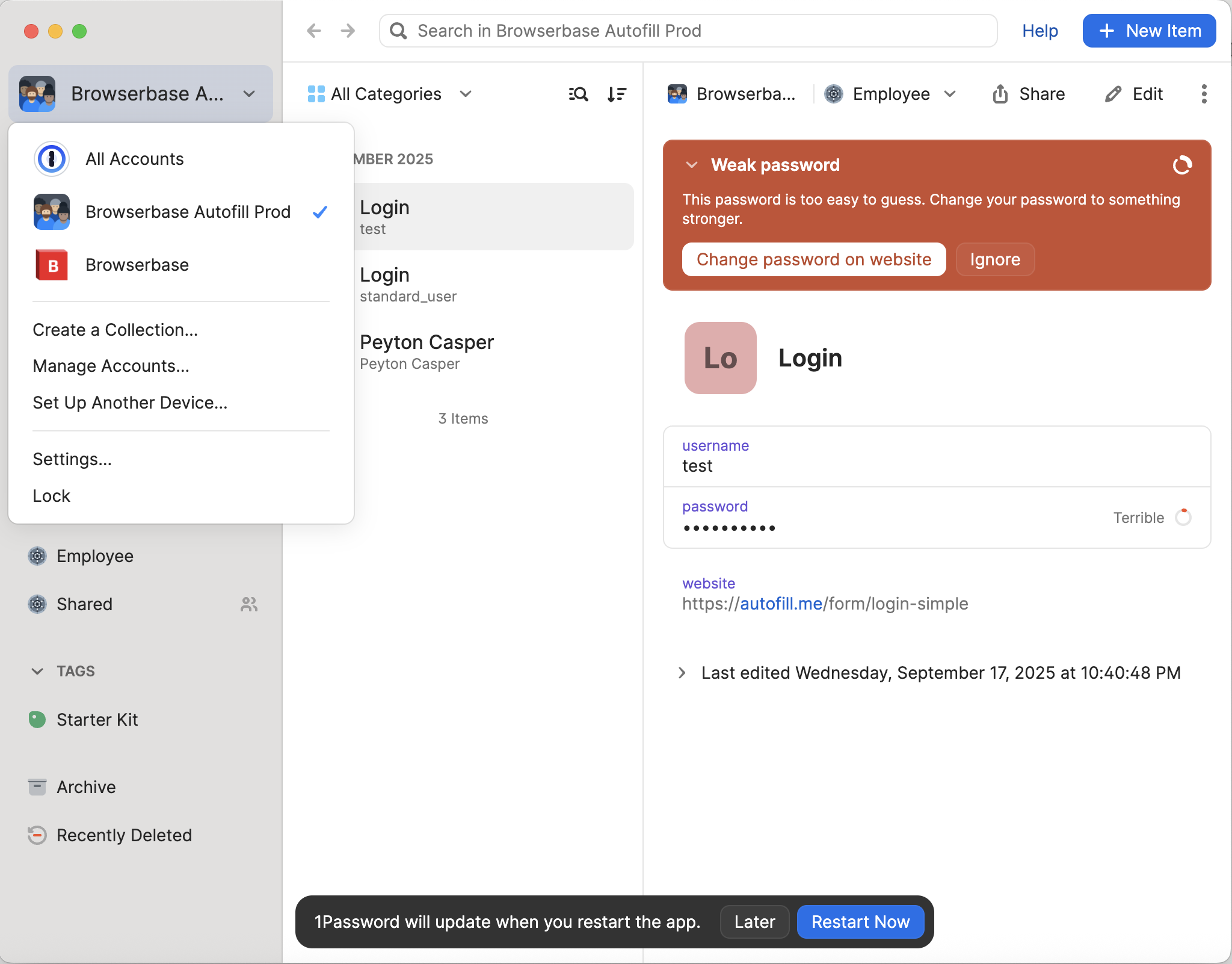
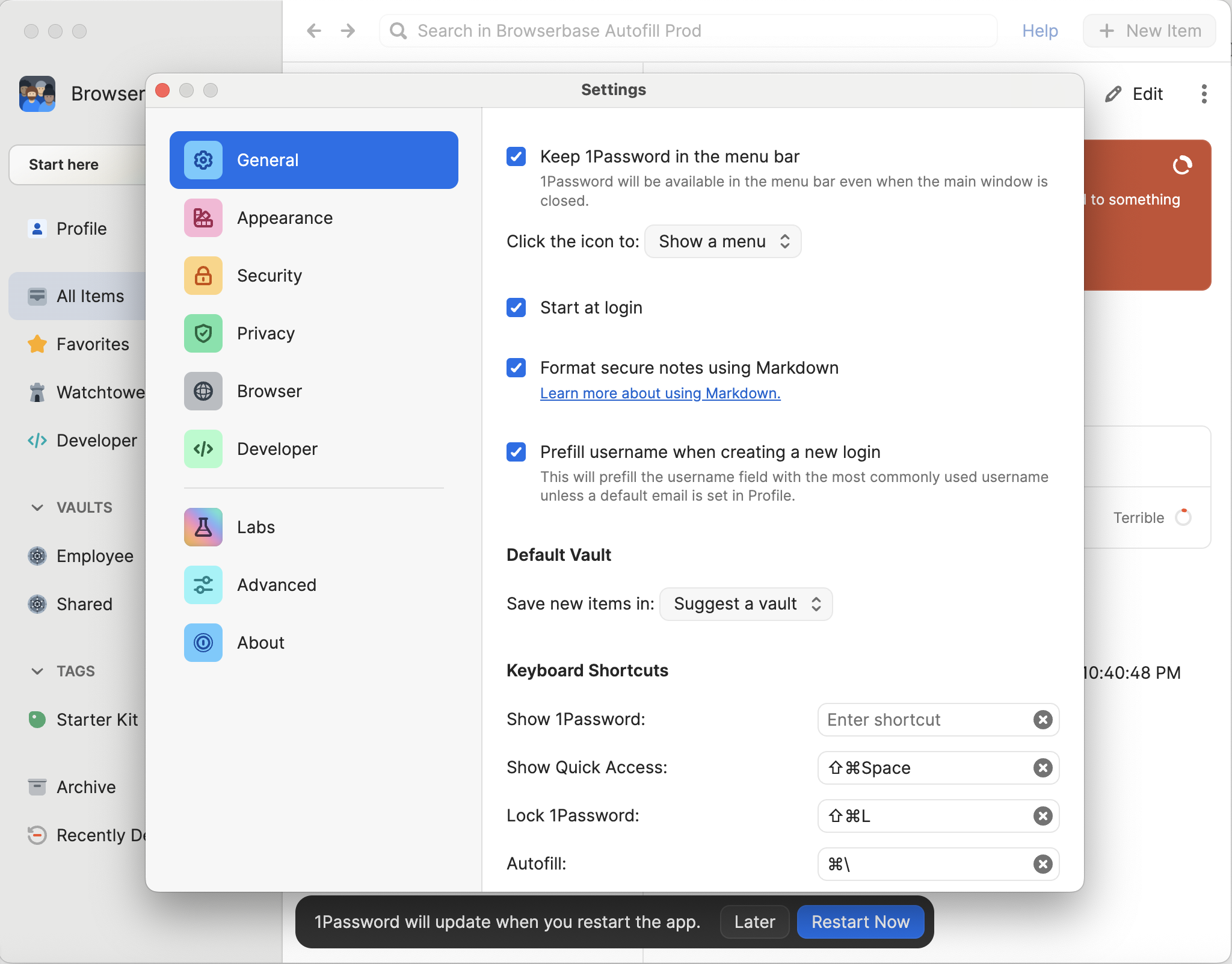
In the upper-left of the app, click your **account name** and then click **Settings** at the bottom of the menu.
Find the **Release channel** dropdown and change it to **Nightly**:
**Important:** Scroll to the very bottom and click **Save**.
***
## User setup
### 1. Install 1Password desktop app
Download and install the latest 1Password desktop application.
Visit the [1Password download page](https://1password.com/downloads/) and download the latest version.
If you have 1Password installed via Kandji or another management system:
1. Open **Finder**
2. Navigate to **Applications**
3. Right-click **1Password** and choose **Move to Trash**
If 1Password is still running in the macOS menu bar after closing, right-click the menu bar icon and select **Quit**.
Then install the new version:
1. In your **Downloads** folder, locate **1Password.zip**
2. Double-click to unzip and reveal "1Password Installer"
3. Open the installer and follow the prompts
***
### 2. Switch to the Nightly channel
When 1Password opens, your existing Browserbase account should appear automatically.
In the upper-left of the app, click your **account name** and then click **Settings** at the bottom of the menu.
Find the **Release channel** dropdown and change it to **Nightly**:
 Click **Check for updates** in the About section:
 Download and restart when prompted:
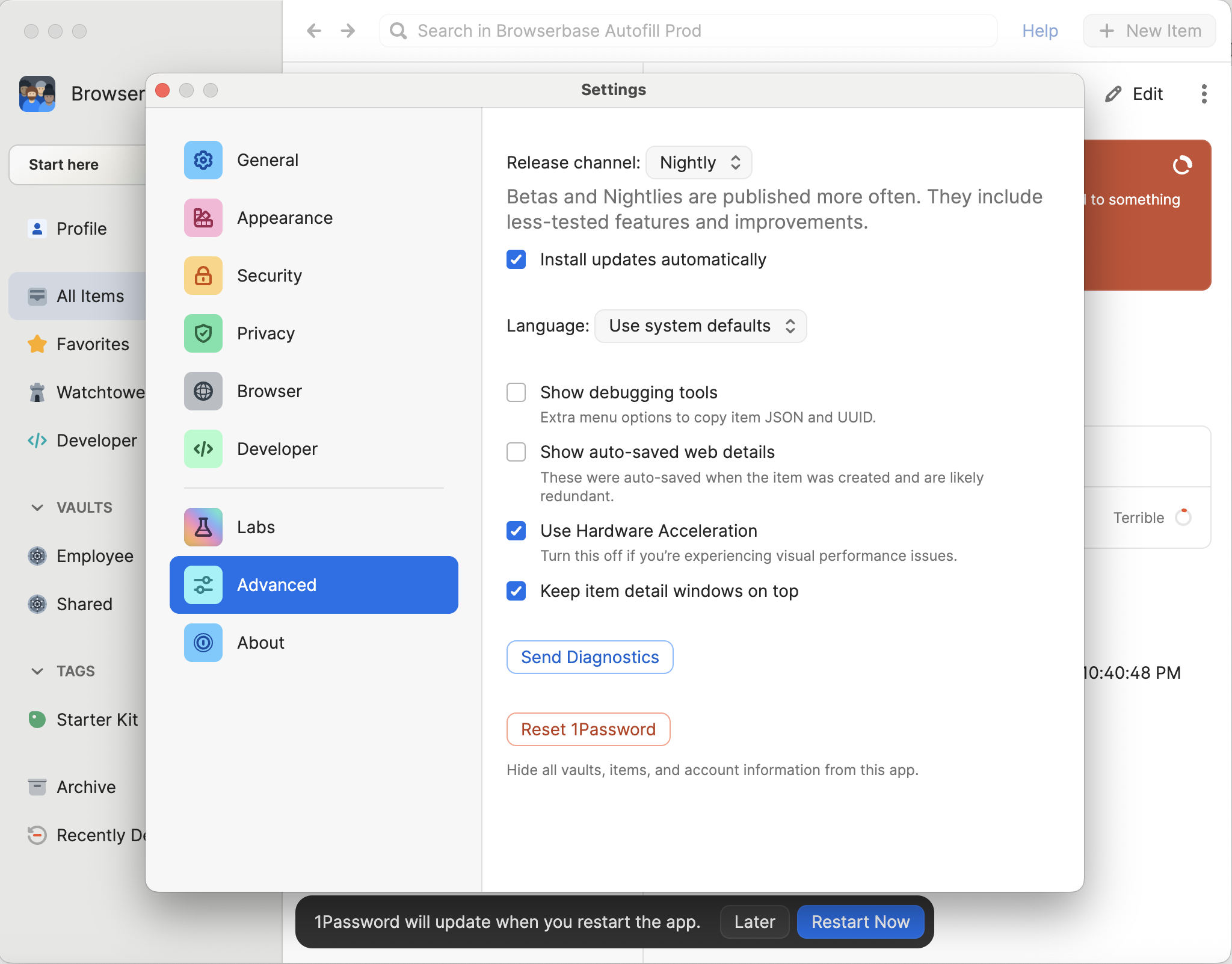
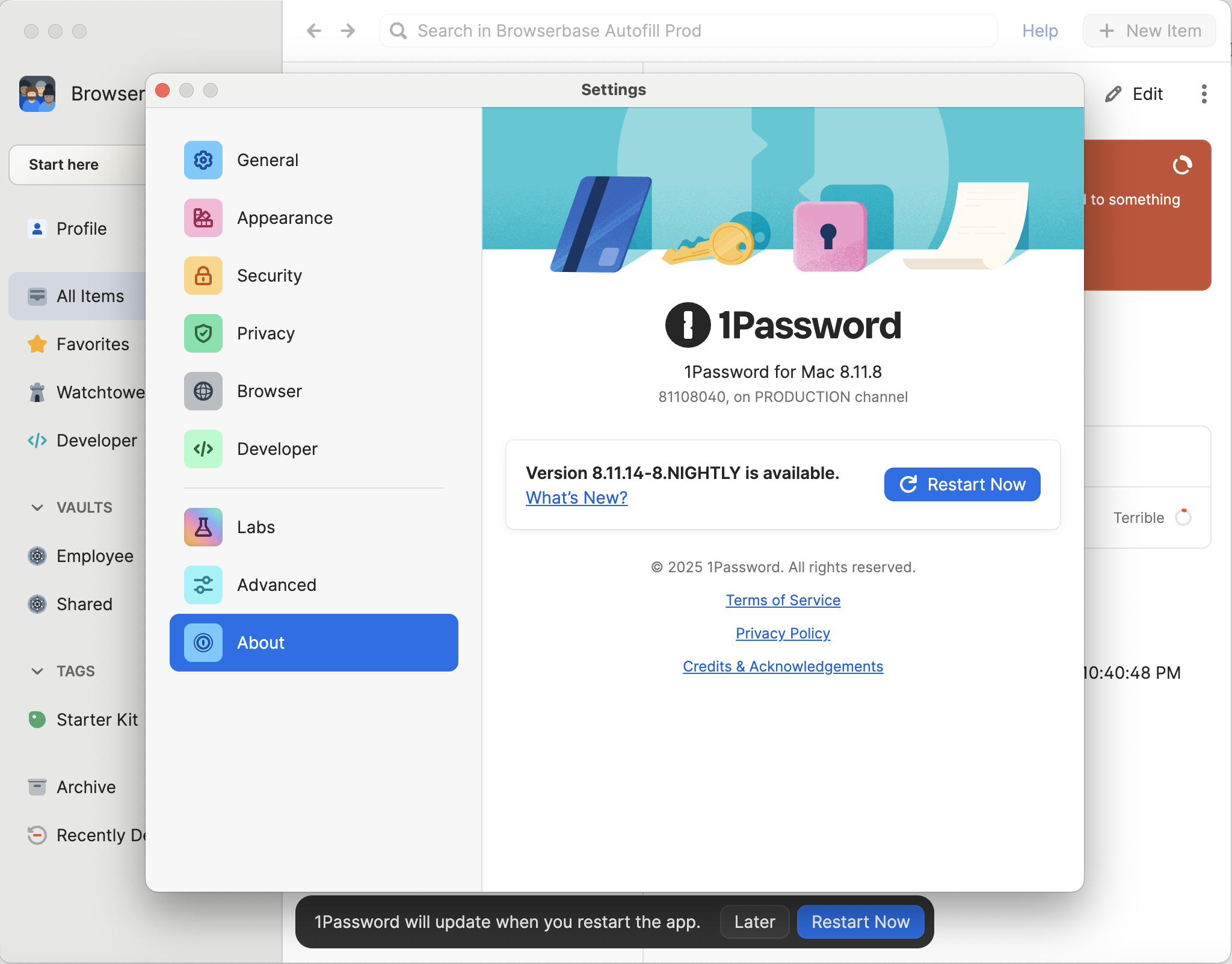 If the app still shows the stable channel after restarting, re-open Settings and confirm **Nightly** is selected, then check for updates again.
***
### 3. Add login credentials for testing
Add test credentials for saucedemo.com as an example.
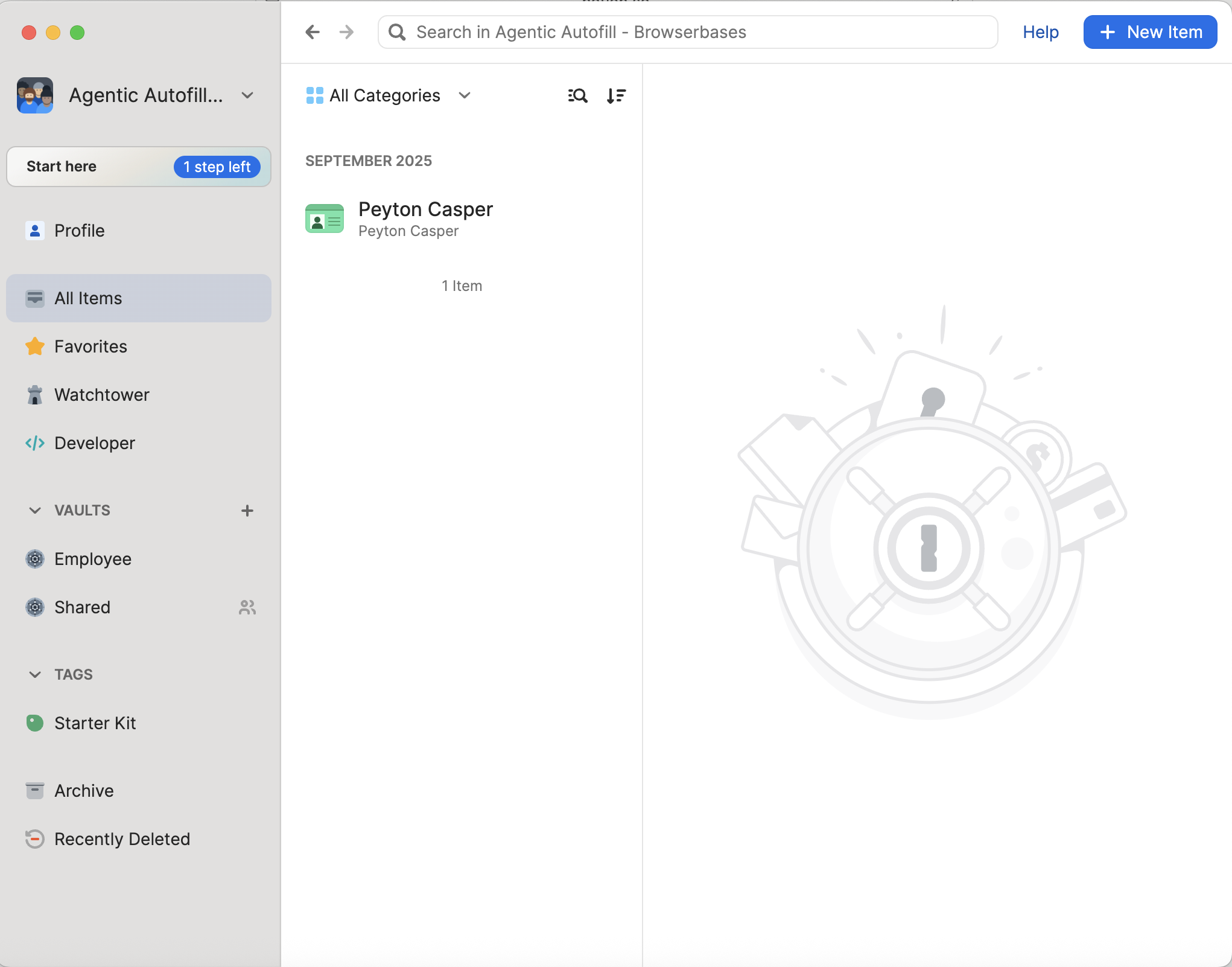
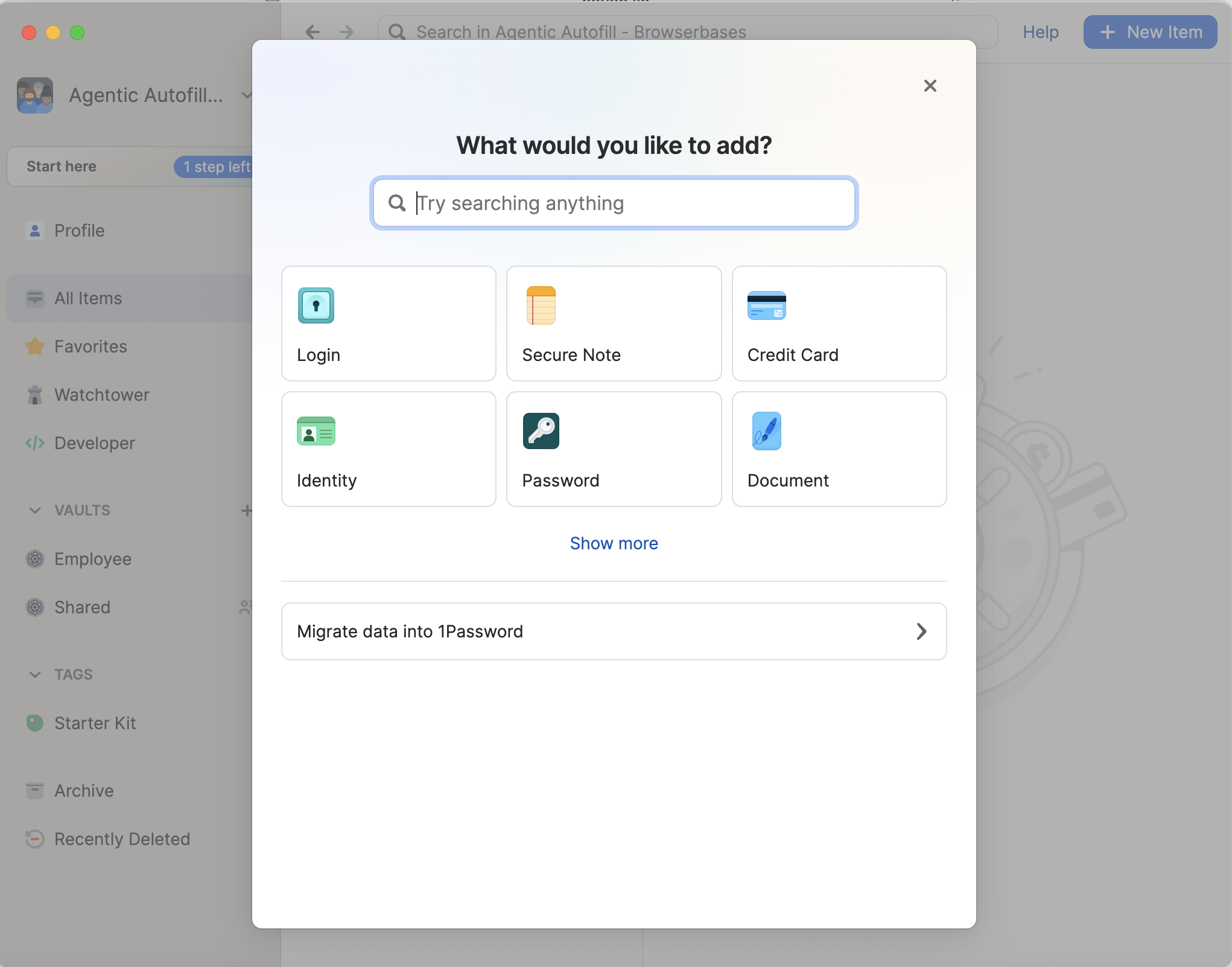
Click the **+ New Item** button in the upper-right and choose **Login**:
If the app still shows the stable channel after restarting, re-open Settings and confirm **Nightly** is selected, then check for updates again.
***
### 3. Add login credentials for testing
Add test credentials for saucedemo.com as an example.
Click the **+ New Item** button in the upper-right and choose **Login**:
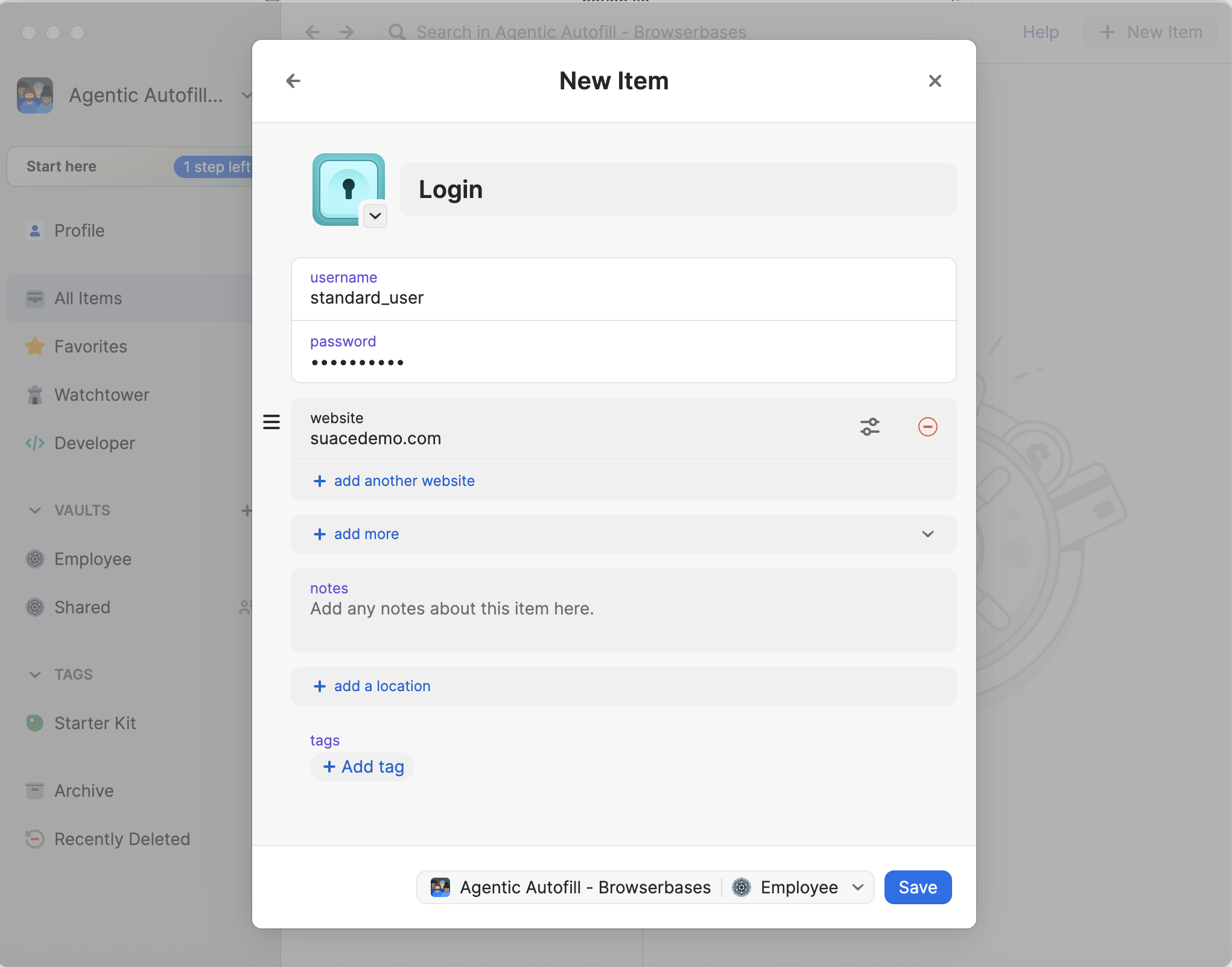
 Enter the following details:
* **Username**: `standard_user`
* **Password**: `secret_sauce`
* **Website**: `saucedemo.com`
Enter the following details:
* **Username**: `standard_user`
* **Password**: `secret_sauce`
* **Website**: `saucedemo.com`
 Click **Save**:
 You can add any website credentials you want to use with [Director](https://director.ai). This example uses saucedemo.com for testing.
***
### 4. Install 1Password Nightly browser extension
Visit the [Chrome Web Store](https://chromewebstore.google.com/detail/1password-nightly-–-passw/gejiddohjgogedgjnonbofjigllpkmbf?hl=en) and click **Add to Chrome** to install the **1Password Nightly** extension.
Follow the prompts to complete the installation.
***
### 5. Connect Director with 1Password
Go to [Director.ai](https://director.ai) and sign in with your **Browserbase account** in the upper-right:
You can add any website credentials you want to use with [Director](https://director.ai). This example uses saucedemo.com for testing.
***
### 4. Install 1Password Nightly browser extension
Visit the [Chrome Web Store](https://chromewebstore.google.com/detail/1password-nightly-–-passw/gejiddohjgogedgjnonbofjigllpkmbf?hl=en) and click **Add to Chrome** to install the **1Password Nightly** extension.
Follow the prompts to complete the installation.
***
### 5. Connect Director with 1Password
Go to [Director.ai](https://director.ai) and sign in with your **Browserbase account** in the upper-right:
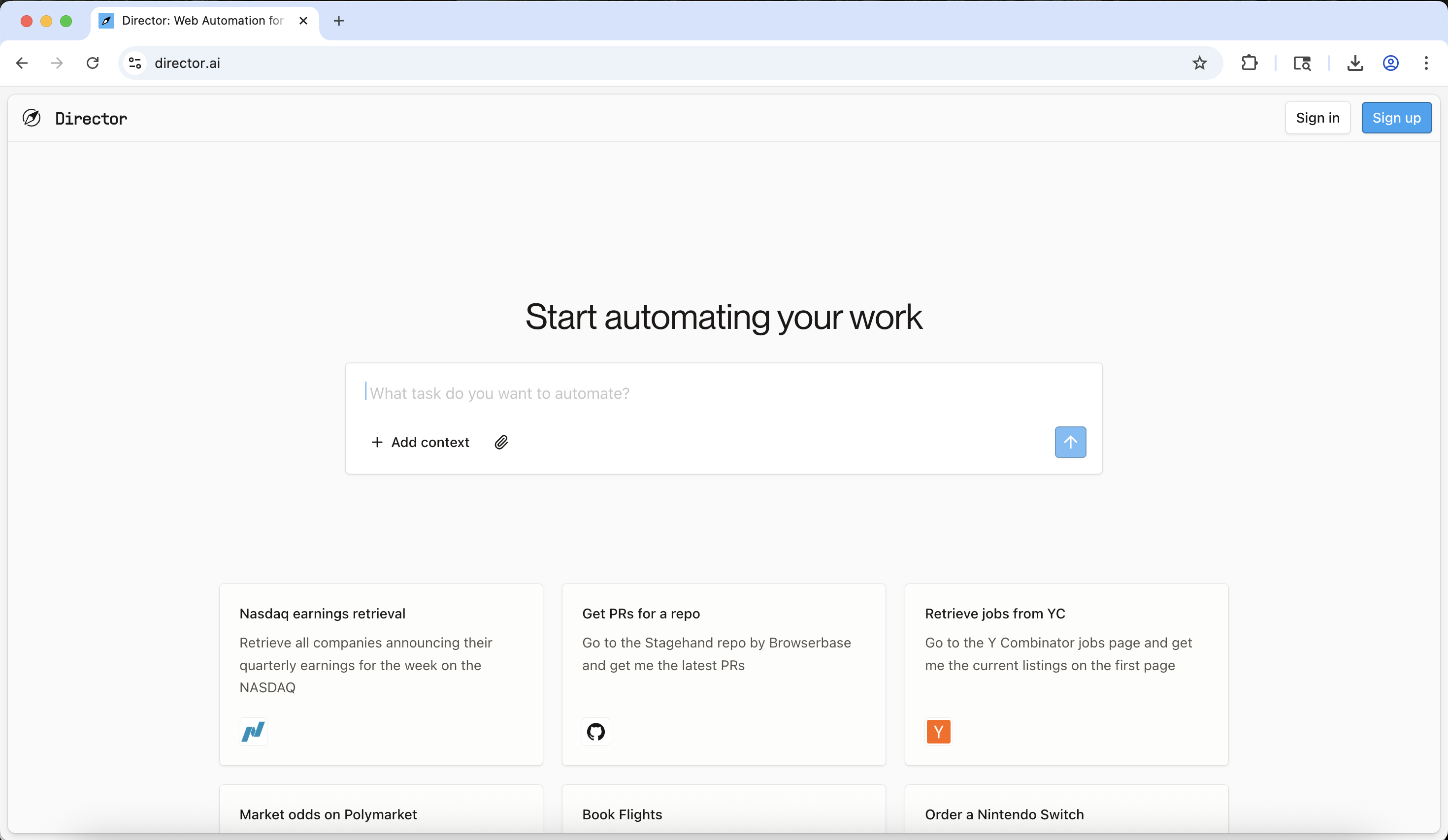 Click "Connect with 1Password":
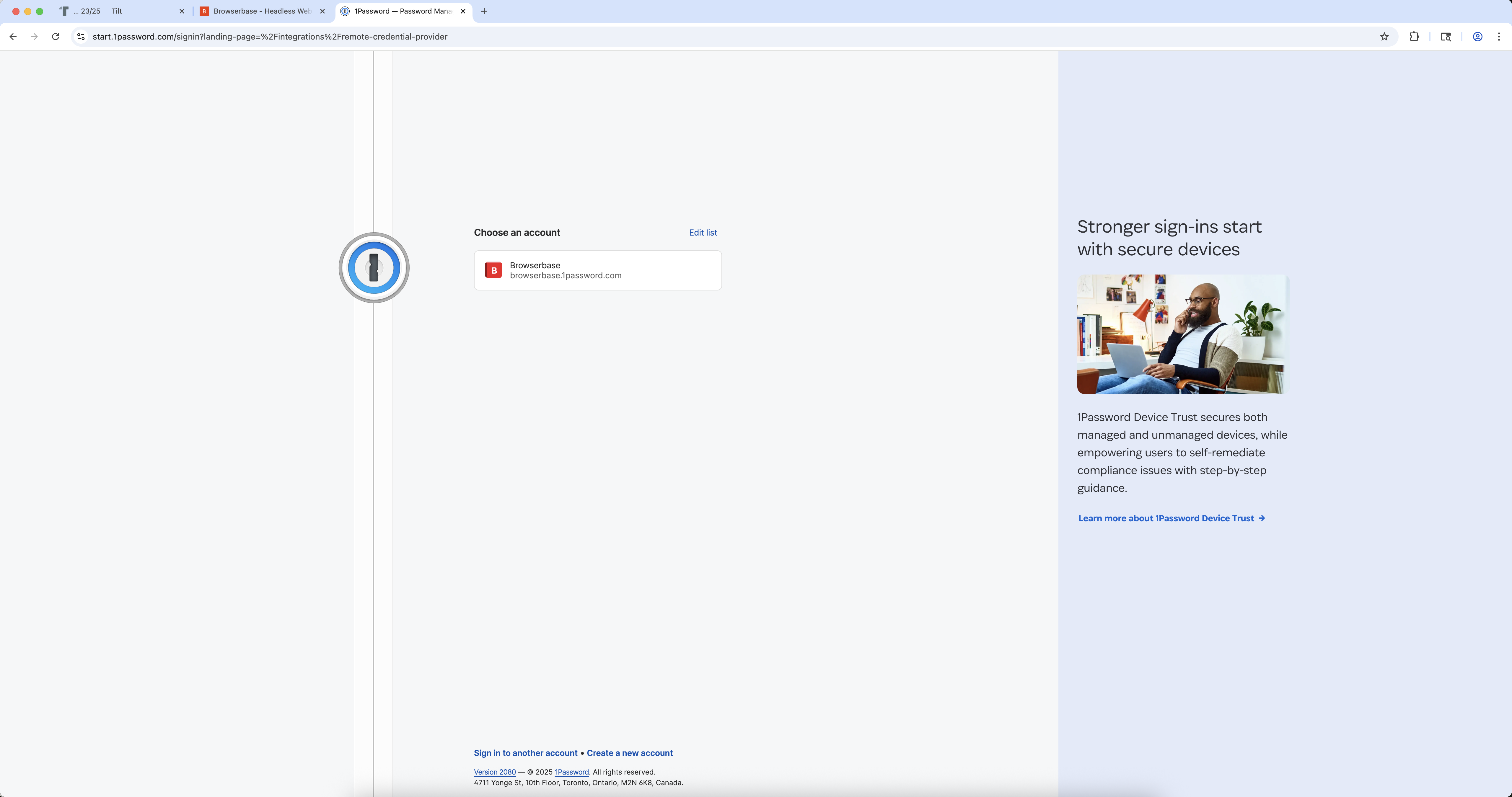
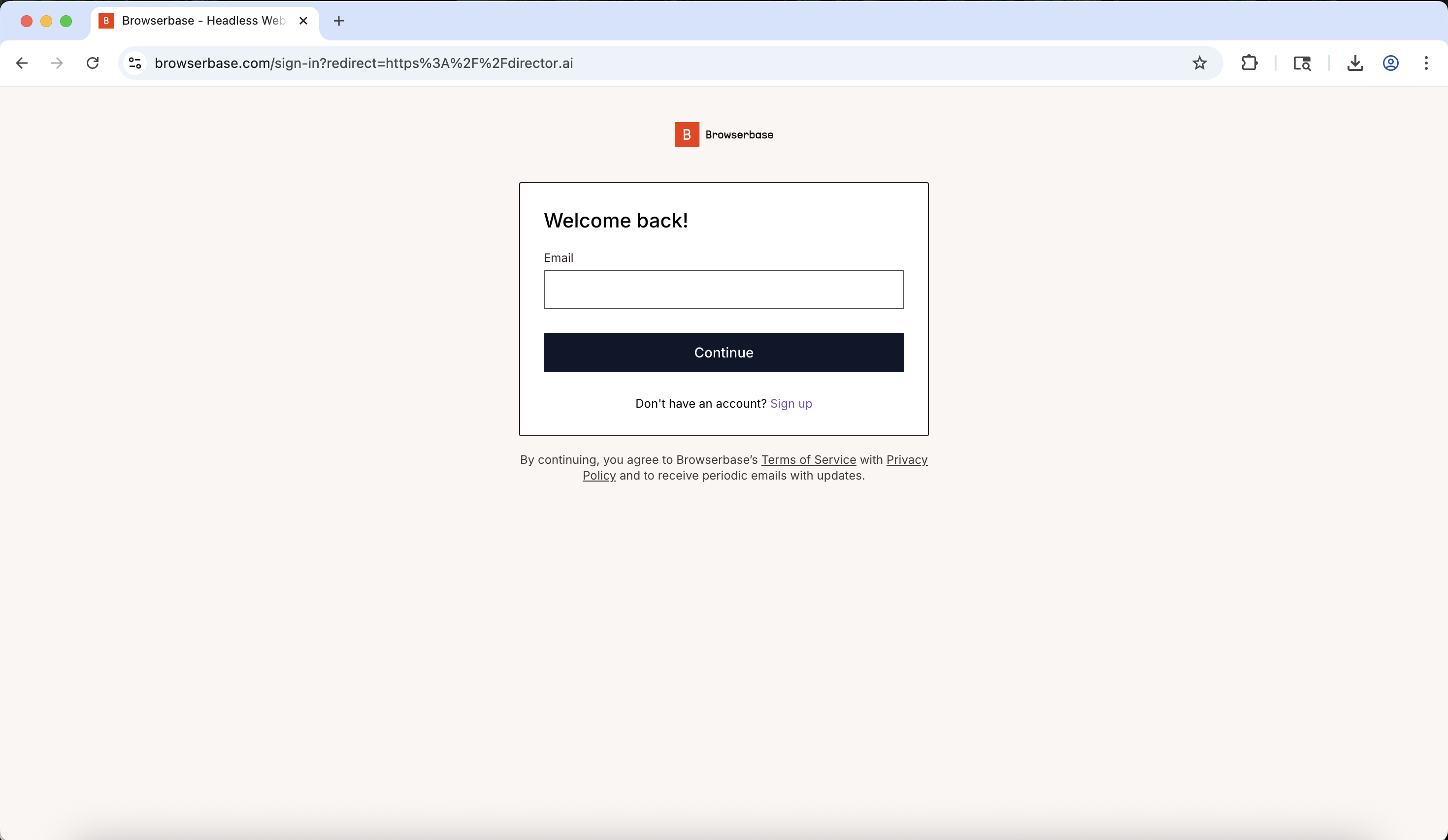 Follow the prompt to **Login with 1Password**. You should return to director.ai with the integration enabled:
 ***
### 6. Try it out
In the Director prompt, type:
```
Navigate to saucedemo.com and login with 1Password
```
Wait for Director to navigate to the site (\~10 seconds). Director will click **Login with 1Password**:
***
### 6. Try it out
In the Director prompt, type:
```
Navigate to saucedemo.com and login with 1Password
```
Wait for Director to navigate to the site (\~10 seconds). Director will click **Login with 1Password**:
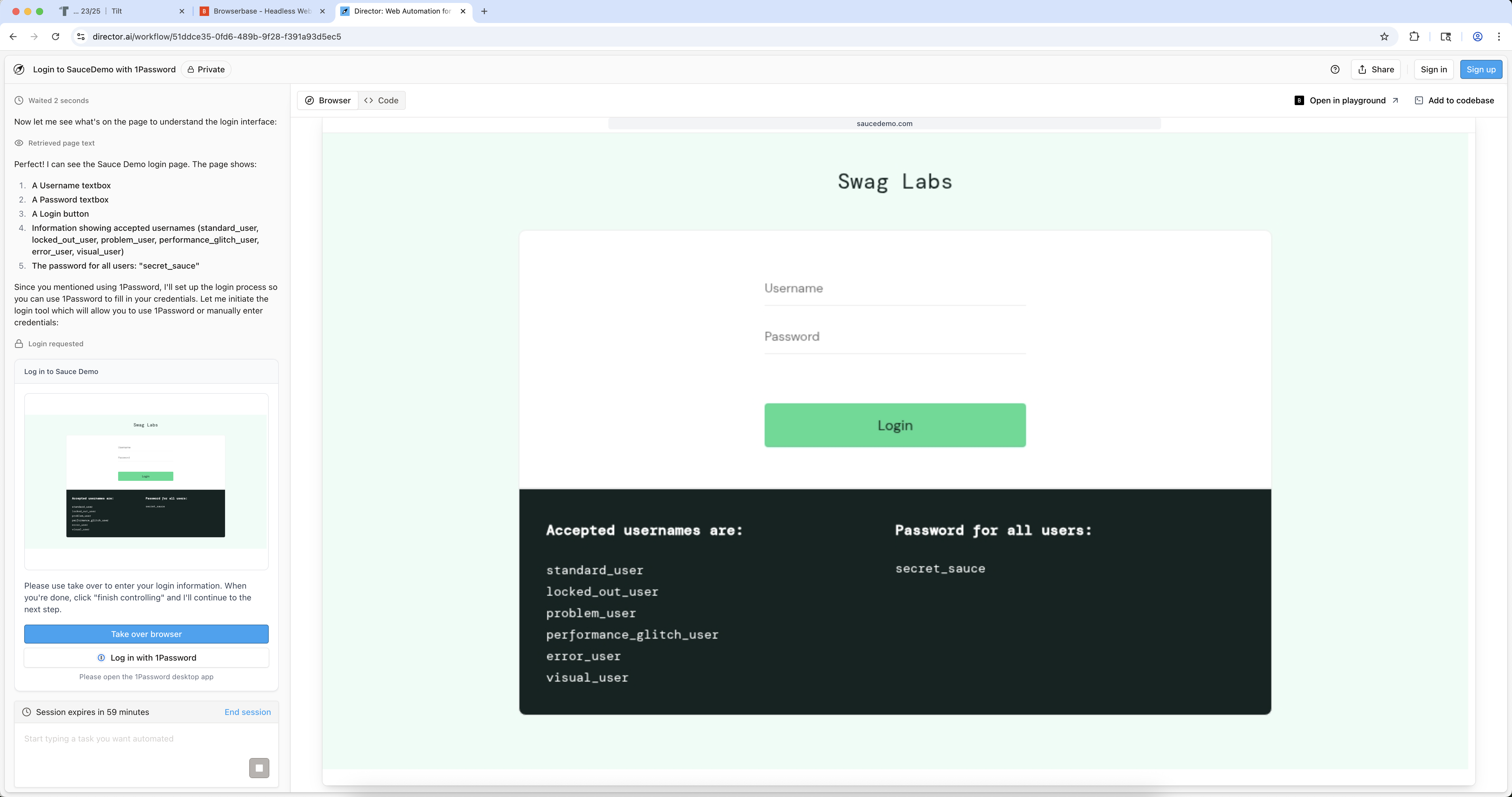 You should see a credential selection prompt:
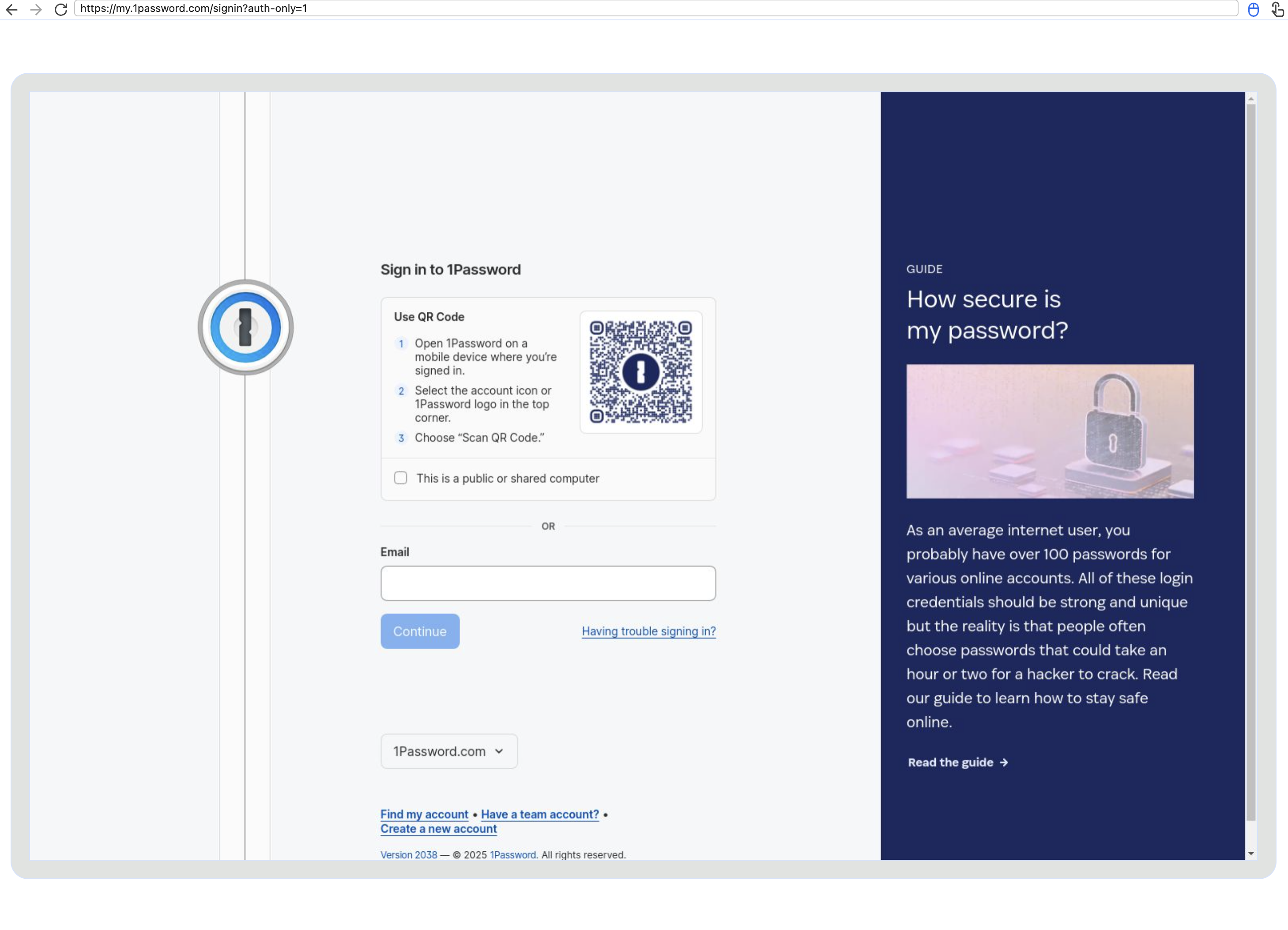 Select your **saucedemo.com** credentials from the prompt. Director will automatically fill in the username and password, and the login should complete successfully:
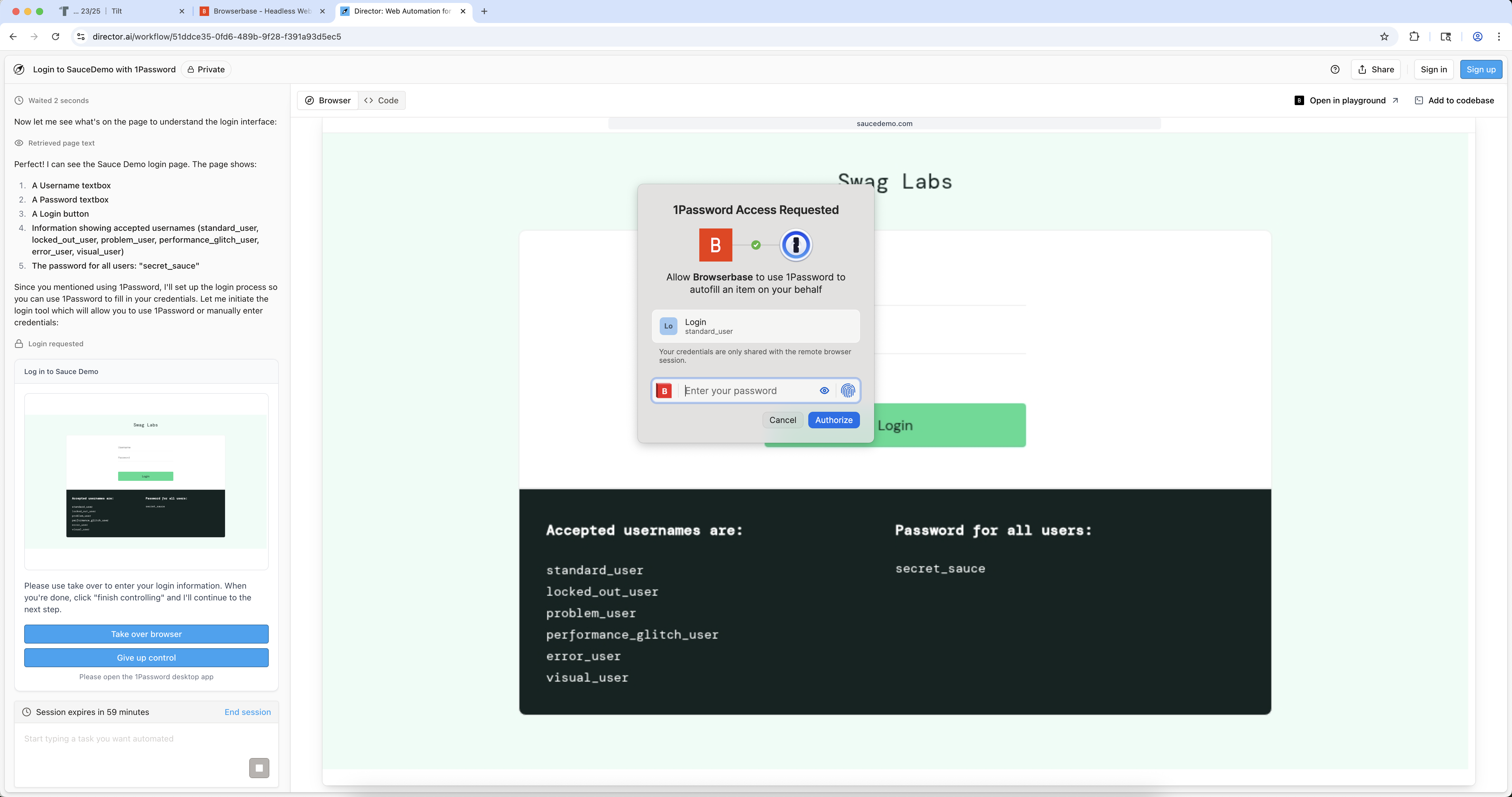 Congratulations! You've successfully set up 1Password Nightly Autofill with Director.
***
## Troubleshooting
* Verify you installed the **1Password Nightly** extension (not the stable version)
* Ensure the extension is enabled in Chrome at `chrome://extensions`
* Confirm you're signed in to Director with your Browserbase account
* Refresh the Director page and try enabling the integration again
* Verify the login item exists in your 1Password vault
* Ensure the website field matches the site you're trying to access
* Check that Agentic permissions are enabled in your account policies
* Re-open 1Password Settings
* Confirm **Nightly** is selected in the Release channel dropdown
* Manually check for updates again
***
## Next steps
Learn how to programmatically access 1Password credentials using the SDK
Use contexts to maintain authenticated sessions across workflows
Congratulations! You've successfully set up 1Password Nightly Autofill with Director.
***
## Troubleshooting
* Verify you installed the **1Password Nightly** extension (not the stable version)
* Ensure the extension is enabled in Chrome at `chrome://extensions`
* Confirm you're signed in to Director with your Browserbase account
* Refresh the Director page and try enabling the integration again
* Verify the login item exists in your 1Password vault
* Ensure the website field matches the site you're trying to access
* Check that Agentic permissions are enabled in your account policies
* Re-open 1Password Settings
* Confirm **Nightly** is selected in the Release channel dropdown
* Manually check for updates again
***
## Next steps
Learn how to programmatically access 1Password credentials using the SDK
Use contexts to maintain authenticated sessions across workflows